There’s nothing quite as frustrating as an HP laptop that feels like a portable furnace, is it? We’ve all been there – pushing our beloved machines to their limits, only for them to get uncomfortably hot, slow down, and sound like a jet engine. But what if I told you that keeping your HP laptop cool isn’t just about comfort, but about maximizing its performance and extending its lifespan? As a thermal engineer with over a decade in the trenches of laptop cooling design, I’ve seen firsthand how crucial effective heat management is, especially for HP laptops that often combine sleek designs with powerful components. This guide will walk you through everything you need to know about “hp laptop cooler” solutions, from clever external devices to essential internal tweaks, ensuring your HP stays frosty and performs at its peak.
Why Does Your HP Laptop Get Hot? Understanding the Heat Equation
Every component inside your HP laptop generates heat, particularly the CPU (Central Processing Unit) and GPU (Graphics Processing Unit) when they’re working hard. This heat needs to dissipate, or it can lead to thermal throttling – where your laptop intentionally slows down to prevent damage. Think of it like an athlete needing to cool down to avoid injury. Common culprits for excessive heat include accumulated dust blocking airflow, thermal paste that has dried out over time, and simply using your laptop on soft, non-breathable surfaces that restrict ventilation.
HP CoolSense: Your Laptop’s Built-in Thermal Manager
Did you know many HP laptops come with a smart feature designed to help manage heat? It’s called HP CoolSense Technology. This ingenious system uses a motion sensor to detect whether your laptop is stationary or on the move. Based on its assessment, it intelligently adjusts your laptop’s performance and fan speed to maintain a comfortable surface temperature. It’s like having a tiny, proactive climate control system just for your HP.
To make the most of it, simply search for “HP CoolSense” in Windows and open the application. You can usually toggle it “On” or “Off.” When “On,” the system automatically optimizes cooling. Remember, this feature relies on specific hardware, so it might not be available on all HP models, but it’s a fantastic first line of defense for compatible devices.
Choosing the Right HP Laptop Cooler: External Solutions Explained
While HP CoolSense handles internal adjustments, external cooling solutions, like an “hp laptop cooler” pad or stand, are your best friends for giving your system an extra boost, especially during demanding tasks or in warmer environments.
Cooling Pads: The Workhorses of Laptop Cooling
|
Our Picks for the Best Laptop Cooler in 2026
As an Amazon Associate I earn from qualifying purchases.
|
||
| Num | Product | Action |
|---|---|---|
| 1 | AICHESON Laptop Cooling Pad 5 Fans Up to 17.3 Inch Heavy Notebook Cooler, Blue LED Lights, 2 USB Ports, S035, Blue-5fans |

|
| 2 | llano V12 RGB Laptop Cooling Pad, Gaming Laptop Cooler with 5.5 Inch Powerful Turbofan, Fast Cooling Laptop 15.6-21in, Adjustable Speed, Touch Control, LCD Screen, Black (RGB) |
|
| 3 | Kootek Laptop Cooling Pad, Laptop Cooler with 5 Quiet Fans for 12\"-17\" Computer PC Notebook Gaming Laptop Fan, Height Adjustable Laptop Cooling Stand Laptop Accessories, Blue |
|
| 4 | Laptop Cooling Pad, Laptop Cooler 6 Quiet Fans for 12\"-17\" Laptops, Gaming Laptop Fan Cooling Pad with 5 Height Adjustable, Slim Portable USB Powered, 2 USB Ports & Phone Holder |
|
| 5 | llano V12 Laptop Cooling Pad, Gaming Laptop Cooler Stand with 5.5inch Powerful Turbo Fan, Adjustable Speed, Touch Control, 3-Port USB A, for Fast Cooling Laptop 15.6-19in, Black (No RGB) |
|
| 6 | Laptop Cooling Pad, Gaming Laptop Cooler for 13-19 Inch Laptops, RGB Lights Laptop Fan Cooling Pad with 3 Height Adjustable and 3 USB Ports, 4.72 Inch Large Turbo Fan, Max 3500RPM |
|
| 7 | ChillCore Laptop Cooling Pad, RGB Lights Laptop Cooler 9 Fans for 15.6-19.3 Inch Laptops, Gaming Laptop Fan Cooling Pad with 8 Height Stands, 2 USB Ports - A21 Blue |
|
| 8 | Razer Laptop Cooling Pad: Adaptive Smart - Intelligent Fan Control - Airtight Pressure Chamber - Fits Most Laptops & Macbooks 14” to 18\" - Preset & Custom Fan Curves - 3 Port USB Type A - Chroma RGB |
|
| 9 | KeiBn Laptop Cooling Pad, Gaming Laptop Cooler 2 Fans for 10-15.6 Inch Laptops, 5 Height Stands, 2 USB Ports (S039) |
|
| 10 | havit HV-F2056 15.6\"-17\" Laptop Cooler Cooling Pad - Slim Portable USB Powered (3 Fans), Black/Blue |
|
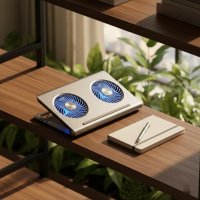
Cooling pads are by far the most popular external cooling solution. These devices sit underneath your laptop, using built-in fans to push cool air towards your laptop’s intake vents or pull hot air away.
- For the Everyday HP User: If you use your HP laptop for daily tasks like browsing, word processing, or streaming, a standard “hp laptop cooler” with one or two fans is usually sufficient. Look for quiet operation and a good balance of airflow.
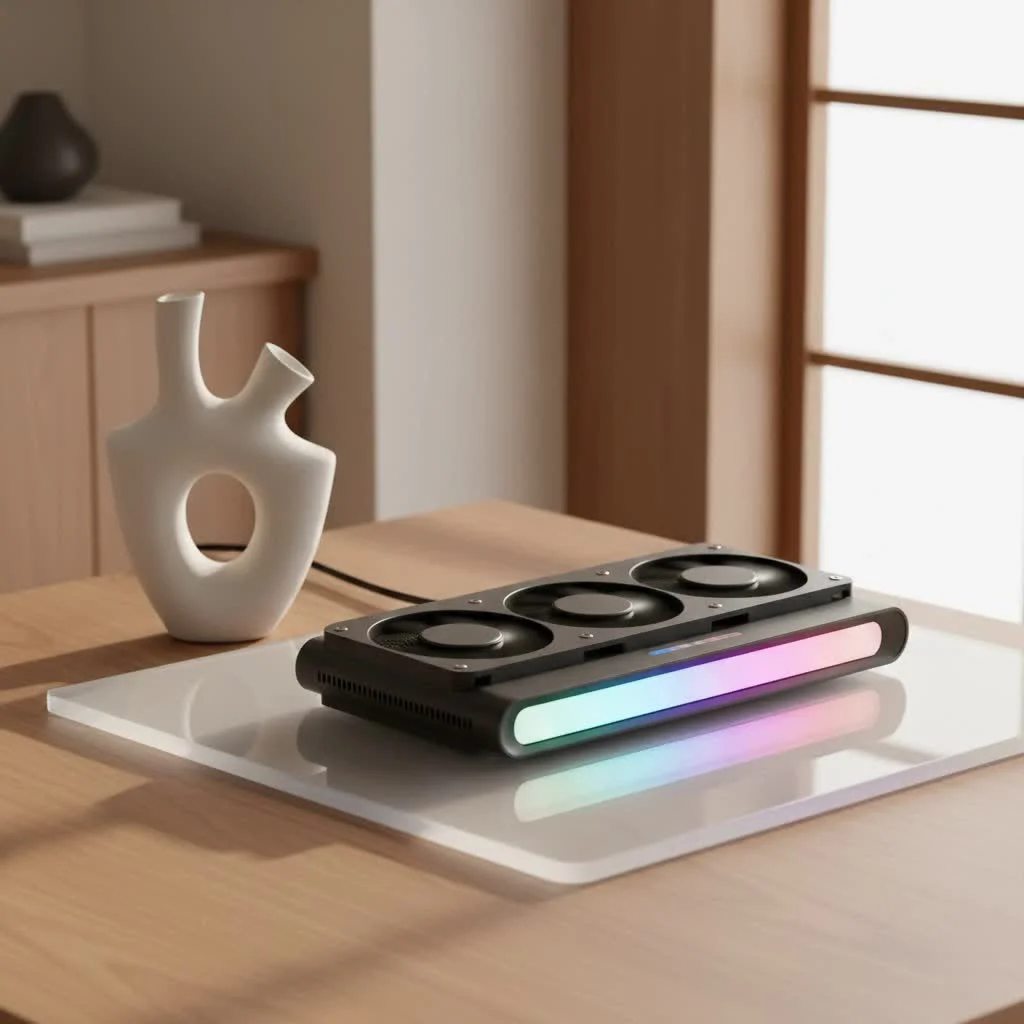
- For the HP Gaming Enthusiast (Omen, Victus Series): If you own an HP Omen or Victus gaming laptop, you’re pushing serious power, which means serious heat. Gaming-focused cooling pads are designed for you. These often feature powerful turbofans (sometimes with RPMs exceeding 3000), RGB lighting to match your rig’s aesthetic, and sealed chamber designs that precisely direct airflow to critical components. For an HP Victus 15, for example, a multi-fan design that aligns well with its intake vents can make a significant difference.
Beyond Pads: Cooling Stands and Exhaust Fans
Beyond traditional cooling pads, other solutions offer specific benefits:
- Cooling Stands: Even a simple laptop stand that elevates your HP can dramatically improve airflow by creating space underneath. Some stands integrate fans for a combined effect. They’re great for ergonomics too!
- Exhaust Fans (Vacuum Coolers): These compact devices attach to your HP laptop’s exhaust vents and actively pull hot air out. They can be quite effective for targeted cooling, though some users find them a bit noisy.
Top Cooling Pad Features to Consider for Your HP Laptop
When selecting an “hp laptop cooler,” think about these key features to ensure you get the best fit for your machine and usage:
- Fan Configuration & Placement: This is crucial. Ensure the cooling pad’s fans align with your HP laptop’s intake vents. More fans can offer more even cooling, while larger turbo fans provide stronger, focused airflow.
- Adjustable Fan Speed & Noise Levels: The ability to control fan speed lets you balance cooling performance with noise. For professional environments, a quieter pad is paramount, while gamers might prioritize maximum cooling.
- Ergonomics & Portability: Many cooling pads double as ergonomic stands, offering multiple height adjustments. If you travel, look for a lightweight, slim “hp laptop cooler.”
- Additional Features: Built-in USB hubs are a huge plus, as many cooling pads use a USB port for power. RGB lighting might appeal to gamers.
- Material: Cooling pads made with aluminum can help dissipate heat passively even without the fans running, offering an extra layer of cooling.
“Choosing the right cooling solution for your HP laptop is like selecting the perfect tires for a performance car,” says Dr. Anya Sharma, Lead Thermal Architect at Tselk.com. “It needs to match the machine’s demands and your environment for optimal results and longevity.”
Maximizing Your HP Laptop’s Cooling: Essential Maintenance & Software Tips
An external “hp laptop cooler” is a powerful tool, but true thermal mastery involves a holistic approach. Don’t overlook these vital maintenance and software tips:
The Importance of Regular Cleaning
Dust is the arch-nemesis of laptop cooling. It clogs vents, coats fans, and acts as an insulating blanket on heatsinks, trapping heat inside your HP.
- Vents and Fans: Regularly use compressed air to blow dust out of your laptop’s external vents. Do this often, especially if you live in a dusty environment or have pets.
- Internal Cleaning: For older or consistently hot HP laptops, a professional internal cleaning can work wonders. This involves opening the laptop to clear dust from the heatsink fins and fan blades – a task best left to those comfortable with laptop disassembly.
Revitalizing with New Thermal Paste
Over time, the thermal paste that sits between your HP laptop’s CPU/GPU and its heatsink can dry out and lose effectiveness. This creates a barrier to heat transfer.
- When to Consider It: If your HP laptop is several years old and suddenly running much hotter, especially under load, dried thermal paste is a strong suspect.
- What It Does: Replacing old thermal paste with a fresh, high-quality compound (like Arctic MX-4 or Arctic Silver 5) can significantly improve heat transfer, bringing temperatures down. This is an advanced maintenance task, often best performed by a skilled technician.
Optimize Your Environment & Settings
Simple habits can make a big difference for your “hp laptop cooler” efforts:
- Surface Matters: Always place your HP laptop on a flat, hard, and breathable surface. Avoid soft surfaces like beds, blankets, or carpets, as they block airflow and can cause rapid overheating. A laptop stand or an “hp laptop cooler” pad naturally addresses this.
- Adjusting Windows Power Settings: Beyond HP CoolSense, you can fine-tune Windows power settings. In “Power Options,” selecting a “Power Saver” plan and setting the “system cooling policy” to “passive” when on battery can reduce strain on the fans, keeping things cooler and quieter.
- BIOS Settings: Some advanced HP users might find thermal control options within their laptop’s BIOS/UEFI settings. Consult your specific HP model’s documentation before making changes here.
- SSD Upgrade: If your HP laptop still uses a traditional Hard Disk Drive (HDD), upgrading to a Solid State Drive (SSD) can also contribute to lower operating temperatures, as SSDs generate less heat.
Frequently Asked Questions about HP Laptop Coolers
Q: Do HP laptop coolers really work?
A: Yes, absolutely! An effective “hp laptop cooler” can significantly lower your laptop’s operating temperatures, prevent thermal throttling, enhance performance, and extend the lifespan of your components by reducing heat-induced stress.
Q: How do I know if my HP laptop needs a cooler?
A: Common signs include your laptop feeling hot to the touch, fans constantly running loudly, noticeable performance slowdowns during demanding tasks, or unexpected shutdowns. If you experience these, an “hp laptop cooler” could be a great solution.
Q: Can a cooling pad damage my HP laptop?
A: When chosen correctly and used properly, a cooling pad will not damage your HP laptop. In fact, it protects it from heat damage. Ensure the pad’s fans align with your laptop’s vents and that it’s stable. Avoid poorly designed pads that might force dust inward or have unstable designs.
Q: What’s the best way to clean my HP laptop for better cooling?
A: Start by using compressed air to clear dust from external vents. For a deeper clean, especially if your laptop is older, consider having a professional open it up to clean internal fans and heatsinks and potentially replace the thermal paste.
Q: Should I use HP CoolSense with an external cooler?
A: You can use both! HP CoolSense manages internal fan speeds and performance, while an external “hp laptop cooler” provides additional airflow. They work synergistically to provide comprehensive thermal management. Keep CoolSense on its default “On” setting while using your external cooler for optimal results.
Stay Cool, Stay Productive with Your HP Laptop!
Keeping your HP laptop running cool is not a luxury; it’s a necessity for optimal performance and longevity. By understanding the causes of overheating, leveraging built-in features like HP CoolSense, selecting the right “hp laptop cooler” for your needs, and performing regular maintenance, you empower your machine to deliver its best, day in and day out. Don’t let heat slow you down – take charge of your HP’s thermal health and enjoy a smoother, faster, and more reliable computing experience. What cooling solutions have you found most effective for your HP laptop? Share your experiences and help our community stay cool!
Get our weekly buyer guide
Practical specs, not advice. Unsubscribe anytime.