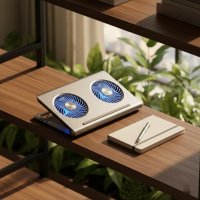
It’s no secret that Apple’s MacBook Pro models are powerhouses, beautifully engineered for creativity and productivity. Yet, even the most robust machines can break a sweat when pushed to their limits. If you’ve ever felt your MacBook Pro grow warm or heard its fans whirring intensely during a heavy workload, you’re not alone. Many users, especially those engaged in demanding tasks like video editing, graphic design, or intensive coding, often wonder if a laptop cooler for MacBook Pro is the missing piece to maintaining peak performance and longevity.
At Tselk.com, we understand the nuances of laptop thermal management. While MacBook Pros are marvels of engineering, their sleek, thin designs can sometimes present thermal challenges. This guide will dive deep into why your MacBook Pro might be heating up, whether a dedicated laptop cooler is truly necessary, and what solutions can genuinely make a difference. Let’s keep your MacBook Pro cool, calm, and performing at its best.
Understanding Your MacBook Pro’s Unique Thermal Design
Before we talk about external cooling, it’s essential to understand how your MacBook Pro handles heat internally. Unlike many Windows laptops with visible bottom vents, MacBooks typically draw cool air through tiny gaps, often around the keyboard, and expel hot air from vents located near the hinge or along the back edge of the display. This design prioritizes aesthetics and a quiet user experience, but it can sometimes lead to heat buildup when components are under sustained load.
When your MacBook Pro’s internal temperature rises too high, a protective mechanism called “thermal throttling” kicks in. Essentially, the system reduces the processor’s speed (and sometimes the GPU’s) to prevent damage from overheating. While this protects your hardware, it also means a noticeable drop in performance, slowing down your workflow and extending render times. This is precisely why many users look for an effective laptop cooler for MacBook Pro.
Do You Really Need a Laptop Cooler for Your MacBook Pro? The Big Debate
This is a question I hear all the time. The answer isn’t a simple yes or no; it depends heavily on your usage and your MacBook Pro model.
Some argue that traditional fan-based cooling pads are ineffective for MacBooks because they don’t have bottom vents. They claim the fans simply blow air against a solid aluminum chassis. While it’s true that a cooling pad won’t directly force air into your MacBook’s internal cooling system in the same way it might for a laptop with bottom intake vents, that doesn’t mean a laptop cooler for MacBook Pro is useless.
Here’s where they do help:
- Improving Ambient Airflow: Even if fans aren’t directly pushing air into vents, they create a flow of cooler air around the entire aluminum chassis. Aluminum is an excellent heat conductor, and dissipating heat from its surface helps cool the internal components indirectly.
- Heat Isolation: Using your MacBook Pro on soft surfaces like a lap, bed, or couch can block the exhaust vents and trap heat. A cooling pad elevates the laptop, ensuring proper ventilation and preventing heat transfer to your body or furniture.
- Targeting Specific Hot Spots: While not directly venting, some powerful cooling pads can lower the overall temperature of the bottom casing, which can still contribute to a cooler operating environment for internal components, especially if you have an Intel-based MacBook Pro with a discrete GPU.
So, while not a magic bullet, a well-chosen laptop cooler for MacBook Pro can absolutely contribute to a cooler, more stable system, particularly for users experiencing frequent thermal throttling.
Types of MacBook Pro Cooling Solutions
Let’s explore the various options available, from the simplest to the most advanced.
1. Elevated Stands and Risers (Passive Cooling)
|
Our Picks for the Best Laptop Cooler in 2026
As an Amazon Associate I earn from qualifying purchases.
|
||
| Num | Product | Action |
|---|---|---|
| 1 | Razer Laptop Cooling Pad: Adaptive Smart - Intelligent Fan Control - Airtight Pressure Chamber - Fits Most Laptops & Macbooks 14” to 18\" - Preset & Custom Fan Curves - 3 Port USB Type A - Chroma RGB |

|
| 2 | llano V12 Laptop Cooling Pad, Gaming Laptop Cooler Stand with 5.5inch Powerful Turbo Fan, Adjustable Speed, Touch Control, 3-Port USB A, for Fast Cooling Laptop 15.6-19in, Black (No RGB) |
|
| 3 | llano V12 RGB Laptop Cooling Pad, Gaming Laptop Cooler with 5.5 Inch Powerful Turbofan, Fast Cooling Laptop 15.6-21in, Adjustable Speed, Touch Control, LCD Screen, Black (RGB) |
|
| 4 | Laptop Cooling Pad, Gaming Laptop Cooler for 13-19 Inch Laptops, RGB Lights Laptop Fan Cooling Pad with 3 Height Adjustable and 3 USB Ports, 4.72 Inch Large Turbo Fan, Max 3500RPM |
|
| 5 | AICHESON Laptop Cooling Pad 5 Fans Up to 17.3 Inch Heavy Notebook Cooler, Blue LED Lights, 2 USB Ports, S035, Blue-5fans |
|
| 6 | Laptop Cooling Pad, Laptop Cooler 6 Quiet Fans for 12\"-17\" Laptops, Gaming Laptop Fan Cooling Pad with 5 Height Adjustable, Slim Portable USB Powered, 2 USB Ports & Phone Holder |
|
| 7 | ChillCore Laptop Cooling Pad, RGB Lights Laptop Cooler 9 Fans for 15.6-19.3 Inch Laptops, Gaming Laptop Fan Cooling Pad with 8 Height Stands, 2 USB Ports - A21 Blue |
|
| 8 | Kootek Laptop Cooling Pad, Laptop Cooler with 5 Quiet Fans for 12\"-17\" Computer PC Notebook Gaming Laptop Fan, Height Adjustable Laptop Cooling Stand Laptop Accessories, Blue |
|
| 9 | KeiBn Laptop Cooling Pad, Gaming Laptop Cooler 2 Fans for 10-15.6 Inch Laptops, 5 Height Stands, 2 USB Ports (S039) |
|
| 10 | havit HV-F2056 15.6\"-17\" Laptop Cooler Cooling Pad - Slim Portable USB Powered (3 Fans), Black/Blue |
|
Sometimes, the simplest solutions are the most effective. An elevated stand or riser lifts your MacBook Pro off your desk, creating a crucial air gap underneath. This simple act dramatically improves natural convection, allowing hot air to dissipate more easily and fresh, cooler air to circulate around the device. Many users find this alone is enough to significantly mitigate mild overheating issues. Plus, they often offer ergonomic benefits, raising the screen to a more comfortable viewing height.
2. Fan-Assisted Cooling Pads
These are what most people think of when they hear “laptop cooler for MacBook Pro.” While their direct impact on internal airflow is debated, they excel at improving ambient cooling and heat isolation.
- How They Work: Multiple fans generate a steady flow of air that moves heat away from the MacBook Pro’s aluminum base. This keeps the external casing cooler, which in turn helps the internal components stay within more optimal temperature ranges.
- Features to Look For:
- Fan Configuration: Look for pads with larger, quieter fans, or multiple smaller fans for broader coverage.
- Adjustable Height: This is key for ergonomics and optimizing the angle for airflow.
- USB Hubs: Some pads include extra USB ports, which can be handy as MacBook Pros often have limited port options.
- Build Material: Metal mesh surfaces enhance heat dissipation.
- Noise Levels: A quiet operation is paramount for a peaceful workspace.
- Examples: Brands like Targus (e.g., Chill Mat), Kootek, Lamicall, and Havit offer popular fan-assisted cooling pads that are widely used by MacBook Pro owners.
3. Specialized Passive Cooling Docks and Stands
For those seeking premium, high-performance passive cooling, specialized metal stands offer a unique approach. Brands like SVALT create robust, solid aluminum or wood-and-aluminum docks that act as giant heatsinks. When a MacBook Pro is placed in one of these stands, the large metal surface draws heat away from the MacBook’s chassis through conduction. This method is incredibly effective for sustained heavy loads, often seen in professional creative environments, providing calm and enduring power without distracting fan noise.
4. Magnetic Cooling Solutions
A more minimalist take on the cooling pad, these solutions typically involve small, magnetic stands that attach to the underside of your MacBook Pro. They lift the laptop slightly, creating a gap for natural airflow without the bulk or power requirements of a fan. The Xiaomi Hagibis magnetic cooling pad is an example of this elegant and portable design. These are great for light to moderate users or for travel where portability is key.
Choosing the Right Cooling Solution for Your MacBook Pro
Selecting the best laptop cooler for MacBook Pro depends on several factors:
- Your Usage Habits:
- Light Use (browsing, documents): An elevated stand or magnetic riser is likely sufficient.
- Moderate Use (streaming, light editing): A basic fan-assisted cooling pad can provide extra comfort and peace of mind.
- Heavy Use (4K video editing, gaming, CAD): A more robust fan-assisted pad or a specialized passive cooling dock will offer the most benefit to combat thermal throttling.
- Portability: If you travel frequently, a slim, lightweight fan pad (like the Havit HV-F2056) or magnetic risers are ideal. For a stationary workstation, larger, more powerful solutions are feasible.
- Budget: Simple stands are inexpensive, fan pads vary widely, and specialized docks can be a significant investment.
- MacBook Pro Model: Older Intel-based 15-inch and 16-inch MacBook Pros, particularly those with discrete GPUs, tend to benefit more from external cooling due to their higher heat output and propensity for thermal throttling compared to some of the newer Apple Silicon (M1/M2) models. However, even M-series chips can throttle under extreme, sustained loads, making cooling beneficial for heavy users.
- Ergonomics: Many cooling pads double as ergonomic stands, improving your posture and reducing strain during long work sessions.
Beyond the Pad: Optimizing Your MacBook Pro’s Thermal Performance
A laptop cooler for MacBook Pro is a great external tool, but internal optimization and good habits are equally important.
- Software Solutions:
- Fan Control Utilities: Tools like “Macs Fan Control” allow you to manually adjust your MacBook Pro’s fan speeds. While Apple’s default fan curves prioritize quietness, taking control can spin up fans earlier and more aggressively to maintain lower temperatures during intense tasks.
- Disable Turbo Boost (Intel Models): For older Intel-based MacBook Pros, temporarily disabling Intel Turbo Boost can significantly reduce heat generation, albeit with a slight performance trade-off. This can be done via third-party utilities.
- Maintaining Your MacBook Pro:
- Clean Vents: Dust buildup inside your MacBook Pro can severely impede airflow. Regularly clean the exhaust vents (located near the hinge) with compressed air. For advanced users, an internal cleaning or reapplication of thermal paste by a qualified technician can work wonders.
- Keep macOS Updated: Apple often releases software updates that include thermal management improvements and bug fixes.
- Monitor Battery Health: A degrading battery can sometimes contribute to increased heat. Check your battery health in System Settings.
- Environmental Factors:
- Ambient Temperature: Operating your MacBook Pro in a cooler room will naturally help it stay cooler.
- Surface Matters: Always use your laptop on a hard, flat surface to ensure unrestricted airflow. Avoid blankets, pillows, or your lap for extended periods if you’re concerned about heat.
- Monitor Temperatures: Use monitoring tools to keep an eye on your CPU and GPU temperatures. This helps you understand when your MacBook Pro is getting hot and when your cooling solutions are making a difference.
As Dr. Elias Thorne, our chief thermal engineer at Tselk.com, often says, “Treating your MacBook Pro’s thermals is like managing a high-performance engine; it’s about a holistic approach. An external laptop cooler for MacBook Pro provides critical support, but optimizing internal settings and maintaining good habits completes the thermal equation for truly sustained peak performance.”
Conclusion
Your MacBook Pro is an investment in your productivity and creativity. While Apple designs its machines with impressive thermal capabilities, intense workloads and environmental factors can push them to their limits, leading to performance-sapping thermal throttling. Investing in a suitable laptop cooler for MacBook Pro, whether it’s a simple elevated stand or a sophisticated fan-assisted pad, can make a tangible difference in keeping your device running smoothly, quietly, and efficiently.
By understanding your MacBook Pro’s unique thermal design, choosing the right cooling solution for your needs, and adopting good thermal management practices, you can confidently unlock its full potential without compromising its longevity. Don’t let overheating slow you down; empower your MacBook Pro to perform at its best, always.
Frequently Asked Questions
Do M1/M2 MacBook Pros need cooling pads?
While Apple Silicon (M1, M2, M3) chips are renowned for their power efficiency and often run cooler than their Intel predecessors, they can still experience thermal throttling under prolonged, extremely heavy loads, such as sustained 4K video rendering or intense gaming. A laptop cooler for MacBook Pro with an M-series chip can still be beneficial in these scenarios by improving ambient airflow around the aluminum chassis, allowing for longer periods of peak performance before throttling occurs.
How can I tell if my MacBook Pro is overheating?
Common signs of an overheating MacBook Pro include excessively loud fan noise, the bottom or top case feeling very hot to the touch, noticeable performance slowdowns (apps become sluggish, videos stutter), and sometimes even unexpected shutdowns. You can also use third-party monitoring software to check CPU and GPU temperatures in real-time.
Are cooling pads bad for MacBook Pro?
No, generally, cooling pads are not bad for your MacBook Pro. They are designed to help dissipate heat, which is beneficial for the longevity and performance of your device. The worst-case scenario is that a particular cooling pad might not be very effective due to the MacBook’s vent placement, but it won’t cause harm.
What’s the best way to clean my MacBook Pro’s vents?
The simplest way to clean your MacBook Pro’s external vents (usually located near the hinge) is to use a can of compressed air. Hold the can upright and use short bursts to dislodge dust. Avoid inserting any objects into the vents. For internal cleaning, or if you suspect significant dust buildup, it’s best to consult an authorized service provider.
Can a cooling pad improve MacBook Pro performance?
Yes, indirectly. A laptop cooler for MacBook Pro helps keep the internal components cooler. When a MacBook Pro overheats, it “throttles” its performance to protect itself. By reducing temperatures, a cooling pad can help prevent or delay thermal throttling, allowing your MacBook Pro to maintain higher clock speeds and thus deliver better sustained performance, especially during demanding tasks.
Get our weekly buyer guide
Practical specs, not advice. Unsubscribe anytime.