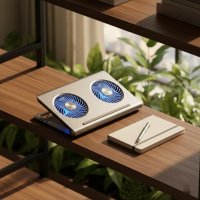
As a thermal engineer with over a decade in the trenches of laptop cooling solutions, I’ve seen it all—from the clunkiest gaming rigs to the sleekest ultrabooks. And when it comes to Apple’s MacBook Air, the conversation around thermal management is always unique. These machines, especially the fanless M-series models, are marvels of efficiency, yet even they can benefit from a little thermal TLC when pushed to their limits. If you’re wondering whether a laptop cooler for MacBook Air is a wise investment, you’ve come to the right place. We’re going to demystify what keeps your beloved MacBook Air running cool and stable, ensuring you get peak performance without the dreaded heat.
Understanding the MacBook Air’s Thermal Design
The MacBook Air’s thermal story is largely defined by its elegant, minimalist design. Modern M-series MacBook Airs (M1, M2, M3, M4) are designed without active cooling fans, relying entirely on passive dissipation. This means the aluminum unibody chassis itself acts as a massive heatsink, drawing heat away from the internal components and radiating it into the surrounding air. This design allows for incredible quietness and efficiency during light to moderate tasks.
However, this fanless approach has its limits. When you engage in sustained, resource-intensive activities like video editing, 3D rendering, or even prolonged gaming, the M-series chip can generate heat faster than the passive system can dissipate it. This leads to what engineers call “thermal throttling”—the processor intelligently reduces its clock speed and power consumption to prevent overheating and potential damage. While this keeps your MacBook Air safe, it inevitably impacts performance, making tasks take longer or feel less responsive.
Do You Really Need a Laptop Cooler for Your MacBook Air?
This is the million-dollar question, and the answer, like many things in thermal engineering, is “it depends.” Apple designs its products to function perfectly well without external cooling, and for most everyday users, a laptop cooler for MacBook Air might seem superfluous. However, specific scenarios can absolutely warrant one.
When a Cooler Provides a Clear Advantage:
- Sustained Heavy Workloads: If your daily grind involves long sessions of video editing in Final Cut Pro, compiling large codebases, or extended gaming, your MacBook Air’s fanless design will eventually hit its thermal ceiling. A cooler can help delay or mitigate thermal throttling, allowing for more consistent peak performance. Users engaging in such tasks often report a noticeable difference when using an effective cooling solution.
- Soft or Obstructed Surfaces: Placing your MacBook Air on a bed, pillow, or even your lap can significantly impede its natural heat dissipation. These soft surfaces block the bottom chassis, trapping heat and preventing proper airflow around the aluminum body. An elevating stand or a cooling pad creates a crucial air gap, ensuring continuous heat exchange.
- Warm Ambient Environments: Working in a hot room, under direct sunlight, or in a tropical climate will naturally stress your MacBook Air’s thermal system. Even a modest external cooling solution can make a substantial difference in these conditions.
When a Cooler Might Be Unnecessary:
|
Our Picks for the Best Laptop Cooler in 2026
As an Amazon Associate I earn from qualifying purchases.
|
||
| Num | Product | Action |
|---|---|---|
| 1 | Laptop Cooling Pad, Gaming Laptop Cooler for 13-19 Inch Laptops, RGB Lights Laptop Fan Cooling Pad with 3 Height Adjustable and 3 USB Ports, 4.72 Inch Large Turbo Fan, Max 3500RPM |

|
| 2 | ChillCore Laptop Cooling Pad, RGB Lights Laptop Cooler 9 Fans for 15.6-19.3 Inch Laptops, Gaming Laptop Fan Cooling Pad with 8 Height Stands, 2 USB Ports - A21 Blue |
|
| 3 | llano V12 RGB Laptop Cooling Pad, Gaming Laptop Cooler with 5.5 Inch Powerful Turbofan, Fast Cooling Laptop 15.6-21in, Adjustable Speed, Touch Control, LCD Screen, Black (RGB) |
|
| 4 | Razer Laptop Cooling Pad: Adaptive Smart - Intelligent Fan Control - Airtight Pressure Chamber - Fits Most Laptops & Macbooks 14” to 18\" - Preset & Custom Fan Curves - 3 Port USB Type A - Chroma RGB |
|
| 5 | Laptop Cooling Pad, Laptop Cooler 6 Quiet Fans for 12\"-17\" Laptops, Gaming Laptop Fan Cooling Pad with 5 Height Adjustable, Slim Portable USB Powered, 2 USB Ports & Phone Holder |
|
| 6 | havit HV-F2056 15.6\"-17\" Laptop Cooler Cooling Pad - Slim Portable USB Powered (3 Fans), Black/Blue |
|
| 7 | llano V12 Laptop Cooling Pad, Gaming Laptop Cooler Stand with 5.5inch Powerful Turbo Fan, Adjustable Speed, Touch Control, 3-Port USB A, for Fast Cooling Laptop 15.6-19in, Black (No RGB) |
|
| 8 | Kootek Laptop Cooling Pad, Laptop Cooler with 5 Quiet Fans for 12\"-17\" Computer PC Notebook Gaming Laptop Fan, Height Adjustable Laptop Cooling Stand Laptop Accessories, Blue |
|
| 9 | AICHESON Laptop Cooling Pad 5 Fans Up to 17.3 Inch Heavy Notebook Cooler, Blue LED Lights, 2 USB Ports, S035, Blue-5fans |
|
| 10 | KeiBn Laptop Cooling Pad, Gaming Laptop Cooler 2 Fans for 10-15.6 Inch Laptops, 5 Height Stands, 2 USB Ports (S039) |
|
- Light Everyday Use: For tasks like web browsing, email, word processing, or light media consumption, your MacBook Air’s passive cooling is more than adequate. Adding an external cooler in these scenarios would likely offer negligible benefits and simply consume power.
- Optimal Environment: If you consistently work in a cool room, on a hard, flat desk surface, and your workload rarely pushes the CPU for extended periods, your MacBook Air is likely already operating within its ideal thermal envelope.
Types of Laptop Coolers for MacBook Air
While the MacBook Air’s thermal design differs from traditional laptops with intake vents, various cooling solutions can still be highly effective.
1. Cooling Pads (Active Cooling)
These are the most common type of laptop cooler, featuring one or more fans designed to blow air directly at the laptop’s underside.
- Effectiveness on MacBook Air: Because the MacBook Air relies on its aluminum unibody to dissipate heat, cooling the bottom surface is a direct way to enhance this process. While there are no intake vents for the fans to blow air into, the moving air helps to draw heat away from the warm chassis more rapidly. This can lower the external surface temperature and, critically, improve the sustained performance of the M-series chip by creating a “thermal bridge” to an external cooling mechanism.
- I’ve seen anecdotal evidence and even some testing showing that certain cooling pads, especially those that create a vacuum effect or have strategically placed powerful fans, can indeed make a difference. Products like the Klim Airflow and Llano V12 have received positive mentions for their ability to cool the MacBook Air effectively.
- Pros: Can actively reduce chassis temperature, potentially mitigate thermal throttling. Many models offer adjustable fan speeds.
- Cons: Can introduce fan noise, require a USB port for power (or external power for some), and add bulk, reducing portability.
2. Elevating Stands (Passive Cooling)
These simple stands lift your MacBook Air off the desk, creating space for air to circulate freely around its entire aluminum body.
- Effectiveness: Even without active fans, improving airflow is crucial. An elevating stand prevents heat from pooling underneath the device and allows the natural convection currents to work more efficiently. This is often the first step I recommend for any laptop user experiencing mild heat issues.
- Pros: Silent, lightweight, often portable, no power required, and can offer ergonomic benefits by raising the screen to eye level.
- Cons: Offers no active cooling beyond improved airflow.
3. Thermal Mods (Advanced/DIY)
For the truly adventurous and those seeking to squeeze every last drop of performance from their MacBook Air, “thermal mods” involve adding thermal pads internally to bridge the M-series chip to the aluminum bottom case. This significantly improves heat transfer to the exterior chassis, allowing for much greater sustained performance before throttling.
- Caveats: This is an advanced procedure, typically involves opening your MacBook Air, and will almost certainly void your warranty. It’s not something for the faint of heart or everyday user.
Choosing the Right Laptop Cooler for Your MacBook Air
When selecting a laptop cooler for MacBook Air, consider these factors:
- Your Workload: If you’re doing intense video editing or gaming, an active cooling pad with strong fans is likely more beneficial than a passive stand. For general use, an elevating stand is usually sufficient.
- Portability: Do you need something you can easily toss in your bag, or will it mostly stay on your desk? Many cooling pads can be bulky, while stands are often more travel-friendly.
- Noise Levels: Active cooling pads generate fan noise. Look for models with quiet fans or adjustable speeds if noise is a concern.
- Ergonomics: Many cooling pads double as adjustable stands, allowing you to raise your screen and keyboard to a more comfortable typing and viewing angle, which can be a significant benefit for long work sessions.
- Power Source: Most laptop coolers are USB-powered. Ensure your MacBook Air has a free USB-C port (you may need an adapter for USB-A coolers) or consider a cooler with its own power adapter if you’re concerned about battery drain.
Beyond the Cooler: Essential Tips for MacBook Air Thermal Management
Even the best laptop cooler for MacBook Air is just one piece of the puzzle. Holistic thermal management combines hardware, software, and environmental factors.
Software Optimization: Keeping Things Tidy
- Monitor Activity Monitor: This built-in macOS tool (found in
/Applications/Utilities) is your best friend. Use it to identify applications or processes that are hogging CPU or memory resources. Quitting these can immediately reduce heat generation. - Close Unnecessary Tabs: Modern web browsers, especially Chrome, can be surprisingly resource-intensive with many tabs open. Close any tabs you’re not actively using to lighten the load on your CPU and RAM.
- Keep macOS Updated: Apple regularly releases software updates that include performance enhancements and bug fixes, which can often improve thermal efficiency. Ensure your MacBook Air is always running the latest version of macOS.
Environmental Factors: Your Workspace Matters
- Hard, Flat Surfaces: Always use your MacBook Air on a hard, flat surface like a desk or table. This allows for optimal airflow around the chassis, helping the aluminum body to radiate heat effectively. Avoid soft surfaces that can block heat dissipation.
- Avoid Direct Sunlight: Just like you wouldn’t leave your car in the sun, direct sunlight can quickly heat your MacBook Air. Work in a shaded area or use curtains to keep direct sun off your device.
- Maintain Optimal Room Temperature: Apple recommends using your MacBook Air in ambient temperatures between 50° and 95° F (10° and 35° C). A cooler room temperature provides a better thermal gradient for your laptop to dissipate heat.
Physical Maintenance: Simple Upkeep
- Regular Cleaning: While MacBook Airs don’t have traditional intake vents to get clogged with dust internally, dust can accumulate on the bottom surface and around the hinge area (especially on older Intel models with vents). A quick wipe-down or a gentle blast of compressed air can help maintain optimal surface cleanliness for heat radiation.
- Remove Restrictive Cases: Some aesthetic cases, particularly those made of plastic, can trap heat against the aluminum unibody, hindering its ability to dissipate heat. If you notice your MacBook Air running hot, try removing its case.
Power Management: Smart Charging
- Use Original Chargers: Always use Apple-authorized power adapters. Third-party chargers that don’t meet Apple’s specifications can sometimes cause abnormal power draw and generate excess heat.
Expert Insights: My Take on MacBook Air Cooling
From my vantage point in thermal engineering, the MacBook Air, especially the M-series, is a testament to efficient design. However, “efficient” doesn’t mean “invincible” when it comes to heat. While Apple has done an excellent job, your usage patterns dictate whether supplementary cooling is beneficial.
Think of it like this: your MacBook Air’s aluminum chassis is a highly effective passive radiator. The goal of any external cooling solution, whether an elevating stand or an active cooling pad, is to help that radiator do its job more efficiently. For fanless designs, it’s not about forcing air into vents that don’t exist, but about maximizing airflow across the heat-dissipating surfaces. Creating that “thermal bridge” to pull heat away from the bottom of the device is key.
My professional recommendation is to adopt a multi-pronged approach. Start with good habits: a clean workspace, proper surface, and efficient software management. If you consistently push your MacBook Air with demanding tasks and observe throttling or uncomfortable temperatures, then investing in a quality laptop cooler for MacBook Air that specifically targets the bottom chassis can provide a measurable improvement in sustained performance and user comfort. Don’t underestimate the power of simply elevating the device to let it breathe!
Frequently Asked Questions (FAQ)
Q: Will a cooling pad damage my MacBook Air’s battery?
A: Generally, no. A well-designed cooling pad aims to lower the overall operating temperature of your MacBook Air, which can actually be beneficial for battery longevity, as batteries degrade faster at higher temperatures. However, using a USB-powered cooler will draw a small amount of power from your MacBook Air, which could slightly impact battery runtime.
Q: Can a cooling pad prevent thermal throttling on my M-series MacBook Air?
A: While a cooling pad won’t eliminate thermal throttling entirely during extremely heavy, sustained loads, it can certainly help to mitigate it. By drawing heat away from the aluminum chassis more efficiently, it allows the M-series chip to maintain higher performance for longer periods before it needs to throttle down.
Q: What’s the best way to clean my MacBook Air for better cooling?
A: Since modern MacBook Airs don’t have internal fans to collect dust, focus on keeping the exterior, especially the bottom aluminum panel, free of dust and debris. A soft, lint-free cloth is usually sufficient. For any stubborn grime, a slightly dampened cloth (with water, not harsh chemicals) can be used. Avoid spraying liquids directly onto the device.
Q: Should I get a MacBook Pro instead of an Air if I do heavy tasks?
A: If your primary use involves very heavy, sustained workloads like professional video editing, intensive 3D rendering, or serious gaming for hours on end, a MacBook Pro with its active cooling system (fans) is generally the more suitable choice. It’s designed to dissipate heat more aggressively and sustain peak performance for longer. A MacBook Air with a cooler can help, but it won’t entirely match the thermal capabilities of a Pro.
Q: Are laptop stands alone effective for cooling?
A: Yes, absolutely. Even a simple elevating laptop stand provides passive cooling benefits by increasing airflow around the MacBook Air’s chassis. This helps prevent heat from getting trapped beneath the device, allowing the aluminum unibody to dissipate heat more efficiently. For everyday use or mild heat issues, an elevating stand can be very effective.
Conclusion
Choosing the right laptop cooler for MacBook Air is about understanding your needs and the unique thermal dynamics of your device. While the MacBook Air is a powerful and efficient machine, especially with Apple Silicon, it thrives in a thermally optimized environment. Whether you opt for an active cooling pad to power through demanding projects or a simple elevating stand for improved airflow, combining these solutions with smart software management and good environmental habits will ensure your MacBook Air stays cool, stable, and performs at its best.
Don’t let heat be the bottleneck to your productivity or creativity. Take control of your MacBook Air’s thermal performance and unlock its full potential. Share your experiences and discover more insights into optimizing your laptop’s longevity and efficiency right here at Tselk.com!
Get our weekly buyer guide
Practical specs, not advice. Unsubscribe anytime.