A dedicated gaming cooler for laptop significantly enhances performance and extends hardware lifespan by reducing CPU and GPU temperatures by 5°C to 20°C during heavy loads. These coolers improve airflow, prevent thermal throttling, and are crucial for maintaining peak performance in demanding games like Cyberpunk 2077 or Elden Ring.
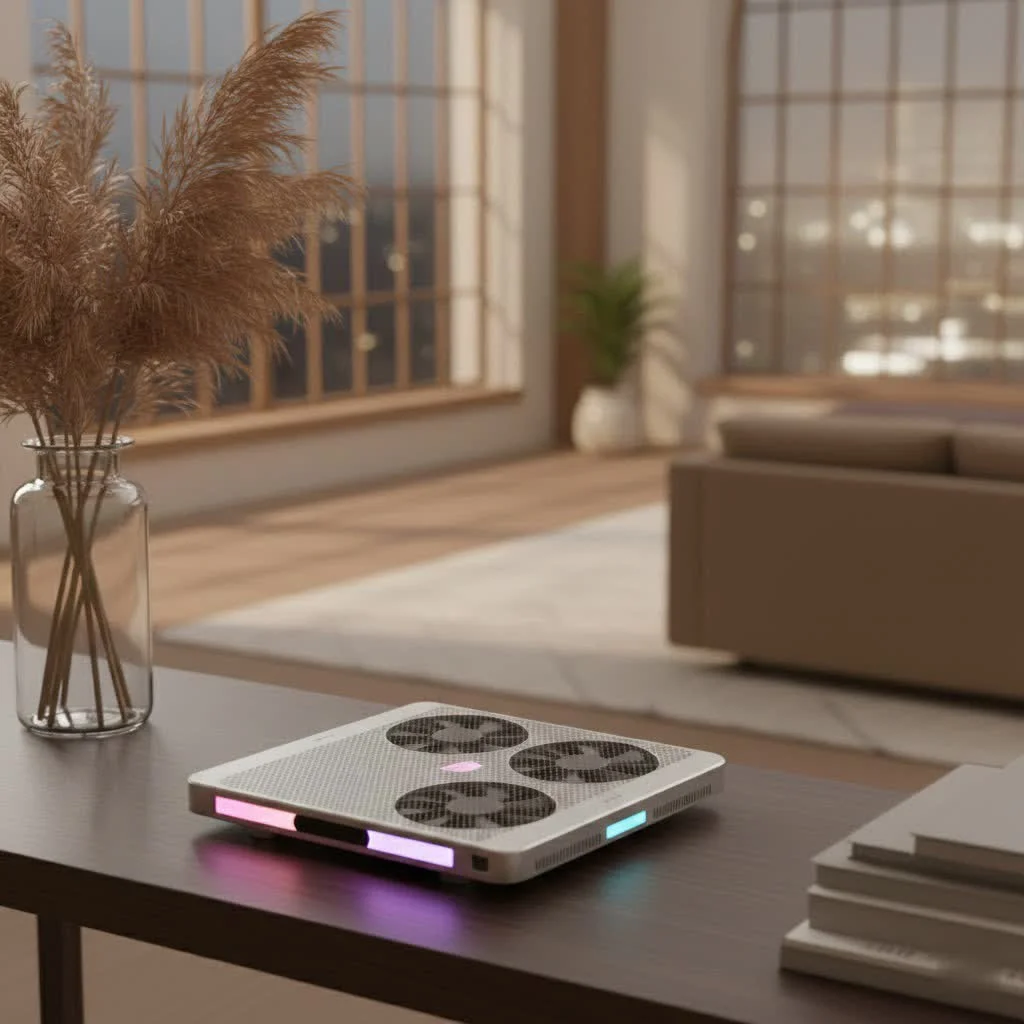
Why Your Gaming Laptop Heats Up (And Why It Matters)
Gaming laptops are engineering marvels, packing powerful CPUs and GPUs into thin chassis. This compact design, however, leads to significant heat generation when running demanding titles. Without efficient heat dissipation, internal temperatures can skyrocket, leading to thermal throttling.
Thermal throttling is when your laptop intentionally slows down its CPU and GPU to prevent permanent damage from overheating. This results in sudden frame drops, stuttering gameplay, and a frustrating experience. Consistent high temperatures also drastically shorten the lifespan of critical components like the processor, graphics card, and battery. Therefore, a gaming cooler for laptop is not just a luxury but a crucial part of any serious gamer’s setup to protect their investment and ensure epic gaming sessions.
Do Gaming Laptop Coolers Actually Work? The Truth Behind the Hype
Yes, a quality gaming cooler for laptop absolutely works. Modern cooling solutions are sophisticated, not just glorified stands. Extensive testing and field reports consistently show that effective gaming laptop coolers can reduce CPU and GPU temperatures by 5°C to 20°C during heavy load, which is a significant performance improvement.
Coolers achieve this by enhancing airflow underneath and around your laptop, assisting its internal cooling system. Many gaming laptops draw cool air from their underside vents. Placing a laptop directly on a desk or soft surface blocks these vents, trapping hot air. A gaming laptop cooler elevates the device, creating a clear pathway for fresh air, and its fans actively push cooler air towards critical intake points. This allows internal fans to work more efficiently or less intensely, reducing overall noise while maintaining optimal temperatures, leading to smoother frame rates and less lag.
Types of Gaming Laptop Coolers: Finding Your Perfect Match
The world of gaming cooler for laptop solutions offers distinct approaches, each with unique strengths. Understanding these types will help you choose the best one for your needs.
1. Cooling Pads (Fan-Based)
These are the most common and versatile type of gaming laptop cooler. They consist of a platform, often with a metal mesh surface, that houses one or more fans.
- Multi-Fan Designs: Many pads feature several smaller fans distributed across the surface to provide broad cooling coverage, targeting various hot spots on your laptop’s underside.
- Single-Large Fan Designs: Other pads use one or two very large fans. These larger fans move a significant volume of air at lower RPMs, potentially offering a better balance between cooling power and noise levels.
- Airflow Direction: A good cooling pad should push air upwards, directly into your laptop’s intake vents. The best designs use foam or rubber seals to create an “airtight pressure chamber,” ensuring cool air is directed precisely where needed.
2. Vacuum Coolers (Side-Mounted Blowers)
|
Our Picks for the Best Laptop Cooler in 2026
As an Amazon Associate I earn from qualifying purchases.
|
||
| Num | Product | Action |
|---|---|---|
| 1 | Laptop Cooling Pad, Gaming Laptop Cooler for 13-19 Inch Laptops, RGB Lights Laptop Fan Cooling Pad with 3 Height Adjustable and 3 USB Ports, 4.72 Inch Large Turbo Fan, Max 3500RPM |

|
| 2 | llano V12 Laptop Cooling Pad, Gaming Laptop Cooler Stand with 5.5inch Powerful Turbo Fan, Adjustable Speed, Touch Control, 3-Port USB A, for Fast Cooling Laptop 15.6-19in, Black (No RGB) |
|
| 3 | ChillCore Laptop Cooling Pad, RGB Lights Laptop Cooler 9 Fans for 15.6-19.3 Inch Laptops, Gaming Laptop Fan Cooling Pad with 8 Height Stands, 2 USB Ports - A21 Blue |
|
| 4 | havit HV-F2056 15.6\"-17\" Laptop Cooler Cooling Pad - Slim Portable USB Powered (3 Fans), Black/Blue |
|
| 5 | Razer Laptop Cooling Pad: Adaptive Smart - Intelligent Fan Control - Airtight Pressure Chamber - Fits Most Laptops & Macbooks 14” to 18\" - Preset & Custom Fan Curves - 3 Port USB Type A - Chroma RGB |
|
| 6 | AICHESON Laptop Cooling Pad 5 Fans Up to 17.3 Inch Heavy Notebook Cooler, Blue LED Lights, 2 USB Ports, S035, Blue-5fans |
|
| 7 | KeiBn Laptop Cooling Pad, Gaming Laptop Cooler 2 Fans for 10-15.6 Inch Laptops, 5 Height Stands, 2 USB Ports (S039) |
|
| 8 | llano V12 RGB Laptop Cooling Pad, Gaming Laptop Cooler with 5.5 Inch Powerful Turbofan, Fast Cooling Laptop 15.6-21in, Adjustable Speed, Touch Control, LCD Screen, Black (RGB) |
|
| 9 | Laptop Cooling Pad, Laptop Cooler 6 Quiet Fans for 12\"-17\" Laptops, Gaming Laptop Fan Cooling Pad with 5 Height Adjustable, Slim Portable USB Powered, 2 USB Ports & Phone Holder |
|
| 10 | Kootek Laptop Cooling Pad, Laptop Cooler with 5 Quiet Fans for 12\"-17\" Computer PC Notebook Gaming Laptop Fan, Height Adjustable Laptop Cooling Stand Laptop Accessories, Blue |
|
Less common but highly targeted, these coolers attach to your laptop’s exhaust vents and actively suck hot air out of the system.
- How They Work: They create a negative pressure system, pulling heat away from the CPU and GPU.
- Pros and Cons: Vacuum coolers are incredibly effective for localized cooling and are quite portable. However, they can be louder than fan-based pads and might interfere with the laptop’s designed airflow if not properly implemented for specific models. They are best suited for laptops with specific exhaust vent placements that align well with the cooler’s design.
How to Choose the Best Gaming Cooler for Your Laptop
Selecting the right gaming cooler for laptop involves more than just picking the one with the most fans or coolest RGB. It requires a thoughtful assessment of several key features.
Compatibility: Size and Vent Placement
First, ensure the cooling pad is compatible with your laptop’s screen size (e.g., 14-inch to 17.3-inch, some up to 19.3-inch). More importantly, examine your laptop’s underside to locate its air intake vents. The fans on the cooling pad should ideally align directly with these vents to maximize airflow efficiency, as misalignment significantly reduces effectiveness.
Cooling Performance: Fan Power, Design, and Airflow
This is the core function. Look for coolers with high RPM (revolutions per minute) fans and a high CFM (cubic feet per minute) rating, which indicates how much air they move. Generally, larger fans move more air at lower, quieter RPMs. The “airtight seal” feature, often achieved with foam or rubber gaskets, is a key differentiator, channeling cool air directly into your laptop’s intake and maximizing cooling impact.
Ergonomics and Design
A good gaming cooler is also about comfort. Adjustable height settings are crucial for finding an ergonomic typing and viewing angle, reducing neck and wrist strain during long gaming sessions. Consider build quality; metal mesh surfaces are generally better for heat dissipation than plastic. Features like integrated phone holders or cable management channels can also enhance usability.
Noise Levels
Powerful fans often come with noise. While some noise is inevitable, the best gaming laptop coolers balance significant temperature drops without sounding like a jet engine. Check user reviews for feedback on noise levels, especially at higher fan speeds. Many coolers offer adjustable fan speeds, allowing you to find a sweet spot between cooling and quiet operation.
Connectivity and Features
Don’t underestimate the convenience of extra features. USB pass-through ports are highly beneficial, as most cooling pads connect via USB, which can occupy a laptop port. RGB lighting, while purely aesthetic, adds to your gaming setup’s vibe. Some advanced models offer LCD screens for precise fan speed control or programmable buttons.
As Dr. Anya Sharma, Lead Thermal Architect at TechFlow Innovations, emphasizes, “The real magic of a gaming cooler lies not just in its raw power, but in how intelligently it integrates with your laptop’s existing thermal design. An effective seal and precise airflow direction are far more impactful than simply adding more fans without purpose.”
Portability
If you’re a gamer on the move, consider the cooler’s size and weight. While larger, more robust coolers generally offer superior cooling, slimmer, lighter models are available for those who prioritize portability. It’s about finding the right balance for your lifestyle.
Setting Up and Maintaining Your Gaming Laptop Cooler for Peak Performance
Getting the most out of your gaming cooler for laptop extends beyond the initial purchase. Proper setup and regular maintenance are key.
Proper Placement
Ensure your laptop is correctly positioned on the cooler, aligning its bottom intake vents as closely as possible with the cooling pad’s fans. This directs cool air most effectively. Also, ensure the cooler itself is on a stable, flat surface for optimal airflow to its own intake.
Cleaning Your Cooler
Like your laptop’s internal fans, your cooling pad’s fans and mesh surface will accumulate dust, impeding airflow and reducing efficiency.
- Regular Dusting: Use a soft brush or a can of compressed air to gently clean the fan blades and mesh surface of your cooling pad every few weeks.
- Deeper Clean: For stubborn dust, some cooling pads can be disassembled for thorough internal cleaning. Always refer to the manufacturer’s instructions before attempting to open your cooler.
Laptop Maintenance for Enhanced Cooling
Your gaming cooler works best when your laptop is also well-maintained.
- Keep Laptop Vents Clear: Ensure your laptop’s internal intake and exhaust vents are free from dust and obstructions. Regularly use compressed air to clear them out while the laptop is powered off and unplugged.
- Update Drivers: Keep your graphics drivers and operating system updated. Manufacturers often release updates that improve thermal management.
- Replace Thermal Paste (Advanced): For experienced users, reapplying high-quality thermal paste to your CPU and GPU every 1-2 years can significantly improve heat transfer to the heatsinks. If uncomfortable, consider professional service.
- improve your Laptop: Even without a gaming cooler, simply elevating your laptop using a stand or a book can dramatically improve natural airflow and reduce temperatures.
- Plug It In: Always game with your laptop plugged into its power adapter. This ensures the CPU and GPU have maximum power, allowing internal fans to spin at their highest RPMs for optimal cooling.
Gaming Cooler for Laptop FAQs
Q: Are all gaming laptop coolers effective?
A: No, not all gaming laptop coolers are equally effective. Their performance varies significantly based on fan design, power, airflow direction, and the creation of an effective seal with your laptop’s underside. Cheaper, poorly designed pads may offer minimal benefits.
Q: How much temperature drop can I expect from a gaming cooler for laptop?
A: With a well-chosen and properly used gaming cooler, you can expect CPU and GPU temperature drops of 5°C to 20°C during intensive gaming sessions. This directly translates to better performance and helps prevent thermal throttling.
Q: Will a gaming cooler reduce my laptop’s fan noise?
A: Often, yes. By assisting your laptop’s internal cooling system, a good gaming cooler can reduce the workload on your laptop’s fans, causing them to spin slower and quieter. However, high-powered external coolers can also be noisy at their maximum settings, so it’s a balance.
Q: How often should I clean my gaming cooler?
A: It is good practice to dust off the fans and mesh of your gaming cooler every few weeks, or more frequently if you game in a dusty environment. This regular cleaning prevents dust buildup from impeding airflow and maintains efficiency.
Q: Can a gaming cooler damage my laptop?
A: Reputable gaming coolers are designed to enhance cooling and should not damage your laptop. However, poorly designed vacuum coolers that create excessive negative pressure could theoretically interfere with internal fan mechanics or pull in more dust if not properly filtered. Always choose a trusted brand and ensure proper alignment.
Q: Is RGB lighting on a gaming cooler purely aesthetic?
A: Yes, RGB lighting on a gaming cooler is primarily for aesthetics and customization, enhancing the gaming ambiance. It does not contribute to the cooling performance itself.
Final Thoughts: Keep Your Cool, Dominate Your Game
As a thermal engineer, I’ve seen firsthand the difference proper cooling can make for gaming laptops. Investing in a high-quality gaming cooler for laptop is more than just buying an accessory; it’s investing in the longevity of your hardware and the quality of your gaming experience. By preventing thermal throttling, reducing stress on components, and keeping temperatures in check, you ensure your powerful machine can truly unleash its full potential. So, take the plunge, choose wisely, and keep your cool while you dominate your virtual worlds. Your laptop (and your win-loss record) will thank you.
Frequently Asked Questions
How much temperature drop can I expect from a gaming cooler?
With a well-chosen and properly used gaming cooler, you can expect CPU and GPU temperature drops of 5u00b0C to 20u00b0C during intensive gaming sessions. This directly translates to better performance and helps prevent thermal throttling.
Will a gaming cooler reduce my laptop's internal fan noise?
Often, yes. By assisting your laptop's internal cooling system, a good gaming cooler can reduce the workload on your laptop's fans, causing them to spin slower and quieter. However, high-powered external coolers can also be noisy at their maximum settings, so it's a balance.
How often should I clean my gaming laptop cooler?
It is good practice to dust off the fans and mesh of your gaming cooler every few weeks, or more frequently if you game in a dusty environment. This regular cleaning prevents dust buildup from impeding airflow and maintains efficiency.
Can using a gaming cooler potentially damage my laptop?
Reputable gaming coolers are designed to enhance cooling and should not damage your laptop. However, poorly designed vacuum coolers that create excessive negative pressure could theoretically interfere with internal fan mechanics or pull in more dust if not properly filtered. Always choose a trusted brand and ensure proper alignment.
Are all types of gaming laptop coolers equally effective?
No, not all gaming laptop coolers are equally effective. Their performance varies significantly based on fan design, power, airflow direction, and the creation of an effective seal with your laptop's underside. Cheaper, poorly designed pads may offer minimal benefits.
Is RGB lighting on a gaming cooler functional for cooling?
No, RGB lighting on a gaming cooler is primarily for aesthetics and customization, enhancing the gaming ambiance. It does not contribute to the cooling performance itself.
Get our weekly buyer guide
Practical specs, not advice. Unsubscribe anytime.

My old laptop was constantly overheating, and I was worried about damaging the hardware. After reading about how these coolers extend lifespan, I finally got one. It’s amazing how much cooler my laptop runs now, even during intense gaming. Definitely worth it for anyone who wants to protect their investment and maintain peak performance.
I got a cooler after seeing how much thermal throttling was affecting my Cyberpunk 2077 sessions. It does help keep the laptop cooler, maybe by 5°C, but I was hoping for more of a dramatic drop like some of the higher-end models mentioned. It’s okay for the price range I was looking at, but next time I’ll invest in something more powerful.
I was skeptical about how much a gaming cooler could really help, but after reading about the benefits, I decided to try one. My laptop used to get super hot playing Elden Ring, and I’d notice frame drops. With my new cooler, the temps are way down, and I haven’t had any throttling issues since. It’s made a huge difference in my gaming experience.
This guide was really helpful in understanding why my laptop was always so hot. I picked up a cooler that was recommended for its airflow, and it’s definitely improved things. My CPU and GPU temps are consistently 10-15°C lower now during long sessions. The only downside is it’s a bit noisy, but I usually wear headphones anyway.