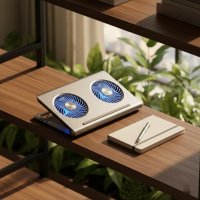
Welcome, fellow enthusiasts and power users, to Tselk.com! As a thermal engineer with over a decade in the trenches of laptop cooling, I know the ins and outs of keeping your valuable hardware running cool and stable. Today, we’re diving deep into a topic near and dear to many of us: Razer Blade laptop coolers. These machines are engineering marvels, packing serious power into incredibly sleek chassis. But that performance often comes with a significant thermal challenge.
The Heat Challenge of Razer Blade Laptops
Razer Blade laptops are renowned for their premium design and high-octane performance, making them a top choice for serious gamers and creative professionals. However, this potent combination of powerful CPUs and GPUs within a thin, elegant aluminum chassis inherently creates a thermal balancing act. During intense gaming sessions or demanding tasks like video editing and 3D rendering, these components generate substantial heat.
When your Razer Blade reaches its thermal limits, it initiates a self-preservation measure known as “thermal throttling.” This means your CPU and GPU automatically reduce their clock speeds and power draw to prevent damage from excessive heat. The result? A noticeable drop in frame rates, stuttering gameplay, slower processing speeds, and an overall dip in your laptop’s performance. Beyond immediate performance woes, consistent exposure to high temperatures can accelerate component degradation, potentially leading to issues like battery bloating and significantly shortening the lifespan of your substantial investment.
Do You Really Need a Razer Blade Laptop Cooler?
This is a question I hear all the time, and the answer, especially for Razer Blade owners, is often a resounding “yes!” While Razer Blades are designed with sophisticated internal cooling systems, the sheer power they house often pushes these systems to their limits. A quality external cooling solution can make a world of difference.
For gamers, a laptop cooler can lower operating temperatures by 5-15°C, allowing your Razer Blade to maintain optimal performance and deliver those crucial stable frame rates during extended play. For professionals, this means more consistent performance for resource-intensive applications, reducing render times and preventing slowdowns. Ultimately, a good cooler protects your hardware, extends its lifespan, and ensures you get the most out of your premium machine. Think of it as an insurance policy for your laptop’s longevity and peak performance.
Understanding Laptop Cooler Types for Your Razer Blade
Not all laptop coolers are created equal, and understanding the different types will help you choose the perfect match for your Razer Blade.
Passive Stands: Simple Elevation for Enhanced Airflow
Sometimes, the simplest solutions are the most effective. A passive laptop stand doesn’t use fans or active cooling components. Instead, it elevates your Razer Blade, creating a crucial gap between the laptop’s underside and the desk surface. This increased space allows for better natural airflow around the intake vents, which can offer a modest but noticeable temperature reduction compared to having your laptop flat on a surface. They’re portable, silent, and affordable, making them a great starting point, especially for lighter workloads.
Cooling Pads (Active): Bringing in the Breeze
Active cooling pads incorporate fans to actively push or pull air, directly aiding your laptop’s internal cooling system.
- Traditional Multi-Fan Pads: These pads feature multiple fans, often arranged to cover the general area of your laptop’s underside. Brands like Havit (e.g., HV-F2056, HV-F2701) and KLIM (e.g., KLIM Ultimate RGB Cooling Pad) offer popular multi-fan solutions. They work by increasing the volume of cool air flowing past your laptop’s chassis, helping to dissipate heat. Many come with adjustable fan speeds and even RGB lighting, complementing the gaming aesthetic. These are generally good for overall temperature reduction and can be quite effective.
- “Blower” Style Pads with Airtight Seals: This category represents a significant leap in cooling efficiency. Pads like the IETS GT600 V2 RGB and Llano v10/v12/V13 feature powerful fans that create an airtight seal with your laptop’s underside, forcing a high volume of air directly into your laptop’s intake vents. This targeted airflow can be exceptionally effective, preventing hot air from recirculating and ensuring your laptop’s internal fans have a consistent supply of cool air to work with. Users report significant temperature drops with these designs.
The Official Razer Laptop Cooling Pad: Designed for Synergy
Razer offers its own premium cooling solution, the Razer Laptop Cooling Pad. This device is specifically engineered to integrate seamlessly with Razer Blade laptops, offering a suite of features beyond just basic cooling. It boasts a powerful 140mm high-velocity fan, an airtight pressure chamber, customizable Chroma RGB lighting, and a convenient three-port USB hub.
What truly sets it apart, especially for compatible 2025 Razer Blade 16 models, is the “Razer HyperBoost” feature. This smart cooling function can unlock around 25 additional watts of power for your onboard graphics card, which is usually limited to prevent overheating. With the Cooling Pad, this limitation is lifted, potentially leading to noticeable FPS gains and a significant boost in gaming performance.
However, it’s worth noting that this premium performance comes with trade-offs. The Razer Laptop Cooling Pad can be quite loud on its highest settings, and it carries a higher price tag than many competitors. As Dr. Elias Thorne, a leading expert in laptop thermal dynamics, often reminds us, “Optimizing laptop cooling is a delicate balance of performance, acoustics, and budget. Sometimes, the most powerful solution isn’t the quietest or cheapest, but it delivers where it counts.”
Choosing the Right Cooler for Your Razer Blade
|
Our Picks for the Best Laptop Cooler in 2026
As an Amazon Associate I earn from qualifying purchases.
|
||
| Num | Product | Action |
|---|---|---|
| 1 | Kootek Laptop Cooling Pad, Laptop Cooler with 5 Quiet Fans for 12\"-17\" Computer PC Notebook Gaming Laptop Fan, Height Adjustable Laptop Cooling Stand Laptop Accessories, Blue |

|
| 2 | llano V12 RGB Laptop Cooling Pad, Gaming Laptop Cooler with 5.5 Inch Powerful Turbofan, Fast Cooling Laptop 15.6-21in, Adjustable Speed, Touch Control, LCD Screen, Black (RGB) |
|
| 3 | llano V12 Laptop Cooling Pad, Gaming Laptop Cooler Stand with 5.5inch Powerful Turbo Fan, Adjustable Speed, Touch Control, 3-Port USB A, for Fast Cooling Laptop 15.6-19in, Black (No RGB) |
|
| 4 | Razer Laptop Cooling Pad: Adaptive Smart - Intelligent Fan Control - Airtight Pressure Chamber - Fits Most Laptops & Macbooks 14” to 18\" - Preset & Custom Fan Curves - 3 Port USB Type A - Chroma RGB |
|
| 5 | KeiBn Laptop Cooling Pad, Gaming Laptop Cooler 2 Fans for 10-15.6 Inch Laptops, 5 Height Stands, 2 USB Ports (S039) |
|
| 6 | Laptop Cooling Pad, Gaming Laptop Cooler for 13-19 Inch Laptops, RGB Lights Laptop Fan Cooling Pad with 3 Height Adjustable and 3 USB Ports, 4.72 Inch Large Turbo Fan, Max 3500RPM |
|
| 7 | AICHESON Laptop Cooling Pad 5 Fans Up to 17.3 Inch Heavy Notebook Cooler, Blue LED Lights, 2 USB Ports, S035, Blue-5fans |
|
| 8 | ChillCore Laptop Cooling Pad, RGB Lights Laptop Cooler 9 Fans for 15.6-19.3 Inch Laptops, Gaming Laptop Fan Cooling Pad with 8 Height Stands, 2 USB Ports - A21 Blue |
|
| 9 | Laptop Cooling Pad, Laptop Cooler 6 Quiet Fans for 12\"-17\" Laptops, Gaming Laptop Fan Cooling Pad with 5 Height Adjustable, Slim Portable USB Powered, 2 USB Ports & Phone Holder |
|
| 10 | havit HV-F2056 15.6\"-17\" Laptop Cooler Cooling Pad - Slim Portable USB Powered (3 Fans), Black/Blue |
|
Selecting the ideal cooling pad for your Razer Blade involves more than just picking the one with the most fans. Here’s what you should consider:
- Compatibility and Size: Most Razer Blades range from 14 to 18 inches. Ensure the cooling pad you choose can accommodate your specific model’s dimensions. A good fit ensures optimal contact for airflow.
- Cooling Performance: Look for pads with high CFM (Cubic Feet per Minute) ratings for airflow. Blower-style pads that create a seal are often more effective for direct cooling of intake vents. User reviews and benchmarks are your best friends here.
- Noise Levels: High-performance fans can be loud. If you prefer a quieter setup, check for pads with adjustable fan speeds or quieter fan designs. The Razer Laptop Cooling Pad, while effective, can be quite noisy at max speed.
- Ergonomics and Portability: Do you travel with your Razer Blade, or is it primarily a desktop replacement? Slim, lightweight pads like the Havit HV-F2056 are excellent for portability, while larger, more robust pads like the KLIM Ultimate might be better for stationary setups. Adjustable height settings can also improve typing comfort.
- Additional Features: Do you need extra USB ports? Do you want customizable RGB lighting to match your Razer Chroma ecosystem? These quality-of-life features can enhance your overall experience.
- Budget: Laptop coolers range widely in price. Determine your budget and balance it against the features and performance you need. While the Razer pad offers unique advantages like HyperBoost, there are more budget-friendly options that still deliver solid cooling.
Beyond the Pad: Optimizing Your Razer Blade’s Cooling Performance
While a dedicated cooling pad is a fantastic investment, several other practices can help your Razer Blade stay frosty.
- Environmental Factors:
- Ambient Temperature: Use your laptop in a cool room. A hot environment significantly reduces your laptop’s ability to dissipate heat.
- Surface Matters: Always place your Razer Blade on a solid, flat surface. Soft surfaces like beds or laps can block intake vents, severely impeding airflow. A laptop stand, even a passive one, can provide a significant boost in ventilation.
- Software Optimization:
- Razer Synapse Control: Leverage Razer Synapse to manage your fan speeds. Experiment with the “Boost” feature or manually adjust fan curves to suit your workload. Remember, higher fan speeds mean better cooling but also more noise.
- Power Settings: Consider setting your maximum processor state to 99% in Windows power settings. This disables Intel Turbo Boost, which can significantly reduce CPU temperatures, albeit with a slight dip in peak performance. It’s a trade-off many find worthwhile for thermal stability.
- Background Processes: Regularly check and close unnecessary background applications that consume CPU cycles and generate heat.
- Physical Maintenance:
- Clean Air Vents: Over time, dust and debris will accumulate in your laptop’s air vents and internal fans, acting as an insulating layer and obstructing airflow. Regularly clean these vents using a can of compressed air. Hold the device upside down and gently blast air into the vents to dislodge dust clumps. This simple step can dramatically improve cooling efficiency.
- Warning: Thermal Paste: While some users suggest repasting your CPU and GPU with fresh thermal paste for better cooling, be aware that performing this action will typically void your Razer Blade’s warranty. Unless you are an experienced technician and your warranty has expired, it’s generally best to avoid this for a Razer Blade.
Frequently Asked Questions (FAQ)
Q: What temperature is too hot for a Razer Blade?
A: While gaming laptops generally run hotter, sustained CPU temperatures exceeding 90-95°C (194-203°F) and GPU temperatures consistently above 80-85°C (176-185°F) during intensive tasks are indicators of excessive heat and potential throttling. It’s important to monitor these and take action to reduce them.
Q: Does the Razer Laptop Cooling Pad actually work?
A: Yes, the Razer Laptop Cooling Pad is generally effective at reducing temperatures and can even provide performance gains, especially with compatible Razer Blade models using the HyperBoost feature. However, its effectiveness often comes with increased fan noise at higher settings.
Q: Are all laptop coolers good for Razer Blade laptops?
A: Not all coolers are equally effective. Razer Blade laptops often benefit most from cooling pads that provide strong, direct airflow, especially those with blower-style designs that create a seal with the laptop’s intake vents. Size compatibility and fan power are key considerations.
Q: How often should I clean my Razer Blade’s vents?
A: It’s a good practice to clean your Razer Blade’s air vents with compressed air every 3-6 months, or more frequently if you use it in dusty environments. Regular cleaning prevents dust buildup that can significantly impair cooling.
Q: Can a laptop cooling pad improve gaming FPS on my Razer Blade?
A: Yes, a good laptop cooling pad can indirectly improve gaming FPS on your Razer Blade. By reducing temperatures, it prevents thermal throttling, allowing your CPU and GPU to maintain higher clock speeds and power draw, thus delivering more stable and potentially higher frame rates. The Razer Laptop Cooling Pad with HyperBoost offers a more direct performance boost for compatible models.
Conclusion
Keeping your Razer Blade cool is paramount to both its performance and longevity. From the powerful official Razer Laptop Cooling Pad with its unique HyperBoost feature to effective third-party solutions like those from Havit, KLIM, IETS, and Llano, there are excellent options available. Beyond hardware, smart software adjustments and regular maintenance play an equally critical role. By implementing these strategies, you’re not just buying a cooling pad; you’re investing in the future of your Razer Blade. So go ahead, choose wisely, stay cool, and unleash the full potential of your gaming and creative endeavors!
Get our weekly buyer guide
Practical specs, not advice. Unsubscribe anytime.