A laptop cooler can reduce MacBook temperatures by 5-15°C (9-27°F) on key components, significantly preventing thermal throttling and maintaining peak performance, especially during intensive tasks. Despite Apple’s sophisticated thermal management, MacBooks can run hot under heavy workloads, leading to performance dips. As a thermal engineer with over a decade of experience, I recommend understanding your usage and MacBook model to select the optimal cooling solution.
Understanding MacBook Thermals: More Than Meets the Eye
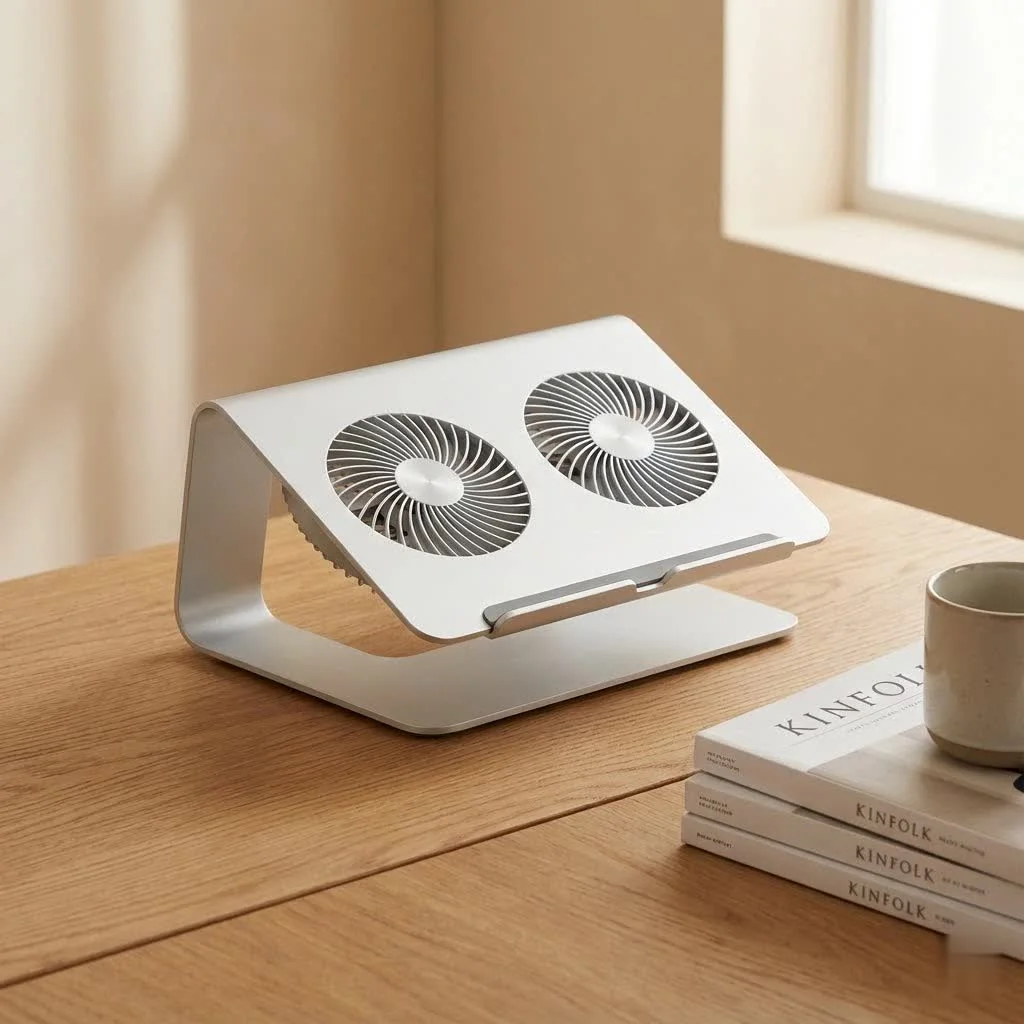
MacBooks are engineering marvels, designed with a minimalist aesthetic that hides sophisticated thermal management. Unlike many Windows laptops with large bottom vents, MacBooks primarily dissipate heat through their aluminum unibody chassis, which acts as a giant heatsink, and through discreet vents usually located near the display hinge. This design is elegant but can sometimes struggle under sustained, heavy workloads.
The biggest challenge, especially for older Intel-based MacBook Pros, is thermal throttling. This occurs when the processor gets too hot and automatically slows down to prevent damage. Imagine trying to run a marathon in a heavy coat – your body’s natural response is to slow down to avoid overheating. Your MacBook does the same, impacting everything from video rendering to compiling code. While Apple’s newer M-series chips (M1, M2, M3) are significantly more power-efficient and generate less heat, even these impressive processors can experience performance dips during prolonged intensive tasks if heat isn’t managed effectively. The fanless MacBook Air models, for instance, rely entirely on passive cooling, making them more susceptible to throttling when pushed hard.
Do You Really Need a Laptop Cooler for Your MacBook?
This is a question I hear all the time, and the answer isn’t always a straightforward “yes” or “no.” It depends on your usage, your MacBook model, and your environment.
You’ll likely benefit from a laptop cooler for your MacBook if you:
- Engage in intensive tasks: If you’re frequently editing 4K video, rendering 3D graphics, compiling large software projects, or running demanding virtual machines, your MacBook’s CPU and GPU will generate significant heat. A cooler can help maintain peak performance.
- Own an older Intel MacBook Pro (especially 15-inch or 16-inch models): These machines, particularly those with dedicated GPUs and powerful Intel i9 processors, are notorious for thermal throttling. External cooling can make a noticeable difference.
- Use your MacBook in warm environments or on soft surfaces: High ambient temperatures reduce your MacBook’s ability to shed heat. Similarly, using it on a bed or couch can block crucial airflow paths, even the subtle ones around the chassis.
- Notice frequent fan noise or high surface temperatures: If your MacBook’s fans are constantly spinning loudly or the chassis feels uncomfortably hot to the touch, it’s a clear sign that it’s struggling to stay cool.
Conversely, if your usage is light (web browsing, email, word processing) on a newer M-series MacBook Air or Pro, a cooler might be less critical for performance, but it can still offer benefits for comfort and longevity.
One common misconception is that cooling pads are ineffective for MacBooks because they lack bottom vents. While it’s true that fans on a cooling pad won’t directly blow into internal vents, they do actively cool the MacBook’s aluminum unibody. This aluminum acts as a massive heatsink, transferring heat from internal components to the exterior. By cooling the external surface, a laptop cooler for MacBook enhances the chassis’s ability to dissipate heat, thereby lowering internal temperatures and reducing the likelihood of throttling.
“Think of your MacBook’s aluminum body as its first line of defense against heat,” explains Dr. Kai Jensen, a materials science expert specializing in thermal dynamics. “By actively cooling that external surface, you’re essentially supercharging its natural heat dissipation capabilities, regardless of where the internal vents are located.”
Types of MacBook Coolers: Finding Your Perfect Match
When it comes to choosing a laptop cooler for your MacBook, you’ll find a few main types, each with its own advantages.
Active Cooling Pads (with Fans)
These are the most common type and feature one or more fans that blow air directly onto the laptop’s bottom surface.
- Pros:
- Direct Cooling: Actively pushes cooler air against the aluminum chassis, enhancing heat transfer.
- Versatility: Many models come with adjustable heights, extra USB ports, and varying fan speeds.
- Effective for Surface Cooling: Great for reducing the temperature of the MacBook’s aluminum bottom.
- Cons:
- Noise: Fans can generate noise, especially at higher speeds.
- Power Consumption: Requires a USB port for power (though some newer ones use USB-C).
- Bulkier: Generally less portable than simple stands.
|
Our Picks for the Best Laptop Cooler in 2026
As an Amazon Associate I earn from qualifying purchases.
|
||
| Num | Product | Action |
|---|---|---|
| 1 | Laptop Cooling Pad, Laptop Cooler 6 Quiet Fans for 12\"-17\" Laptops, Gaming Laptop Fan Cooling Pad with 5 Height Adjustable, Slim Portable USB Powered, 2 USB Ports & Phone Holder |

|
| 2 | AICHESON Laptop Cooling Pad 5 Fans Up to 17.3 Inch Heavy Notebook Cooler, Blue LED Lights, 2 USB Ports, S035, Blue-5fans |
|
| 3 | KeiBn Laptop Cooling Pad, Gaming Laptop Cooler 2 Fans for 10-15.6 Inch Laptops, 5 Height Stands, 2 USB Ports (S039) |
|
| 4 | llano V12 Laptop Cooling Pad, Gaming Laptop Cooler Stand with 5.5inch Powerful Turbo Fan, Adjustable Speed, Touch Control, 3-Port USB A, for Fast Cooling Laptop 15.6-19in, Black (No RGB) |
|
| 5 | havit HV-F2056 15.6\"-17\" Laptop Cooler Cooling Pad - Slim Portable USB Powered (3 Fans), Black/Blue |
|
| 6 | Kootek Laptop Cooling Pad, Laptop Cooler with 5 Quiet Fans for 12\"-17\" Computer PC Notebook Gaming Laptop Fan, Height Adjustable Laptop Cooling Stand Laptop Accessories, Blue |
|
| 7 | ChillCore Laptop Cooling Pad, RGB Lights Laptop Cooler 9 Fans for 15.6-19.3 Inch Laptops, Gaming Laptop Fan Cooling Pad with 8 Height Stands, 2 USB Ports - A21 Blue |
|
| 8 | llano V12 RGB Laptop Cooling Pad, Gaming Laptop Cooler with 5.5 Inch Powerful Turbofan, Fast Cooling Laptop 15.6-21in, Adjustable Speed, Touch Control, LCD Screen, Black (RGB) |
|
| 9 | Laptop Cooling Pad, Gaming Laptop Cooler for 13-19 Inch Laptops, RGB Lights Laptop Fan Cooling Pad with 3 Height Adjustable and 3 USB Ports, 4.72 Inch Large Turbo Fan, Max 3500RPM |
|
| 10 | Razer Laptop Cooling Pad: Adaptive Smart - Intelligent Fan Control - Airtight Pressure Chamber - Fits Most Laptops & Macbooks 14” to 18\" - Preset & Custom Fan Curves - 3 Port USB Type A - Chroma RGB |
|
What to look for: Consider the size and number of fans; larger fans often move more air quietly. Adjustable fan speeds are a plus for balancing performance and noise. An aluminum mesh surface can also aid in heat conduction.
Passive Cooling Stands/Docks
These solutions elevate your MacBook, improving natural airflow around the chassis without using active fans. Some high-end docks also incorporate conductive materials to draw heat away.
- Pros:
- Silent Operation: No fans means no noise.
- Ergonomic Benefits: Often designed to lift your screen to an ergonomic height, improving posture.
- Clean Aesthetic: Many complement the MacBook’s design seamlessly.
- No Power Needed: Doesn’t consume a USB port for power.
- Cons:
- Less Aggressive Cooling: Relies on natural convection; may not be sufficient for extreme thermal loads.
- Limited Features: Typically just a stand, without extra ports or fan controls.
What to look for: Sturdy construction (aluminum is ideal for passive heat transfer), adjustable height, and a design that ensures maximum surface area exposure for airflow.
Magnetic/Minimalist Solutions
These are a newer category, often involving small magnetic stands or slim pads that adhere to the MacBook’s bottom, slightly lifting it to create an air gap. Some also feature small, quiet fans.
- Pros:
- Ultra-Portable: Extremely lightweight and compact, easy to carry.
- Subtle Design: Barely noticeable.
- Targeted Cooling: Can be positioned over specific hot spots.
- Cons:
- Minimal Cooling: Offers less significant temperature drops compared to full active pads.
- Adhesive Concerns: Some solutions involve adhesives that might not be ideal for all users.
Key Features to Consider When Buying a Laptop Cooler for MacBook
Choosing the right laptop cooler for your MacBook means balancing cooling performance with your specific needs. Here’s what to keep in mind:
- Material and Design: An aluminum top plate on a cooling pad is excellent for heat conduction, allowing the pad’s fans to more efficiently draw heat away from your MacBook’s chassis. A sturdy, non-slip design is crucial for stability.
- Fan Performance and Noise: For active coolers, evaluate the number and size of fans. Larger fans often move more air at lower RPMs, resulting in less noise. Look for models with adjustable fan speeds or even silent modes. If absolute silence is paramount, a passive stand might be a better fit.
- Ergonomics and Portability: If you spend long hours at your desk, an adjustable height cooler can improve your posture and comfort. For users on the go, a slim, lightweight, and easily packable design is essential. Some models even double as lap desks.
- Connectivity: Newer MacBooks rely heavily on USB-C. Ensure your cooling pad either uses USB-C for power or provides pass-through USB-C ports if you’re short on them. Many coolers still use USB-A for power and offer extra USB-A ports, which can be useful with an adapter.
- Size and Compatibility: While many coolers claim “up to 17 inches,” ensure the pad’s dimensions are a good match for your specific MacBook model (e.g., MacBook Air 13-inch, MacBook Pro 14-inch, 16-inch). A proper fit ensures optimal contact for cooling and stability.
Beyond the Cooler: Optimizing Your MacBook’s Thermal Health
While a dedicated laptop cooler for your MacBook can be a game-changer, it’s just one piece of the thermal management puzzle. Here are other crucial tips to keep your MacBook running cool:
- Maintain Clear Airflow: Always ensure your MacBook’s subtle exhaust vents (usually located along the hinge) are unobstructed. Avoid placing it on soft surfaces like blankets or pillows that can trap heat. A simple elevation stand, even without fans, can significantly improve natural airflow.
- Keep It Clean: Dust is the enemy of cooling. Over time, dust can accumulate inside your MacBook, clogging fans and heatsinks. While internal cleaning requires professional help or a delicate DIY approach, you can regularly clean exterior vents with compressed air.
- Optimize Software Settings (for Intel MacBooks): For Intel-based MacBooks experiencing severe throttling, software solutions like disabling Intel Turbo Boost (using third-party utilities) can significantly reduce heat generation at the cost of some performance. Adjusting fan curves with tools like Macs Fan Control can also provide more aggressive cooling when needed.
- Mind Your Environment: A cooler room means a cooler laptop. If possible, avoid using your MacBook in direct sunlight or exceptionally warm environments.
- Manage Peripherals and Power: If you’re connecting multiple high-power peripherals or your power adapter, try to distribute them across different USB-C ports on both sides of your MacBook if available. Concentrating power and data transfer on one side can create localized hot spots.
Frequently Asked Questions
Are cooling pads bad for MacBooks?
No, generally a laptop cooler for your MacBook is not bad. They are designed to dissipate heat, which can actually help extend the lifespan of internal components by preventing overheating and thermal stress. Ensure the pad is stable and doesn’t block any essential ports or vents.
Will a cooler help my M1/M2 MacBook Pro?
Yes, even with the efficient M-series chips, a cooler can still help. While M-series MacBooks handle everyday tasks with ease, during sustained heavy workloads (like video editing or gaming), they can still warm up and benefit from the enhanced heat dissipation a cooler provides, helping to maintain peak performance for longer periods.
Where are the vents on a MacBook?
MacBooks typically have their main exhaust vents located along the hinge area, between the display and the keyboard. Some models may have additional intake points, but generally, the aluminum chassis itself is a significant part of the cooling system.
How much can a laptop cooler reduce MacBook temperature?
The reduction varies depending on the cooler’s design, the MacBook model, and the workload. You can often see temperature drops of 5-15°C (9-27°F) on key components, which can be enough to prevent or significantly reduce thermal throttling, leading to more stable performance.
Can I use any laptop cooler with my MacBook?
Most generic laptop coolers will physically fit a MacBook, but for optimal performance, look for coolers designed with MacBooks in mind. Consider factors like USB-C compatibility, stable design for the MacBook’s smooth bottom, and materials that complement its aesthetic and thermal properties.
What’s the difference between a cooling pad and a stand?
A cooling pad typically includes active fans to push air and actively cool the laptop’s surface. A stand, on the other hand, primarily lifts the laptop to improve passive airflow and ergonomics, without active fan components, though some specialized “cooling stands” may integrate conductive elements.
How often should I clean my MacBook’s internal fans?
For average users, cleaning internal fans every 2-3 years might be sufficient. If you use your MacBook in dusty environments or perform heavy tasks frequently, more regular cleaning (annually) could be beneficial. This is a task often best left to professionals to avoid damaging delicate internal components.
Keeping Your MacBook Cool: A Smart Investment
Investing in a quality laptop cooler for your MacBook isn’t just about preventing overheating; it’s about preserving performance, extending longevity, and ensuring a comfortable user experience. Whether you’re a creative professional pushing your machine to its limits or a casual user seeking peace of mind, choosing the right cooling solution is a smart move. By understanding the unique thermal characteristics of your MacBook and selecting a cooler that aligns with your usage, you can unlock its full potential and keep it running smoothly for years to come. Explore the options, make an informed choice, and give your MacBook the cool, steady performance it deserves.
Choose the Best Laptop Cooler for Your MacBook
Selecting the right laptop cooler for your MacBook involves evaluating your usage, MacBook model, and environmental factors to ensure optimal thermal performance and longevity.
Determine if your tasks are intensive (e.g., 4K video editing, 3D rendering) or light (web browsing). Identify your MacBook model, especially if it's an older Intel-based Pro or a newer M-series chip, as this impacts cooling needs. Older Intel models and M-series under heavy load benefit most.
Recognize that MacBooks dissipate heat primarily through their aluminum unibody chassis and subtle hinge vents. Cooling pads work by actively cooling this external aluminum surface, which acts as a heatsink, rather than blowing directly into internal vents.
Select an active cooling pad with fans for direct, aggressive cooling, especially for heavy workloads. Opt for a passive stand for silent operation and ergonomic benefits, suitable for lighter use or improved airflow. Consider magnetic/minimalist solutions for ultra-portability and subtle elevation.
Look for an aluminum top plate for efficient heat conduction, adjustable fan speeds for noise control, and ergonomic designs for comfort. Ensure USB-C compatibility for newer MacBooks and verify the cooler's size matches your specific MacBook model for stability and optimal contact.
Beyond a cooler, maintain clear airflow by avoiding soft surfaces, regularly clean exterior vents with compressed air, and optimize software settings for Intel MacBooks (e.g., disabling Turbo Boost). Manage peripherals and power distribution to prevent localized hot spots.
This guide was super helpful in understanding why my MacBook Air was throttling during gaming sessions. I always thought Apple’s thermal management was enough, but apparently not for heavy workloads. I went with a passive cooling stand that elevates the laptop, and even that small change has reduced temperatures by a noticeable amount. My only minor complaint is that it adds a bit of bulk to my setup.
I tried one of the cheaper cooling pads mentioned, the one with the single large fan, for my older MacBook. While it did bring down the temperature a bit, maybe by 5 degrees Celsius, it’s also pretty noisy. I was hoping for a more significant drop, especially when running multiple virtual machines. I might need to upgrade to a more robust solution with multiple fans.
I was skeptical about getting a laptop cooler for my MacBook Pro, but after reading about how the aluminum unibody acts as a heatsink, it made sense. I picked up the recommended stand with active cooling, and wow, what a difference! My laptop used to get so hot during video editing, but now it stays cool to the touch, and I haven’t noticed any performance dips. Definitely worth the investment.
My MacBook Pro 16-inch always ran hot when I was doing graphic design work, and I could feel the heat through the chassis. Understanding that the discreet vents near the display hinge are key for heat dissipation helped me choose a cooler that doesn’t block them. Now, even after hours of intense rendering, my laptop stays cool and responsive. This really prevented thermal throttling for me.