Keeping your ASUS laptop cool is crucial for maximizing performance and extending its lifespan, especially for powerful gaming and workstation models. ASUS integrates advanced internal cooling systems like ROG Intelligent Cooling, featuring Tri-Fan Technology, Liquid Metal Conductonaut Extreme, and ultra-thin copper fins, which can reduce CPU and GPU temperatures by up to 15 degrees Celsius compared to traditional thermal pastes. External cooling solutions and user maintenance practices further enhance thermal management.
Understanding ASUS’s Internal Cooling Innovations (ROG Intelligent Cooling)
ASUS engineers sophisticated thermal solutions, particularly in their Republic of Gamers (ROG) line, known as “ROG Intelligent Cooling.” This system represents over a decade of research and design dedicated to maintaining peak performance in compact form factors.
How Does ASUS Keep Its Laptops Cool Internally?
At the heart of many high-performance ASUS laptops lies a meticulously designed internal cooling system. One standout feature is Tri-Fan Technology, which directs airflow through precisely calculated chassis cutouts, ensuring cool air reaches internal components directly. A third auxiliary fan often helps shuttle heat from the GPU straight to the heatsinks, crucial during intense gaming sessions or video renders.
Select ROG models feature Liquid Metal Conductonaut Extreme thermal compound. This indium- and gallium-based compound offers 17 times higher conductivity compared to traditional thermal pastes, leading to CPU and GPU temperatures up to 15 degrees cooler. This exclusive ROG material provides the highest thermal transfer available in a laptop.
To maximize heat dissipation, ROG Intelligent Cooling utilizes ultra-thin copper fins, measuring a mere 0.1mm thick. This allows for higher density in each heatsink, with some models boasting up to 252 fins, totaling over 110,000 mm² of surface area. These thin fins dramatically increase cooling efficiency without adding bulk.
You’ll also find advanced vapor chambers and heatpipes meticulously routed to transfer heat away from critical components. In some newer models, like the Flow X16, Strix SCAR 16, and SCAR 18, ASUS has introduced full-width heatsinks that cover the entire rear of the machine, increasing total surface area by up to 82.5% over previous generations and reducing air resistance for incredible cooling efficiency.
For a quieter experience during less demanding tasks, ASUS employs 0dB Ambient Cooling. In Silent operating mode, the cooling system passively dissipates heat by switching off all fans, allowing you to focus on work or immerse yourself in movies with minimal distraction. The fans automatically re-engage if temperatures rise. Some specific models like the ROG Zephyrus Duo 16 feature AAS+ 2.0 (Active Aerodynamic System Plus), which creates a large air intake behind the tilted secondary display, boosting airflow by up to 30%.
Choosing the Right External Cooler for Your ASUS Laptop
Even with ASUS’s impressive internal engineering, external cooling solutions can offer an extra layer of protection and performance, especially for demanding tasks or in warmer environments.
Do You Need an External ASUS Laptop Cooler?
|
Our Picks for the Best Laptop Cooler in 2026
As an Amazon Associate I earn from qualifying purchases.
|
||
| Num | Product | Action |
|---|---|---|
| 1 | Laptop Cooling Pad, Laptop Cooler 6 Quiet Fans for 12\"-17\" Laptops, Gaming Laptop Fan Cooling Pad with 5 Height Adjustable, Slim Portable USB Powered, 2 USB Ports & Phone Holder |

|
| 2 | ChillCore Laptop Cooling Pad, RGB Lights Laptop Cooler 9 Fans for 15.6-19.3 Inch Laptops, Gaming Laptop Fan Cooling Pad with 8 Height Stands, 2 USB Ports - A21 Blue |
|
| 3 | havit HV-F2056 15.6\"-17\" Laptop Cooler Cooling Pad - Slim Portable USB Powered (3 Fans), Black/Blue |
|
| 4 | Kootek Laptop Cooling Pad, Laptop Cooler with 5 Quiet Fans for 12\"-17\" Computer PC Notebook Gaming Laptop Fan, Height Adjustable Laptop Cooling Stand Laptop Accessories, Blue |
|
| 5 | llano V12 RGB Laptop Cooling Pad, Gaming Laptop Cooler with 5.5 Inch Powerful Turbofan, Fast Cooling Laptop 15.6-21in, Adjustable Speed, Touch Control, LCD Screen, Black (RGB) |
|
| 6 | Razer Laptop Cooling Pad: Adaptive Smart - Intelligent Fan Control - Airtight Pressure Chamber - Fits Most Laptops & Macbooks 14” to 18\" - Preset & Custom Fan Curves - 3 Port USB Type A - Chroma RGB |
|
| 7 | Laptop Cooling Pad, Gaming Laptop Cooler for 13-19 Inch Laptops, RGB Lights Laptop Fan Cooling Pad with 3 Height Adjustable and 3 USB Ports, 4.72 Inch Large Turbo Fan, Max 3500RPM |
|
| 8 | KeiBn Laptop Cooling Pad, Gaming Laptop Cooler 2 Fans for 10-15.6 Inch Laptops, 5 Height Stands, 2 USB Ports (S039) |
|
| 9 | llano V12 Laptop Cooling Pad, Gaming Laptop Cooler Stand with 5.5inch Powerful Turbo Fan, Adjustable Speed, Touch Control, 3-Port USB A, for Fast Cooling Laptop 15.6-19in, Black (No RGB) |
|
| 10 | AICHESON Laptop Cooling Pad 5 Fans Up to 17.3 Inch Heavy Notebook Cooler, Blue LED Lights, 2 USB Ports, S035, Blue-5fans |
|
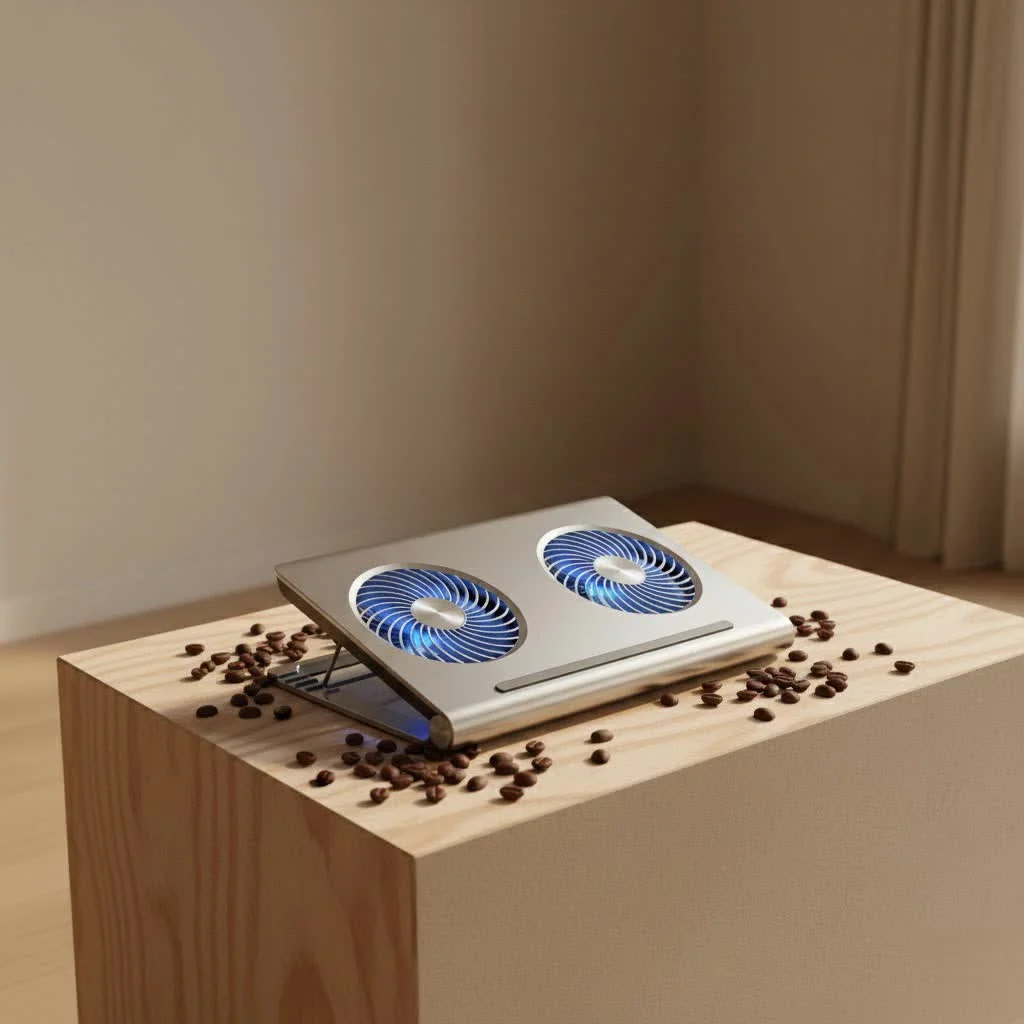
Many ask if a cooling pad is truly necessary for a high-end ASUS gaming laptop, given their advanced internal systems. While modern ASUS laptops are designed to handle significant heat, an external cooler can provide several benefits. It can lead to lower temperatures, which means sustained boost clocks for better performance, reduced wear on internal components, and more comfortable use, particularly during extended gaming sessions or heavy computational tasks. Think of it as an extra insurance policy for your laptop’s longevity and peak efficiency.
What Types of Laptop Coolers Work Best for ASUS?
When considering an external solution for your ASUS laptop, you generally have a few types to choose from:
- Cooling Pads (Active): These are the most common. They sit underneath your laptop and incorporate fans to blow cool air towards its underside, or draw hot air away. They effectively augment your laptop’s built-in cooling system.
- Laptop Stands (Passive): Simple yet effective, these stands merely improve your laptop, creating a gap between the device and the desk. This improves natural airflow, preventing heat from getting trapped.
- Vacuum Coolers: These devices attach to your laptop’s exhaust vents and actively pull hot air out, creating a negative pressure system. They can be very effective but might be specific to certain vent designs.
How to Select the Ideal Cooling Pad for Your ASUS Model
Choosing the right cooling pad for your ASUS laptop involves more than just picking the one with the most fans.
- Size & Compatibility: This is paramount. Ensure the pad is compatible with your ASUS laptop’s size. For larger gaming laptops, like the ROG Strix 18, you’ll need a pad that can adequately support its dimensions without blocking vents or being too small.
- Fan Configuration: Look at the number, size, and placement of the fans. Some pads have a single large fan, while others feature multiple smaller ones. Consider if the fans align with your laptop’s intake vents for optimal airflow. Adjustable fan speeds are a huge plus, allowing you to balance cooling performance with noise levels.
- Ergonomics & Features: Many cooling pads double as stands, offering adjustable height settings for improved typing and viewing angles. Some come with extra USB ports, acting as a convenient hub for peripherals, and for the aesthetically minded, RGB lighting is a popular feature.
- Power Source: Slimline pads often draw power via USB, making them highly portable. Desktop models, designed for superior cooling, might incorporate five or six fans and often require a separate power adapter.
Popular and highly-rated brands often recommended by the ASUS community for their effectiveness include Llano (V13) and IETS (GT300, GT500, GT600 series), known for significant temperature drops.
Optimizing Your ASUS Laptop’s Cooling Performance
Beyond hardware, there are crucial steps you can take to manage your ASUS laptop’s thermals effectively.
Simple Steps to Keep Your ASUS Laptop Running Cooler
- Proper Placement: Always use your ASUS laptop on a hard, flat surface. Soft surfaces like beds or couches can block air vents and restrict airflow, causing temperatures to soar. Elevating your laptop slightly, even with simple rubber feet or a stand, can significantly enhance ventilation.
- Regular Cleaning: Dust is the enemy of laptop cooling. Over time, it accumulates inside, clogging vents and fan blades, forcing your cooling system to work harder and less efficiently. Regularly clean the vents and fans with a can of compressed air. If you’re comfortable, and your warranty allows, periodically opening the laptop for a deeper clean can make a substantial difference.
- Software & Driver Updates: Keep your operating system, graphics drivers, and ASUS utility software (like Armoury Crate) updated. These updates often include performance optimizations and thermal management improvements.
- Performance Profile Management: Utilize ASUS’s built-in software, such as Armoury Crate, to manage performance profiles. Switching between “Turbo,” “Performance,” and “Silent” modes can help you balance power and cooling based on your current task. For example, “Silent” mode can turn off fans during light tasks, while “Turbo” maximizes fan speed for intensive gaming.
- Monitoring Temperatures: Keep an eye on your CPU and GPU temperatures using monitoring software. While modern CPUs can safely operate at higher temperatures (e.g., up to 95°C for some gaming laptop CPUs), understanding your laptop’s typical ranges helps you identify when something is amiss.
Advanced Cooling Techniques for ASUS Power Users
For those looking to push their ASUS laptop’s cooling further, here are some more advanced considerations:
- Thermal Paste/Liquid Metal Repasting: This is a more involved procedure. If your laptop is older or you notice significant thermal degradation, replacing the factory thermal paste with a high-quality aftermarket compound (or even liquid metal, with extreme caution) can drastically improve heat transfer. However, this often voids warranties and requires technical skill, as spillage of liquid metal can damage components.
- Undervolting: By slightly reducing the voltage supplied to your CPU or GPU without sacrificing performance, you can often achieve lower power consumption and, consequently, lower heat generation. Tools like Intel XTU or ThrottleStop can assist with CPU undervolting, though results vary by chip and model.
Expert Insights: A Word from Dr. Lena Petrova
“In my experience, the key to an ASUS laptop’s longevity and peak performance isn’t just about raw power, but how effectively that power is managed thermally,” states Dr. Lena Petrova, a distinguished thermal dynamics specialist. “ASUS’s integration of liquid metal and sophisticated fan designs in their ROG lineup truly showcases their commitment to pushing thermal boundaries, but user practices like regular cleaning and optimal positioning remain critical for maximizing these innovations.”
FAQ
Q: Is liquid metal safe in ASUS laptops?A: Yes, in select ASUS ROG models, liquid metal thermal compound (like Thermal Grizzly Conductonaut Extreme) is applied in the factory with careful engineering to ensure safety and superior thermal conductivity, significantly reducing CPU/GPU temperatures.
Q: How often should I clean my ASUS laptop fans?A: It’s generally recommended to clean your ASUS laptop’s external vents with compressed air every 3-6 months. If you use your laptop in dusty environments or for intense gaming, consider more frequent cleaning. A deeper internal clean might be needed annually, but always check your warranty before opening your device.
Q: Can a cooling pad damage my ASUS laptop?A: A properly used cooling pad should not damage your ASUS laptop. However, some poorly designed pads might block existing air intakes or exhaust vents if not aligned correctly. Always ensure the cooling pad enhances airflow, rather than obstructing it, and that its fans don’t create negative pressure that strains your laptop’s internal fans.
Q: What temperature is too hot for an ASUS gaming laptop?A: Modern ASUS gaming laptops, especially ROG models, can often sustain CPU temperatures in the low to mid-90s Celsius (e.g., 90-95°C) under heavy load, which manufacturers consider normal. However, consistently hitting 95°C or above for prolonged periods might indicate thermal throttling or an underlying issue, and temperatures above 100°C are generally considered unsafe and can lead to hardware degradation.
Q: Does elevating my ASUS laptop really help with cooling?A: Absolutely! Elevating your ASUS laptop, even by a few centimeters, significantly improves airflow underneath the chassis, allowing its internal fans to draw in cooler air more efficiently. This simple act can reduce temperatures and improve overall thermal performance.
Conclusion
Keeping your ASUS laptop cool is a critical aspect of owning a high-performance machine. From ASUS’s innovative internal ROG Intelligent Cooling technologies, featuring liquid metal and multi-fan designs, to the smart use of external cooling pads and disciplined maintenance practices, you have a wealth of tools at your disposal. By understanding these solutions and applying the tips we’ve discussed, you’re not just preventing overheating; you’re ensuring sustained performance, enhancing user comfort, and ultimately extending the life of your valuable ASUS laptop. Embrace these strategies, and your ASUS machine will continue to run smoothly, silently, and efficiently for years to come.
Frequently Asked Questions
Is liquid metal thermal compound safe for use in ASUS laptops?
Yes, liquid metal thermal compound, such as Thermal Grizzly Conductonaut Extreme, is safely applied in select ASUS ROG models during manufacturing. This careful engineering ensures superior thermal conductivity, significantly reducing CPU and GPU temperatures by up to 15 degrees Celsius.
How frequently should I clean the fans and vents of my ASUS laptop?
It is recommended to clean your ASUS laptop's external vents with compressed air every 3-6 months. For users in dusty environments or those who engage in intense gaming, more frequent cleaning may be necessary. A deeper internal clean might be needed annually, but always verify your warranty before opening the device.
Can using an external cooling pad cause damage to my ASUS laptop?
A properly used cooling pad should not damage your ASUS laptop. However, it's crucial to ensure the pad's fans align with your laptop's intake or exhaust vents to enhance airflow, rather than obstructing it. Avoid pads that create negative pressure, which could strain your laptop's internal fans.
What is considered an unsafe operating temperature for an ASUS gaming laptop?
Modern ASUS gaming laptops, particularly ROG models, can safely sustain CPU temperatures between 90-95u00b0C under heavy load. However, consistently exceeding 95u00b0C for prolonged periods may indicate thermal throttling or an issue, and temperatures above 100u00b0C are generally considered unsafe, potentially leading to hardware degradation.
Does elevating an ASUS laptop genuinely improve its cooling efficiency?
Absolutely. Elevating your ASUS laptop, even by a few centimeters, significantly enhances airflow underneath the chassis. This improved ventilation allows the internal fans to draw in cooler air more efficiently, which can reduce temperatures and boost overall thermal performance.
Get our weekly buyer guide
Practical specs, not advice. Unsubscribe anytime.
This was super helpful for understanding why my new ASUS workstation laptop stays so cool even under heavy load. Knowing about the ultra-thin copper fins and how they contribute to heat dissipation gives me a lot more confidence in the machine’s longevity. Definitely worth reading if you have an ASUS and want to keep it running optimally.
I’ve been struggling with my ASUS ROG Strix getting super hot during gaming sessions, and the info here about ROG Intelligent Cooling really helped me understand what’s going on. I ended up getting a good external cooling pad to supplement the internal system, and it’s made a noticeable difference. My CPU temps are much more stable now, even during long playtimes.
The details on Liquid Metal Conductonaut Extreme were interesting, but I wish there was more practical advice for older ASUS models that don’t have it. My older ZenBook still runs pretty warm, and while I appreciate the tech, it doesn’t directly solve my problem. Still, some good general tips for maintenance were included.
I always wondered about the ‘Tri-Fan Technology’ in my ASUS TUF laptop, and this explained it well. It’s good to know the internal systems are so robust. I’ve been trying to keep my vents clean as suggested, and I think that’s helping a lot with overall airflow. My laptop feels a bit snappier now.