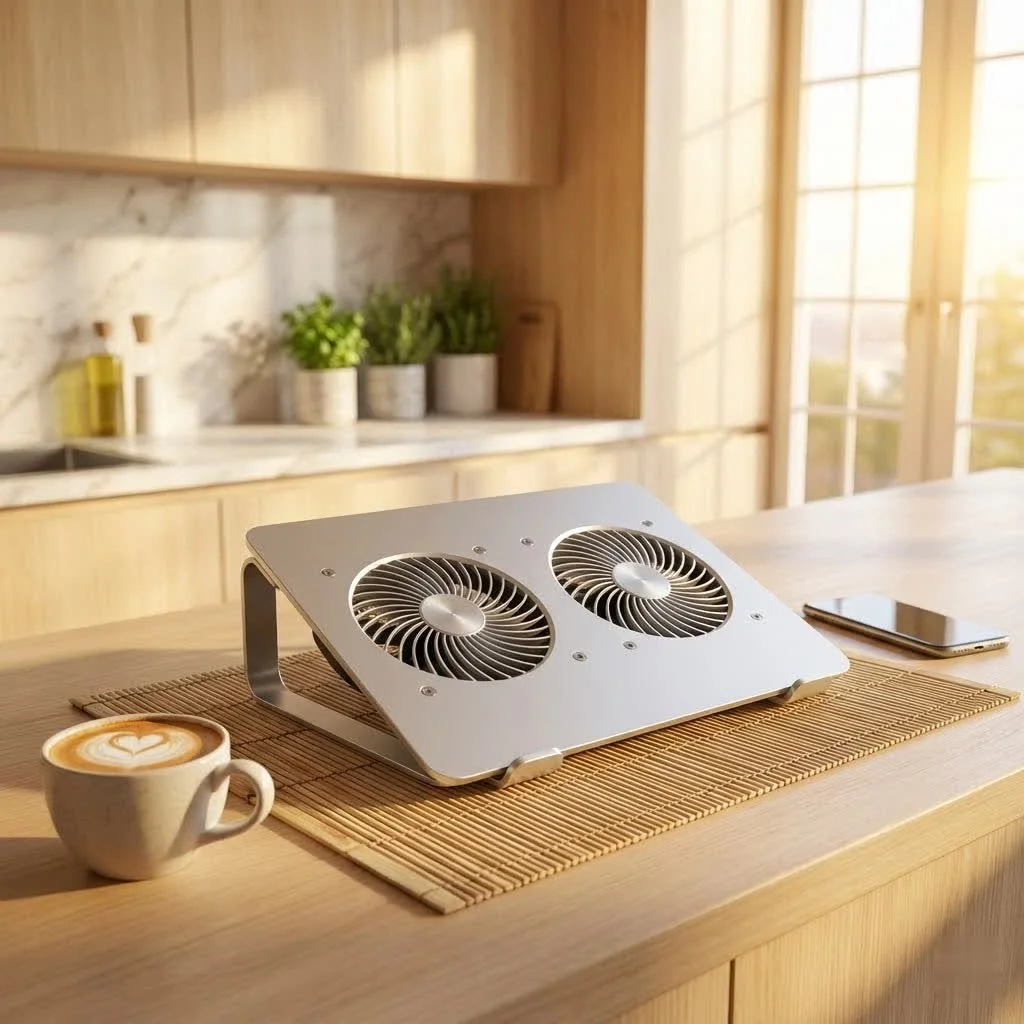
A base laptop cooler, also known as a cooling pad, significantly reduces laptop operating temperatures, often by 5-20°C, preventing thermal throttling and extending hardware lifespan. These essential accessories use active fans or passive designs to dissipate heat, ensuring smoother performance during intensive tasks like gaming or video editing.
Why Your Laptop Needs a Cooling Partner
Modern laptops pack incredible power into increasingly slim designs. While this is great for portability, it often leaves less room for robust internal cooling systems. This delicate balance means that during intensive tasks like gaming, video editing, or even just juggling many browser tabs, your laptop can quickly reach temperatures that trigger thermal throttling – a safety mechanism where your laptop deliberately slows down to prevent damage.
The Heat Problem
Heat is the silent enemy of electronics. Prolonged exposure to high temperatures can degrade internal components like your CPU, GPU, and battery, shortening your laptop’s overall lifespan. Ever feel your laptop getting uncomfortably hot on your lap? That’s not just an inconvenience; it’s a clear sign your machine is struggling to dissipate heat effectively.
Beyond Just Cooling: The Benefits
A good quality base laptop cooler isn’t merely about preventing meltdowns; it offers a suite of advantages that significantly enhance your computing experience:
- Enhanced Performance & Lifespan: By maintaining lower operating temperatures, a base laptop cooler prevents thermal throttling. This means your processor and graphics card can consistently run at their optimal speeds, giving you smoother gameplay, faster rendering, and snappier multitasking. Plus, by reducing thermal stress, you’re directly contributing to the longevity of your precious hardware.
- Improved Comfort & Reduced Noise: No one enjoys a scorching laptop on their lap. A cooling pad provides a comfortable buffer, and by assisting your laptop’s internal fans, it can often reduce their need to spin at maximum speed. This translates to a quieter work environment, allowing you to focus better without the constant roar of overworked fans.
- Ergonomics: Many base laptop coolers come with adjustable height settings, elevating your laptop screen to a more comfortable viewing angle. This simple adjustment can significantly improve your posture, reducing neck and wrist strain during long sessions. It’s a win-win for both you and your machine!
Decoding the Options: Types of Base Laptop Coolers
When you start looking, you’ll find that “base laptop cooler” isn’t a one-size-fits-all term. There are a few distinct types, each with its own approach to cooling.
Active Coolers (with fans)
These are the most common type and what most people envision when they hear “laptop cooler.” They consist of a platform with built-in fans that actively blow cool air towards your laptop’s underside.
- Multi-Fan Designs: These pads feature several smaller fans distributed across the surface, aiming to provide even cooling to a wider area. They are generally effective for standard use and offer decent airflow.
- Single Large Fan/Turbo Fan Designs: Some coolers opt for one or two massive fans designed to generate a powerful, focused airflow. These are often preferred for gaming laptops or systems with specific intake vent locations, as they can push a significant volume of air. Advanced designs might even include foam seals to create a “sealed chamber,” forcing all the cool air directly into your laptop’s intake vents for maximum efficiency.
Passive Coolers
These coolers don’t use active fans. Instead, they rely on materials or design to dissipate heat.
- Elevating Stands: The simplest form of passive cooling, these stands merely lift your laptop off the desk, allowing its internal fans to draw in more ambient air. This alone can make a noticeable difference if your laptop’s vents are typically obstructed.
- Conductive Pads: These pads contain thermally conductive materials, often an organic salt compound, that absorb heat from your laptop. While they offer a temporary cooling effect, their capacity is limited, and they’re less effective for sustained heat management compared to active coolers. It’s generally not advisable for laptops with underside vents, as they can block airflow.
Beyond the Basics: Specialized Coolers
Some modern base laptop coolers incorporate advanced technologies for serious cooling.
- Peltier Plate Coolers: These devices utilize thermoelectric (Peltier) cooling technology, which can actively create a cold spot. They are highly effective for extreme cooling needs, often found in high-performance gaming setups. However, they typically require more power (sometimes an external adapter) and can be pricier.
Choosing Your Perfect Cooling Companion: What to Look For
|
Our Picks for the Best Laptop Cooler in 2026
As an Amazon Associate I earn from qualifying purchases.
|
||
| Num | Product | Action |
|---|---|---|
| 1 | KeiBn Laptop Cooling Pad, Gaming Laptop Cooler 2 Fans for 10-15.6 Inch Laptops, 5 Height Stands, 2 USB Ports (S039) |

|
| 2 | ChillCore Laptop Cooling Pad, RGB Lights Laptop Cooler 9 Fans for 15.6-19.3 Inch Laptops, Gaming Laptop Fan Cooling Pad with 8 Height Stands, 2 USB Ports - A21 Blue |
|
| 3 | havit HV-F2056 15.6\"-17\" Laptop Cooler Cooling Pad - Slim Portable USB Powered (3 Fans), Black/Blue |
|
| 4 | Razer Laptop Cooling Pad: Adaptive Smart - Intelligent Fan Control - Airtight Pressure Chamber - Fits Most Laptops & Macbooks 14” to 18\" - Preset & Custom Fan Curves - 3 Port USB Type A - Chroma RGB |
|
| 5 | llano V12 RGB Laptop Cooling Pad, Gaming Laptop Cooler with 5.5 Inch Powerful Turbofan, Fast Cooling Laptop 15.6-21in, Adjustable Speed, Touch Control, LCD Screen, Black (RGB) |
|
| 6 | Laptop Cooling Pad, Laptop Cooler 6 Quiet Fans for 12\"-17\" Laptops, Gaming Laptop Fan Cooling Pad with 5 Height Adjustable, Slim Portable USB Powered, 2 USB Ports & Phone Holder |
|
| 7 | Laptop Cooling Pad, Gaming Laptop Cooler for 13-19 Inch Laptops, RGB Lights Laptop Fan Cooling Pad with 3 Height Adjustable and 3 USB Ports, 4.72 Inch Large Turbo Fan, Max 3500RPM |
|
| 8 | AICHESON Laptop Cooling Pad 5 Fans Up to 17.3 Inch Heavy Notebook Cooler, Blue LED Lights, 2 USB Ports, S035, Blue-5fans |
|
| 9 | llano V12 Laptop Cooling Pad, Gaming Laptop Cooler Stand with 5.5inch Powerful Turbo Fan, Adjustable Speed, Touch Control, 3-Port USB A, for Fast Cooling Laptop 15.6-19in, Black (No RGB) |
|
| 10 | Kootek Laptop Cooling Pad, Laptop Cooler with 5 Quiet Fans for 12\"-17\" Computer PC Notebook Gaming Laptop Fan, Height Adjustable Laptop Cooling Stand Laptop Accessories, Blue |
|
Selecting the right base laptop cooler can feel overwhelming with so many options. Here’s what I, as a seasoned thermal engineer, advise my readers to consider:
Size and Compatibility
This is crucial. The cooler must be compatible with your laptop’s dimensions. A pad too small won’t provide adequate support or cooling coverage, while one too large might be cumbersome. More importantly, ensure the cooler’s fans align with your laptop’s intake vents. Not all laptops have their vents in the same place, so a quick check underneath your machine can save you a lot of hassle.
Cooling Power: Fans, RPM, CFM
This is where the rubber meets the road.
- Number and Size of Fans: More fans can offer broader coverage, while larger fans often move more air at lower, quieter RPMs.
- Fan Speed (RPM): Higher RPMs generally mean stronger cooling, but also more noise. Many coolers offer adjustable fan speeds, letting you balance cooling performance with acoustic comfort.
- Airflow (CFM): Cubic Feet per Minute (CFM) is a great indicator of how much air a fan can move. For demanding tasks, look for coolers with higher CFM ratings.
- Airflow Design: Look for designs that actively direct air, such as those with sealed chambers or focused airflow. This ensures the cool air reaches your laptop’s critical components effectively.
Ergonomics & Adjustability
Comfort matters. Many base laptop coolers double as ergonomic stands, offering multiple height adjustments. This allows you to set your laptop at an ideal angle for typing and viewing, reducing strain on your neck and wrists during long work or gaming sessions.
Noise Levels
Powerful fans can be noisy. If you work in quiet environments like an office or library, or simply prefer peace, check the decibel ratings. Many manufacturers list this information, allowing you to choose a pad that keeps your laptop cool without sounding like a jet engine.
Connectivity & Features
- USB Pass-Through Ports: Many coolers are USB-powered, and some conveniently offer additional USB ports, allowing you to connect peripherals without losing a valuable port on your laptop.
- RGB Lighting: For gamers, RGB lighting can add a customizable aesthetic touch, complementing your existing setup.
- LCD Displays: Some premium models feature LCD screens that show fan speeds, offering greater control and real-time feedback.
- Dust Filters: A removable, washable dust filter is a fantastic feature to keep your cooling pad and, by extension, your laptop’s internals cleaner.
Build Quality & Portability
Choose a base laptop cooler with sturdy construction. Metal mesh surfaces are excellent for heat dissipation and durability, while high-quality plastic ensures longevity. If you’re always on the go, a slim, lightweight, and easily portable model that fits into your laptop bag is a must.
Keeping Things Running Smoothly: Maintenance Tips
A base laptop cooler is an investment in your laptop’s health, and like any tool, it benefits from proper care.
“Think of your laptop’s cooling system and your cooling pad as a team. Both need regular attention to perform at their peak. Just a few minutes of care can prevent hours of frustration and potentially save your hardware.” – Dr. Anya Sharma, Lead Thermal Architect at Tselk.com
Cleaning Your Laptop’s Internal Fans
Even with a cooling pad, your laptop’s internal fans will accumulate dust. Regular cleaning is vital:
- Power Down: Always power off and unplug your laptop, and remove the battery if possible, before cleaning.
- Compressed Air: Use short, controlled bursts of compressed air into the intake and exhaust vents. Crucially, hold the internal fans still while doing this to prevent them from over-spinning and causing damage.
- Deeper Clean: If comfortable, you can gently open your laptop’s bottom panel (following manufacturer guidelines) to access and carefully clean the fan blades and heatsinks with a soft brush or lint-free cloth.
Caring for Your Cooling Pad
Your cooling pad also collects dust, which can impede its effectiveness:
- Wipe Down: Regularly wipe the surface and fan grilles with a dry or slightly damp cloth to remove surface dust.
- Clean Fans: If your cooling pad’s fans are exposed, use compressed air or a soft brush to clear out any accumulated dust. Some pads have removable filters or fan covers for easier cleaning.
- Check for Wear: Periodically inspect the USB cable for any damage and ensure any adjustable stands or rubber grips are still secure.
Frequently Asked Questions (FAQ)
Do base laptop coolers really work?
Yes, absolutely! While their effectiveness can vary depending on your laptop’s design and the cooler’s quality, a good base laptop cooler can significantly reduce operating temperatures, often by 5-20°C, leading to improved performance and extended hardware lifespan.
How many fans do I need on my cooling pad?
The ideal number of fans depends on your laptop and usage. For general use, a pad with two to three well-placed fans is usually sufficient. For gaming laptops or intensive tasks, models with multiple large fans or a powerful turbo fan are often more effective, especially if they align well with your laptop’s vents.
Can a cooling pad damage my laptop?
No, a properly used base laptop cooler will not damage your laptop. In fact, it helps prevent heat-related damage. The fans on cooling pads are designed to move air, not to create excessive pressure that could harm your laptop’s internal components. Just ensure the pad doesn’t block your laptop’s own exhaust vents.
What’s the difference between an active and passive cooler?
Active coolers use built-in fans to actively blow air, providing direct cooling. Passive coolers, on the other hand, rely on elevating the laptop for better natural airflow or using thermally conductive materials to absorb heat, without any moving parts. Active coolers generally offer superior cooling performance.
How often should I clean my cooling pad?
It’s a good practice to clean your base laptop cooler at least once a month, or more frequently if you use your laptop in a dusty environment or for extended periods. Keeping the fans and surfaces free of dust ensures optimal airflow and performance.
Your Laptop Deserves to Stay Cool
As a dedicated thermal engineer, I’ve seen firsthand the difference a quality base laptop cooler can make. It’s more than just an accessory; it’s a vital component in preserving your laptop’s health, boosting its performance, and enhancing your comfort. Don’t let overheating slow you down or shorten your laptop’s life. Explore the options, consider your specific needs, and invest in a cooling companion that will keep your machine running smoothly for years to come. Your laptop, and your productivity, will thank you for it. So, go ahead, choose wisely, keep it cool, and improve your computing experience!
Frequently Asked Questions
Do base laptop coolers truly improve laptop performance and longevity?
Yes, a good base laptop cooler can significantly reduce operating temperatures, often by 5-20u00b0C. This reduction prevents thermal throttling, allowing your processor and graphics card to run at optimal speeds, which leads to improved performance and extends the overall lifespan of your hardware.
How many fans are ideal for an effective laptop cooling pad?
The ideal number of fans depends on your laptop's design and your usage. For general use, two to three well-placed fans are usually sufficient. For gaming laptops or intensive tasks, models with multiple large fans or a powerful turbo fan are more effective, especially if they align with your laptop's intake vents.
Can using a cooling pad cause any damage to my laptop?
No, a properly used base laptop cooler will not damage your laptop; in fact, it helps prevent heat-related damage. The fans are designed to move air, not create excessive pressure. Ensure the cooling pad does not block your laptop's own exhaust vents to maintain proper airflow.
What is the main difference between active and passive laptop coolers?
Active coolers use built-in fans to actively blow air, providing direct and often superior cooling. Passive coolers, conversely, rely on elevating the laptop for better natural airflow or using thermally conductive materials to absorb heat, without any moving parts or active airflow.
How frequently should I clean my laptop cooling pad for optimal performance?
It is recommended to clean your base laptop cooler at least once a month. More frequent cleaning may be necessary if you use your laptop in a dusty environment or for extended periods. Regular cleaning of fans and surfaces ensures optimal airflow and sustained cooling performance.
Maintain Your Laptop and Cooling Pad for Peak Performance
Regular maintenance of both your laptop's internal fans and your cooling pad is crucial for preventing overheating and ensuring long-term performance.
First, power off and unplug your laptop, removing the battery if possible. Use short, controlled bursts of compressed air into the intake and exhaust vents, holding the internal fans still to prevent damage from over-spinning. For a deeper clean, gently open the bottom panel (following manufacturer guidelines) to access and clean fan blades and heatsinks with a soft brush.
Regularly wipe the surface and fan grilles of your cooling pad with a dry or slightly damp cloth to remove surface dust. This prevents dust buildup from impeding airflow and reducing the cooler's effectiveness.
If your cooling pad's fans are exposed, use compressed air or a soft brush to clear accumulated dust. Some pads have removable filters or fan covers for easier cleaning. Periodically inspect the USB cable for damage and ensure adjustable stands or rubber grips are secure.
Get our weekly buyer guide
Practical specs, not advice. Unsubscribe anytime.

My old MacBook Pro used to get so hot on my lap, it was uncomfortable to use for more than an hour. I picked up a passive design cooler, and while it doesn’t have fans, the elevated angle and aluminum surface really help dissipate heat. It’s not a dramatic 20°C drop, but it keeps things much cooler and more comfortable for everyday browsing and work. Simple and effective.
I bought a base laptop cooler with multiple fans, hoping to solve the overheating issues I have when editing videos. It does help a bit, maybe a 5-7°C reduction, but the noise from the fans is more noticeable than I expected. It’s not terrible, but it’s a trade-off. I wish it was a bit quieter, especially when I’m trying to focus on audio.
My work laptop was always struggling with multiple browser tabs and virtual meetings, leading to constant thermal throttling. I grabbed one of the mid-range cooling pads mentioned, and it’s been a game-changer. My CPU temperatures are much more stable, and I haven’t experienced any more unexpected slowdowns. It’s really extended the usable life of my laptop for intensive tasks.
I was skeptical about how much a cooling pad could really help, but my gaming laptop was constantly hitting high temps and throttling. After getting one of the active fan models recommended, I’ve seen a consistent 10-15°C drop during long sessions. It’s made a huge difference in preventing those annoying slowdowns when I’m in the middle of a game. Definitely worth the investment for serious gamers.