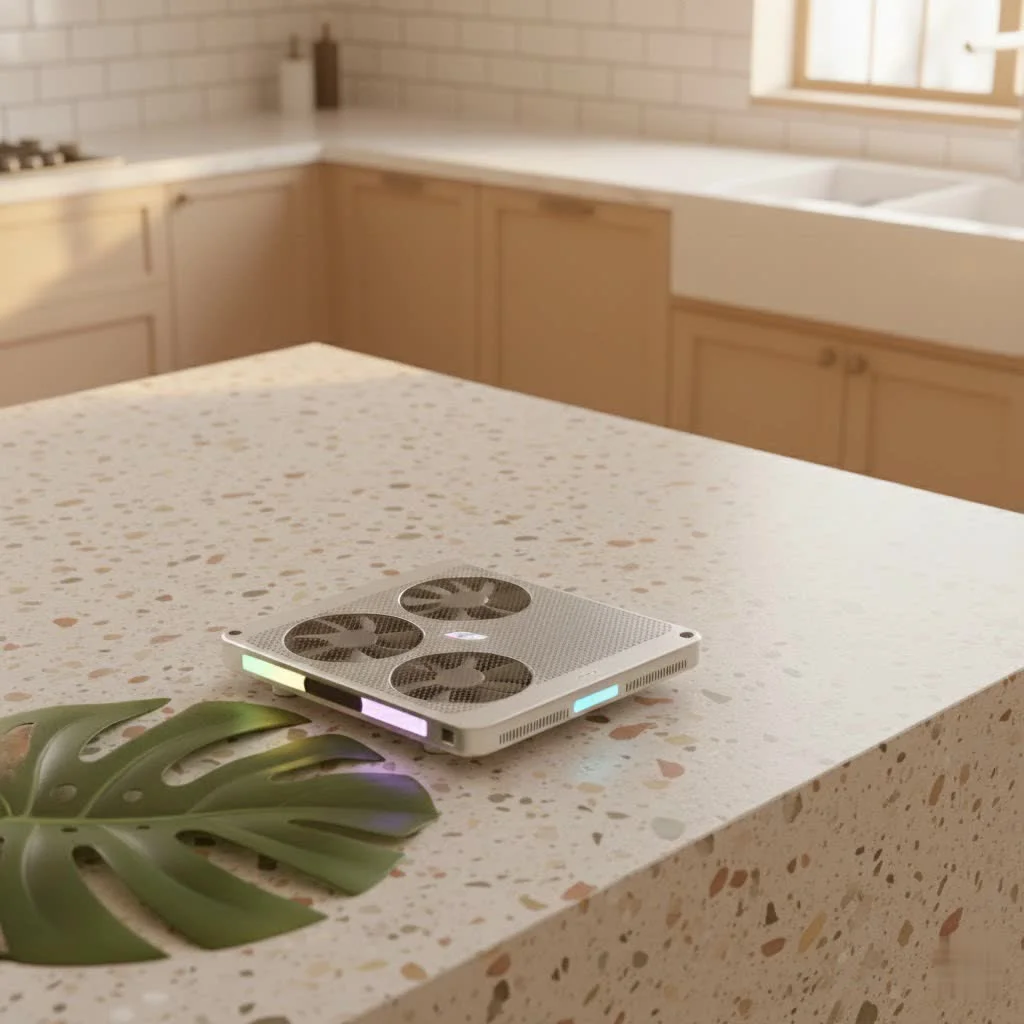
A laptop cooler is an accessory designed to reduce your laptop’s operating temperature, typically by using built-in fans to improve airflow and dissipate heat. These devices can significantly lower both surface and internal temperatures by 5-10°C, preventing thermal throttling, extending battery life, and prolonging hardware lifespan. By maintaining stable internal temperatures, a laptop cooler allows your machine to perform at its peak during intensive tasks like gaming or video editing.
What Exactly is a Laptop Cooler, and Why Do You Need One?
At its core, a laptop cooler, often referred to as a cooling pad or cooling stand, is an accessory designed to reduce your laptop’s operating temperature. Think of it as an external air conditioning unit for your portable PC. Most versions consist of a platform that sits beneath your laptop, equipped with built-in fans that actively draw hot air away or push cool air towards your laptop’s intake vents. For best laptop cooling roundups on this site.
Why is this so crucial? Laptops, especially modern thin and powerful models, generate a significant amount of heat. When this heat builds up, your laptop’s internal components, like the CPU and GPU, can reach critical temperatures. To prevent damage, the system automatically reduces its performance, a process known as “thermal throttling.” This leads to frustrating slowdowns, stuttering gameplay, and longer rendering times. By improving airflow and dissipating heat more efficiently, a laptop cooler helps your machine maintain stable internal temperatures, allowing it to perform at its peak without these unwelcome interruptions.
Do Laptop Coolers Really Make a Difference? The Truth About Their Effectiveness.
The question of whether a laptop cooler actually works is a common one, and the answer is a resounding “yes,” though with some important nuances. A good cooling pad can significantly lower both surface and internal temperatures by several degrees – often 5-10°C, with some high-performance models reporting even greater drops. This isn’t just about comfort; it translates directly into tangible benefits.
For instance, during intensive tasks like gaming, video editing, or 3D rendering, reduced temperatures mean less thermal throttling. This can result in smoother gameplay, higher frame rates (FPS), and faster processing times. By keeping components from consistently operating at their thermal limits, a laptop cooler can genuinely extend your machine’s lifespan, saving you from costly repairs or premature replacements.
“Many users are skeptical, but the right laptop cooler, especially those with focused airflow, can be a major upgrade,” explains Dr. Elena Petrov, a renowned thermal engineering expert. “It’s not just about adding fans; it’s about optimizing the thermal path and ensuring your laptop’s internal cooling system has the best possible conditions to do its job. Preventing thermal throttling is key to sustained performance and component longevity.”
The effectiveness of a laptop cooler also heavily depends on your usage habits. If you frequently use your laptop on soft surfaces like a bed, sofa, or your lap, where airflow is naturally restricted, a cooling pad can make a dramatic difference. These surfaces act as insulators, trapping heat and blocking crucial intake vents. Even a basic cooling pad that simply elevates your laptop can provide passive cooling benefits by allowing air to circulate freely underneath.
Decoding the Types of a Laptop Cooler: Finding Your Perfect Match
Not all laptop coolers are created equal. Understanding the different types available will help you choose the best laptop cooler to suit your specific needs and laptop design.
Active Cooling Pads (Fan-Based)
|
Our Picks for the Best Laptop Cooler in 2026
As an Amazon Associate I earn from qualifying purchases.
|
||
| Num | Product | Action |
|---|---|---|
| 1 | havit HV-F2056 15.6\"-17\" Laptop Cooler Cooling Pad - Slim Portable USB Powered (3 Fans), Black/Blue |

|
| 2 | Razer Laptop Cooling Pad: Adaptive Smart - Intelligent Fan Control - Airtight Pressure Chamber - Fits Most Laptops & Macbooks 14” to 18\" - Preset & Custom Fan Curves - 3 Port USB Type A - Chroma RGB |
|
| 3 | ChillCore Laptop Cooling Pad, RGB Lights Laptop Cooler 9 Fans for 15.6-19.3 Inch Laptops, Gaming Laptop Fan Cooling Pad with 8 Height Stands, 2 USB Ports - A21 Blue |
|
| 4 | Laptop Cooling Pad, Laptop Cooler 6 Quiet Fans for 12\"-17\" Laptops, Gaming Laptop Fan Cooling Pad with 5 Height Adjustable, Slim Portable USB Powered, 2 USB Ports & Phone Holder |
|
| 5 | Kootek Laptop Cooling Pad, Laptop Cooler with 5 Quiet Fans for 12\"-17\" Computer PC Notebook Gaming Laptop Fan, Height Adjustable Laptop Cooling Stand Laptop Accessories, Blue |
|
| 6 | AICHESON Laptop Cooling Pad 5 Fans Up to 17.3 Inch Heavy Notebook Cooler, Blue LED Lights, 2 USB Ports, S035, Blue-5fans |
|
| 7 | Laptop Cooling Pad, Gaming Laptop Cooler for 13-19 Inch Laptops, RGB Lights Laptop Fan Cooling Pad with 3 Height Adjustable and 3 USB Ports, 4.72 Inch Large Turbo Fan, Max 3500RPM |
|
| 8 | llano V12 Laptop Cooling Pad, Gaming Laptop Cooler Stand with 5.5inch Powerful Turbo Fan, Adjustable Speed, Touch Control, 3-Port USB A, for Fast Cooling Laptop 15.6-19in, Black (No RGB) |
|
| 9 | llano V12 RGB Laptop Cooling Pad, Gaming Laptop Cooler with 5.5 Inch Powerful Turbofan, Fast Cooling Laptop 15.6-21in, Adjustable Speed, Touch Control, LCD Screen, Black (RGB) |
|
| 10 | KeiBn Laptop Cooling Pad, Gaming Laptop Cooler 2 Fans for 10-15.6 Inch Laptops, 5 Height Stands, 2 USB Ports (S039) |
|
These are the most prevalent type of a laptop cooler and use electric fans to generate airflow.
- Multi-Fan Designs: These pads feature several smaller fans distributed across the surface, aiming to provide even cooling to a broader area of your laptop’s underside. They are generally good for everyday use and laptops with multiple, spread-out intake vents.
- Turbo/Blower Designs: Often found in high-performance or gaming-specific laptop coolers, these models use one or more powerful fans to generate strong, directed airflow. Many advanced designs incorporate “sealed chambers” or foam seals around the edges. This creates an airtight pressure chamber that forces cool air directly into your laptop’s intake vents, rather than letting it escape around the sides. This direct injection of air makes them exceptionally effective for gaming laptops or those pushed to their limits.
Passive Cooling Stands
These coolers don’t use active fans or electricity.
- Elevation Stands: The simplest form, these stands merely improve your laptop, creating a gap between its base and the surface it rests on. This allows your laptop’s built-in fans to draw in more fresh air from underneath, improving natural convection.
- Conductive Material Pads: Some passive pads are filled with organic salt compounds or made of highly conductive materials (like aluminum) that absorb heat from the laptop’s chassis. While they can provide temporary relief, their cooling capacity is finite and they typically only offer cooling for a limited time (e.g., 6-8 hours) before needing to cool down themselves.
Specialty Coolers (Briefly Mentioned)
While less common, some specialized cooling solutions exist:
- Peltier Cooling Pads: These use thermoelectric cooling elements that get extremely cold on one side and hot on the other. They can offer intense cooling but typically require more power, often from an external adapter, and generate more heat themselves, which needs to be dissipated.
- Vacuum Coolers: These small, external fans attach directly to your laptop’s exhaust vents, actively pulling hot air out of the system. They can be very effective for specific laptop designs but require a compatible side or rear exhaust vent.
How to Choose the Best Laptop Cooler for Your Needs
Selecting the right laptop cooler can seem daunting with so many options available. Here are the key factors to consider:
Fan Power and Configuration: RPM, CFM, and Fan Count
When it comes to fan-based coolers, specifications matter.
- RPM (Revolutions Per Minute): This indicates how fast the fans spin. Higher RPM generally means stronger airflow and better cooling, but often comes with increased noise. For intense gaming or heavy tasks, look for higher RPM fans.
- CFM (Cubic Feet Per Minute): This measures the volume of air the fans move. A higher CFM rating signifies more effective air displacement. Some top-tier gaming coolers boast CFM ratings well over 100.
- Fan Count: While more fans can provide broader coverage, the quality and alignment of individual fans often matter more than quantity. A single, powerful turbo fan strategically placed can outperform multiple weaker fans.
Airflow Design: Matching Vents and Sealed Chambers
This is perhaps the most critical factor. For a laptop cooler to be effective, its fans must align with your laptop’s intake vents.
- Vent Alignment: Before purchasing, check the bottom of your laptop to locate its air intake vents. Then, choose a cooler where the fans can directly blow air into these areas.
- Sealed Chambers: For maximum efficiency, especially with gaming laptops, look for models that create a sealed or semi-sealed chamber between the cooler and your laptop. This ensures that all the generated airflow is directed into your laptop’s cooling system, rather than escaping around the edges.
Build Quality and Ergonomics: Durability Meets Comfort
A good laptop cooler should be both robust and user-friendly.
- Materials: Look for sturdy construction using materials like metal mesh (for better heat dissipation and durability) and high-quality ABS plastic.
- Adjustable Height: Many coolers double as ergonomic stands, offering multiple height adjustments. This improves your typing posture, reduces strain, and can also enhance airflow by elevating the laptop further.
- Noise Levels: While powerful fans are good for cooling, they can be noisy. Check decibel ratings or reviews for user feedback on noise. Some coolers offer adjustable fan speeds, allowing you to balance cooling performance with acoustic comfort.
Compatibility: Size, Portability, and Power
- Laptop Size: Ensure the cooler is compatible with your laptop’s screen size (e.g., up to 15.6-inch, 17-inch, or 19.3-inch).
- Portability: If you travel frequently, consider a slim, lightweight laptop cooler that can easily fit into your bag.
- Power Source: Most fan-based coolers are USB-powered. Ensure your laptop has enough available USB ports. Some high-power or Peltier models may require an external power adapter, which is important to consider.
Extra Features: USB Hubs, RGB, and Smart Controls
Modern laptop coolers often come with added functionalities:
- USB Hubs: Many coolers include extra USB ports, compensating for the port used to power the cooler itself. This is great for connecting peripherals.
- RGB Lighting: For gamers, RGB lighting can add aesthetic flair to their setup. Just looks don’t cool; airflow does! Don’t prioritize RGB over actual cooling performance.
- Smart Controls: Some advanced models feature temperature sensors and software integration, allowing for custom fan curves, adaptive fan control, and monitoring.
Beyond the Pad: Maximizing Your Laptop’s Cooling Performance
While a laptop cooler is a powerful tool, it’s part of a larger ecosystem of maintaining optimal laptop temperatures. Here are some complementary tips:
- Regular Cleaning: Dust is the archenemy of cooling. Regularly clean your laptop’s external vents with compressed air. Also, to clean your cooling pad itself – dust accumulation on its fans and mesh can impede airflow.
- Proper Placement and Workspace Ventilation: Always use your laptop on a hard, flat surface whenever possible. Ensure there’s ample space around your laptop and cooler for air to circulate freely. Avoid blocking any vents.
- Thermal Paste Replacement: For advanced users, replacing the thermal paste on your CPU and GPU every 1-2 years (especially on gaming or high-performance laptops) can significantly improve heat transfer to the heatsink. This requires opening your laptop, so proceed with caution or seek professional help.
- Software Optimization: Keep your drivers updated, manage background processes, and consider undervolting your CPU (an advanced technique to reduce voltage without sacrificing performance, thus lowering heat generation).
- Don’t Fall for Gimmicks: As mentioned, flashy RGB doesn’t equate to better cooling. Focus on the core specifications like RPM, CFM, and effective airflow design when choosing a laptop cooler.
Frequently Asked Questions About a Laptop Cooler
Q: Are laptop cooling pads bad for laptops?
A: Generally, no. When used correctly, a laptop cooler is beneficial. However, ensure the cooler’s fans align with your laptop’s intake vents. Misaligned fans could potentially impede airflow or create less efficient cooling. Also, be mindful of models that create an airtight seal; ensure it doesn’t block any crucial exhaust vents or cause unintended pressure points.
Q: How much can a good laptop cooler reduce temperature?
A: A good laptop cooler can typically reduce your laptop’s internal and surface temperatures by 5-10°C, and in some cases, particularly with high-performance gaming coolers, users have reported drops of 15-20°C. This reduction can significantly impact performance by preventing thermal throttling.
Q: Can a laptop cooler extend my laptop’s lifespan?
A: Yes, absolutely. Consistent exposure to high temperatures accelerates component degradation. By keeping your laptop cooler, you reduce stress on internal hardware, which can directly contribute to a longer lifespan for your machine and fewer instances of hardware failure.
Q: What’s the difference between a cooling pad and a laptop stand?
A: A laptop stand primarily elevates your laptop for ergonomic benefits and to improve natural airflow passively. A laptop cooler (or cooling pad) goes a step further by incorporating active cooling elements, typically fans, to actively move air and dissipate heat more effectively. Many cooling pads also serve as stands.
Q: Do MacBooks need a laptop cooler?
A: It depends on the model and usage. Newer MacBooks with Apple Silicon are incredibly power-efficient and often run cooler than their Intel predecessors. However, if you’re consistently performing intensive tasks like video editing, graphic design, or heavy multitasking, even a MacBook can generate significant heat. In such scenarios, a laptop cooler designed for MacBooks (often focusing on blowing air along the aluminum underside or aligning with specific vent patterns) can be beneficial for maintaining optimal performance.
Keep Your Cool, Keep Performing
In the dynamic world of computing, keeping your laptop cool isn’t just a luxury; it’s a necessity for optimal performance and longevity. Investing in a laptop cooler is a smart move that can prevent frustrating slowdowns, extend your machine’s life, and enhance your overall computing experience. By understanding the different types, knowing what to look for, and implementing smart usage habits, you can ensure your laptop remains a powerhouse, not a heat source. Don’t let overheating hold you back – unlock your laptop’s full potential and enjoy cooler, smoother, and more consistent performance.
Frequently Asked Questions
Are laptop cooling pads bad for laptops or can they cause damage?
Generally, no, laptop cooling pads are not bad for laptops when used correctly. Ensure the cooler's fans align with your laptop's intake vents to optimize airflow. Misaligned fans could potentially impede cooling efficiency or create unintended pressure points, so proper placement is key.
How much can a good laptop cooler reduce internal temperatures?
A good laptop cooler can typically reduce your laptop's internal and surface temperatures by 5-10u00b0C. High-performance gaming coolers have even reported drops of 15-20u00b0C, significantly impacting performance by preventing thermal throttling during intensive tasks.
Can using a laptop cooler extend the overall lifespan of my laptop?
Yes, absolutely. Consistent exposure to high temperatures accelerates component degradation within your laptop. By keeping your machine cooler, you reduce stress on internal hardware, which directly contributes to a longer lifespan and fewer instances of hardware failure over time.
What is the main difference between a cooling pad and a simple laptop stand?
A laptop stand primarily elevates your laptop for ergonomic benefits and to improve natural airflow passively. A laptop cooler, also known as a cooling pad, goes a step further by incorporating active cooling elements, typically electric fans, to actively move air and dissipate heat more effectively. Many cooling pads also double as ergonomic stands.
Do MacBooks require a laptop cooler for optimal performance?
Whether a MacBook needs a laptop cooler depends on the model and usage. Newer MacBooks with Apple Silicon are highly power-efficient and often run cooler. However, for consistently intensive tasks like video editing or graphic design, even a MacBook can generate significant heat, making a cooler beneficial for maintaining optimal performance.
Choose the Best Laptop Cooler
Selecting the right laptop cooler involves evaluating fan power, airflow design, build quality, and compatibility to ensure optimal cooling and ergonomic benefits for your specific needs.
Examine the RPM (Revolutions Per Minute) and CFM (Cubic Feet Per Minute) ratings. Higher RPM and CFM generally indicate stronger airflow and better cooling, but may also increase noise. Consider the number and strategic placement of fans; a single powerful turbo fan can be more effective than multiple weaker ones.
Crucially, locate your laptop's air intake vents on its underside before purchasing. Choose a cooler where the fans directly align with these vents to maximize efficiency. For gaming laptops, prioritize models with sealed or semi-sealed chambers to direct all airflow into your laptop's cooling system.
Look for sturdy construction materials like metal mesh and high-quality ABS plastic for durability and better heat dissipation. Consider models with adjustable height settings to improve typing posture and enhance airflow. Check user reviews for feedback on noise levels, as powerful fans can be loud, and some coolers offer adjustable fan speeds.
Ensure the cooler is compatible with your laptop's screen size (e.g., up to 15.6-inch or 17-inch). If you travel, opt for a slim and lightweight model. Most fan-based coolers are USB-powered, so confirm you have available USB ports; some high-power or Peltier models may require an external power adapter.
Modern coolers may offer additional USB ports, RGB lighting, or smart controls like temperature sensors and adaptive fan control. While RGB is aesthetic, prioritize actual cooling performance over flashy lights. USB hubs can be very practical for connecting peripherals.
Get our weekly buyer guide
Practical specs, not advice. Unsubscribe anytime.

I picked up a cooling stand after my old laptop started feeling sluggish during video editing. The idea of extending hardware lifespan really appealed to me. It works great for keeping my machine from overheating, especially when rendering large files. My only minor complaint is that the fan noise is a little noticeable, but it’s not a dealbreaker considering the performance boost.
I got a basic cooling pad to help with my work laptop, which tends to run warm. It does help a bit with surface temperatures, but I haven’t noticed a dramatic improvement in battery life as mentioned. Maybe I need a more powerful model with stronger fans. It’s okay for light use, but I was hoping for a bit more impact.
This accessory is a game-changer for anyone doing intensive tasks. I use my laptop for CAD design, and it used to get incredibly hot, leading to crashes. Since getting a cooling pad, my laptop maintains stable internal temperatures, allowing it to perform at its peak. It’s a simple solution that really prolongs the life of your machine.
I was skeptical about how much a cooling pad could really help, but after reading about the 5-10°C temperature drop, I decided to try one for my gaming laptop. It’s made a huge difference! My laptop used to get so hot during long sessions, causing noticeable slowdowns. Now, it stays much cooler, and I haven’t experienced any thermal throttling since. Definitely worth the investment for serious gamers.