As a seasoned thermal engineer with over a decade in the trenches of laptop cooling design, testing, and evaluation, I’ve seen firsthand how a well-maintained thermal system can transform your computing experience. Here at Tselk.com, we’re all about empowering you with the knowledge to keep your valuable tech running smoothly, and when it comes to HP laptops, staying cool is absolutely paramount for longevity and peak performance. If your HP laptop feels like it’s auditioning for a role as a portable heater, you’re in the right place. We’re diving deep into why it happens, what you can do about it, and how the right HP laptop cooler can be your best friend in the fight against heat.
Keeping your HP laptop’s temperatures in check isn’t just about comfort; it’s about safeguarding your investment. Excessive heat can lead to frustrating performance slowdowns, known as thermal throttling, and over time, it can even shorten the lifespan of critical components like your CPU and GPU. So, let’s explore how to ensure your HP laptop remains cool, quiet, and consistently powerful.
Why Your HP Laptop Heats Up: Understanding the Problem
Before we talk about solutions, it’s crucial to understand the root causes of overheating. Just like any high-performance machine, laptops generate heat, and if that heat isn’t effectively dissipated, problems arise. Here are the common culprits:
- Dust and Debris Accumulation: This is the silent killer. Over time, dust, lint, and pet hair can clog your laptop’s internal fans and heat sinks, creating an insulating layer that traps heat. This forces the fans to work harder, making more noise and often failing to cool effectively.
- Old Thermal Paste: Inside your HP laptop, thermal paste acts as a bridge between the CPU/GPU and their respective heat sinks, facilitating heat transfer. After a year or two, especially in gaming or high-performance HP models, this paste can dry out and lose its effectiveness, hindering heat dissipation.
- Intensive Tasks and Workloads: Pushing your HP laptop with demanding games, video editing, 3D rendering, or even just having too many browser tabs open simultaneously forces the CPU and GPU to work harder, generating more heat than usual.
- Poor Ventilation: Where and how you use your HP laptop makes a huge difference. Placing it on soft surfaces like beds, blankets, or even your lap can block the air intake vents, suffocating the cooling system and leading to rapid heat buildup.
- Environmental Factors: A hot room or humid climate can significantly contribute to your laptop’s internal temperature, making it harder for its cooling system to do its job.
Understanding these factors is the first step toward implementing effective cooling strategies.
Beyond the Basics: Essential Cooling Practices for HP Laptops
While an external HP laptop cooler is a powerful tool, it’s part of a larger ecosystem of thermal management. Here are foundational practices every HP laptop owner should adopt:
Regular Cleaning: The First Line of Defense
|
Our Picks for the Best Laptop Cooler in 2026
As an Amazon Associate I earn from qualifying purchases.
|
||
| Num | Product | Action |
|---|---|---|
| 1 | llano V12 RGB Laptop Cooling Pad, Gaming Laptop Cooler with 5.5 Inch Powerful Turbofan, Fast Cooling Laptop 15.6-21in, Adjustable Speed, Touch Control, LCD Screen, Black (RGB) |

|
| 2 | Laptop Cooling Pad, Laptop Cooler 6 Quiet Fans for 12\"-17\" Laptops, Gaming Laptop Fan Cooling Pad with 5 Height Adjustable, Slim Portable USB Powered, 2 USB Ports & Phone Holder |
|
| 3 | havit HV-F2056 15.6\"-17\" Laptop Cooler Cooling Pad - Slim Portable USB Powered (3 Fans), Black/Blue |
|
| 4 | KeiBn Laptop Cooling Pad, Gaming Laptop Cooler 2 Fans for 10-15.6 Inch Laptops, 5 Height Stands, 2 USB Ports (S039) |
|
| 5 | llano V12 Laptop Cooling Pad, Gaming Laptop Cooler Stand with 5.5inch Powerful Turbo Fan, Adjustable Speed, Touch Control, 3-Port USB A, for Fast Cooling Laptop 15.6-19in, Black (No RGB) |
|
| 6 | Laptop Cooling Pad, Gaming Laptop Cooler for 13-19 Inch Laptops, RGB Lights Laptop Fan Cooling Pad with 3 Height Adjustable and 3 USB Ports, 4.72 Inch Large Turbo Fan, Max 3500RPM |
|
| 7 | AICHESON Laptop Cooling Pad 5 Fans Up to 17.3 Inch Heavy Notebook Cooler, Blue LED Lights, 2 USB Ports, S035, Blue-5fans |
|
| 8 | ChillCore Laptop Cooling Pad, RGB Lights Laptop Cooler 9 Fans for 15.6-19.3 Inch Laptops, Gaming Laptop Fan Cooling Pad with 8 Height Stands, 2 USB Ports - A21 Blue |
|
| 9 | Kootek Laptop Cooling Pad, Laptop Cooler with 5 Quiet Fans for 12\"-17\" Computer PC Notebook Gaming Laptop Fan, Height Adjustable Laptop Cooling Stand Laptop Accessories, Blue |
|
| 10 | Razer Laptop Cooling Pad: Adaptive Smart - Intelligent Fan Control - Airtight Pressure Chamber - Fits Most Laptops & Macbooks 14” to 18\" - Preset & Custom Fan Curves - 3 Port USB Type A - Chroma RGB |
|
One of the simplest yet most effective ways to combat overheating is regular cleaning.
- Clean Vents and Fans: Power down your HP laptop, disconnect the charger, and use a can of compressed air to clear out dust and debris from the exhaust and intake vents. Focus on short bursts to dislodge any blockages. Do this every few months, or more frequently if you’re in a dusty environment.
- Internal Cleaning (Advanced): For more persistent issues, a deeper internal cleaning might be necessary. This involves carefully opening your laptop to clean the fans and heatsinks directly. This is a task for experienced users or a professional, as it can void your warranty if not done correctly.
Optimizing Software Settings
Your operating system and HP’s own utilities offer tools to manage heat.
- Power Settings Management: In Windows, adjust your power plan to “Balanced” or even “Power saver” when you don’t need maximum performance. This reduces CPU clock speed and power consumption, thereby lowering heat generation.
- Manage Background Applications: Close unnecessary programs and browser tabs. Each active application consumes CPU cycles and RAM, contributing to heat. Use Task Manager to identify and close resource-hogging apps.
- HP Cool Control (if available): Some HP laptops, like certain Spectre or x360 models, feature “HP Cool Control” software. If your laptop has it, enable it to adjust performance and fan settings, directly impacting internal temperatures. Search for “Cool Control” in your Windows Control Panel to access it.
- Keep Drivers Updated: Ensure your HP laptop’s drivers, especially for the graphics card and chipset, are up to date. HP Support Assistant is a great tool for this, as updated drivers can sometimes improve thermal management efficiency.
Ensuring Proper Environment and Surface
Common sense plays a big role in keeping your HP laptop cool.
- Use on Hard, Flat Surfaces: Always place your HP laptop on a desk or a dedicated laptop stand. This allows for unrestricted airflow around the intake vents, vital for the internal fans to draw in cool air. Avoid soft surfaces like beds or carpets.
- Mind the Room Temperature: Whenever possible, use your laptop in a cooler environment. If your room is warm, the laptop’s internal temperature will naturally be higher.
Choosing the Right HP Laptop Cooler: What to Look For
Now, let’s talk about dedicated HP laptop coolers. These external devices are designed to supplement your laptop’s internal cooling system, providing an extra layer of defense against rising temperatures. But not all coolers are created equal, and choosing the right one for your specific HP model is key.
Types of Laptop Coolers
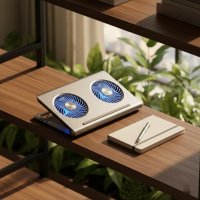
- Cooling Pads (Active): These are the most common type, featuring one or more fans built into a platform. They blow cool air towards the laptop’s underside, directly assisting heat dissipation. They are widely recommended for HP laptops, especially gaming models like the Omen or Victus series, which benefit significantly from increased airflow.
- Laptop Stands (Passive): Simple elevated platforms that improve airflow by raising your laptop off the desk. They don’t have active fans but are a good basic solution for general use HP laptops that don’t suffer from extreme overheating.
- Vacuum Coolers (Side Exhaust): These are less common but can be effective for laptops with side exhaust vents. They attach to the side of the laptop and actively pull hot air out. However, compatibility can be tricky, as they need to form a tight seal around the vent.
Key Features for HP Laptops
When selecting an HP laptop cooler, consider these crucial features:
- Fan Size, Number, and Placement: “More fans generally provide more even cooling, while larger turbo fans often deliver stronger airflow,” notes Dr. Ethan Stone, a leading expert in computer thermals. Look for coolers with fans that align with your HP laptop’s intake vents, usually located on the bottom. For HP Victus 15, multiple fans provide excellent coverage, while HP Omen laptops often benefit from powerful turbofans.
- Adjustable Fan Speeds: This is a must-have. Being able to adjust fan speeds allows you to balance cooling performance with noise levels. You can ramp it up during intense gaming sessions and turn it down for quieter work.
- Ergonomics and Build Quality: A good cooler should offer adjustable height settings for comfortable typing and viewing angles, improving ergonomics. Sturdy construction, often with metal mesh surfaces, aids in heat dissipation and provides stability.
- Connectivity and Power: Many coolers are USB-powered. Look for models with USB passthrough ports so you don’t lose a valuable USB slot on your HP laptop. Some high-performance pads might even offer external power options for maximum fan speed without drawing from your laptop’s battery.
- Noise Levels: While powerful fans are great for cooling, they can be noisy. Check reviews for user feedback on fan noise, especially if you value a quiet workspace. Modern designs, like those found in newer cooling pads, incorporate noise reduction technology while maintaining strong airflow.
- Compatibility: Ensure the cooler is appropriately sized for your HP laptop. Most pads support a range from 12-inch to 17-inch laptops.
Top HP Laptop Cooler Recommendations
Based on extensive testing and user feedback, here are some widely recommended laptop coolers that generally perform well with various HP laptop models, from everyday use to high-performance gaming machines.
- Havit HV-F2056: A fantastic budget-friendly and portable option, often praised for its lightweight design and decent triple-fan cooling for its price point. It’s a solid choice if you need basic, effective cooling without breaking the bank.
- Topmate C5: Known for its multi-fan setup (often five fans) and adjustable fan speeds, the Topmate C5 offers a great balance of features and performance for various HP models. It’s also quite light and offers multiple adjustable positions.
- IETS GT Series (e.g., GT300, GT600 V2): These are premium options, particularly popular among serious gamers and power users. What sets them apart is their unique sealed chamber design, which uses a rubber gasket to create a vacuum-like effect, forcing air directly into your laptop’s intake vents for maximum efficiency. The IETS GT600 V2, for example, features a massive turbo fan and directs a ton of air.
- Llano V12/V13: Consistently ranked among the best heavy-duty cooling pads, especially for gaming laptops. The Llano V12 boasts a powerful fan (e.g., 140mm spinning up to 2,800 RPM) capable of significant temperature reductions, making it ideal for HP Omen or Victus users.
- Klim Everest: This is an excellent USB-powered option, known for offering strong cooling performance without needing an external power source. It features dual high-speed intake fans and an adjustable magnetic foam seal for efficient airflow direction, making it a great value proposition for HP users.
Remember, while these are generally excellent choices, always check user reviews specific to your HP laptop model if possible, and ensure the cooler’s dimensions are compatible.
Using and Maintaining Your HP Laptop Cooler for Maximum Efficiency
Having the best HP laptop cooler is only half the battle; knowing how to use and maintain it correctly ensures you get the most out out of your investment.
- Proper Placement: Ensure your laptop is centered on the cooling pad, and try to align the pad’s fans with your laptop’s intake vents. This maximizes direct airflow where it’s needed most.
- Fan Speed Management: Adjust the fan speed according to your workload. For intense gaming or heavy tasks, crank it up. For light browsing or writing, a lower, quieter speed will suffice. A common recommendation is around 50% fan speed to balance cooling and noise.
- Regular Cleaning of the Cooler: Just like your laptop, cooling pads can accumulate dust. Periodically clean the fans and mesh surface of your cooler with compressed air or a soft cloth to maintain optimal airflow.
Expert Tips for Optimal HP Laptop Thermal Management
Beyond external coolers, a holistic approach to thermal management ensures your HP laptop stays in top shape.
- Monitoring Temperatures: Knowledge is power. Install temperature monitoring software such as HWiNFO, Core Temp, or MSI Afterburner. These tools allow you to track your CPU and GPU temperatures in real-time, helping you understand how different tasks affect your laptop’s heat and evaluate the effectiveness of your cooling solutions.
- Considering Thermal Paste Replacement: For advanced users or those with older, high-performance HP laptops experiencing persistent overheating, replacing the thermal paste can make a dramatic difference. This should typically be done every 1-2 years for gaming or intensive-use laptops. Use a high-quality thermal paste designed for performance machines.
- Undervolting (Advanced, with Caution): Undervolting involves reducing the voltage supplied to your CPU and/or GPU without lowering performance. This can significantly reduce heat generation. However, it requires careful tweaking and testing, and incorrect settings can lead to system instability. Only attempt this if you are comfortable with advanced system modifications.
By combining an effective HP laptop cooler with diligent internal maintenance and smart usage habits, you create a robust defense against overheating.
Frequently Asked Questions
Do HP laptops really need a cooler?
While modern HP laptops have internal cooling systems, they can still struggle under heavy loads or in challenging environments. An external HP laptop cooler provides supplemental airflow, significantly reducing temperatures, preventing thermal throttling, and extending component lifespan, especially for gaming or business models.
What’s the best type of cooler for an HP Omen?
For gaming-focused HP Omen laptops, which generate substantial heat, cooling pads with powerful turbofans, high RPMs, and ideally a sealed chamber design (like the IETS GT series or Llano V12/V13) are most effective. Look for features like adjustable fan speeds and RGB lighting to complement the Omen’s aesthetic.
How often should I clean my HP laptop’s vents?
Aim to clean your HP laptop’s vents with compressed air every 2-3 months, or more frequently if you use it in dusty conditions or have pets. This prevents dust buildup that restricts airflow and causes overheating.
Can a cooling pad damage my HP laptop?
No, a properly used laptop cooling pad will not damage your HP laptop. In fact, it helps protect your laptop by keeping internal temperatures lower, reducing stress on components, and potentially extending its lifespan.
Are silent laptop coolers effective for HP laptops?
Silent laptop coolers often prioritize low noise over maximum airflow. While they can still offer some benefit by elevating the laptop and providing gentle airflow, they may not be as effective for high-performance HP laptops experiencing significant overheating. A good balance between cooling power and noise level is often achieved with adjustable fan speed models.
What temperature is too hot for an HP laptop?
Generally, CPU temperatures consistently above 85-90°C (185-194°F) under load are considered too hot and can lead to thermal throttling or long-term damage. Idle temperatures should ideally be below 50°C (122°F). Monitoring your HP laptop’s temperatures is crucial to identify potential issues.
Conclusion
Keeping your HP laptop cool is a critical aspect of responsible ownership, leading to a faster, more reliable, and longer-lasting device. From the simple act of cleaning your vents to investing in a powerful HP laptop cooler, every step you take contributes to a healthier computing experience. Don’t let overheating stand in the way of your productivity or gaming enjoyment. Implement these strategies, choose the right HP laptop cooler for your needs, and enjoy the confidence that comes with a perfectly optimized machine. Take control of your thermal management today – your HP laptop will thank you!
Get our weekly buyer guide
Practical specs, not advice. Unsubscribe anytime.