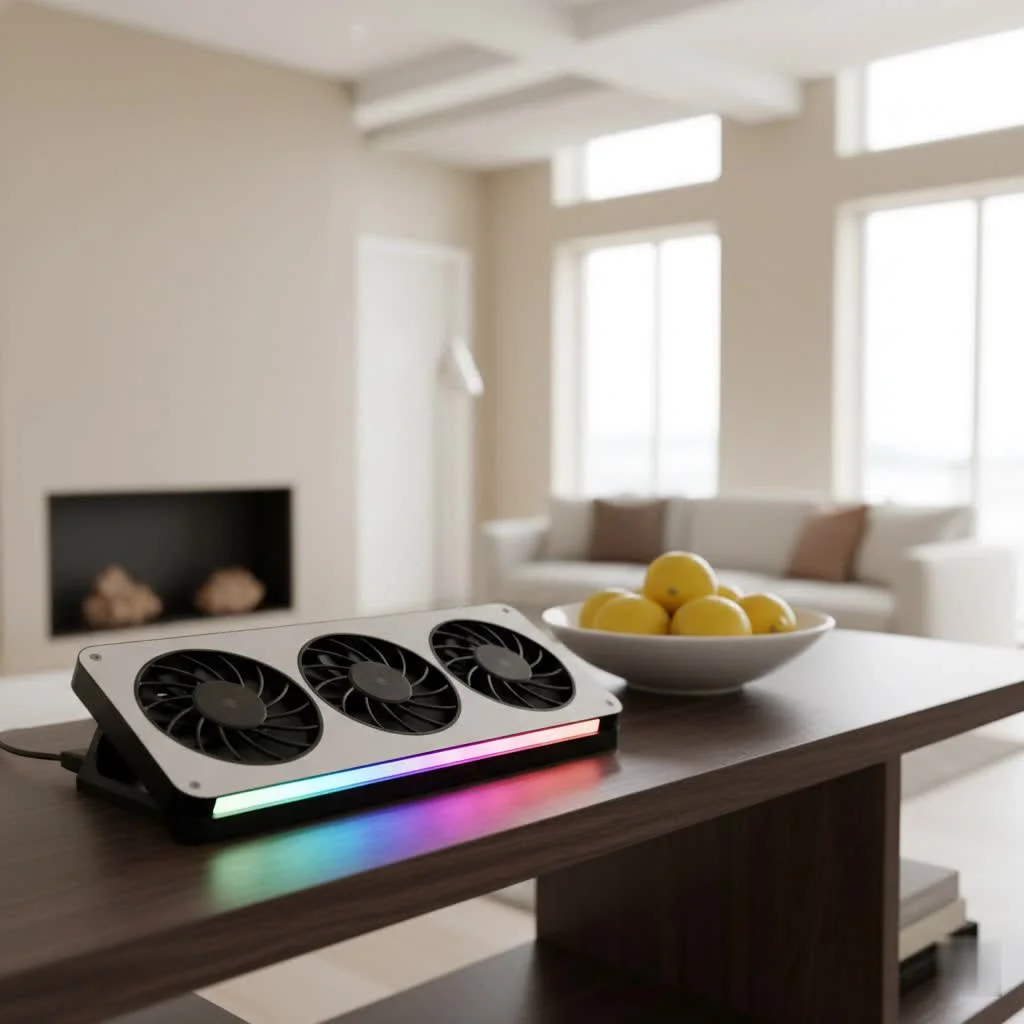
A laptop air cooler pad is an essential accessory designed to reduce your laptop’s operating temperature, preventing performance degradation and extending its lifespan. These pads typically sit beneath your laptop, creating improved airflow and actively cooling components like the CPU and GPU. Effective cooling pads can reduce internal laptop temperatures by an average of 13 to 30 degrees Fahrenheit, significantly mitigating thermal throttling and maintaining consistent performance during demanding tasks.
Why Your Laptop Needs a Helping Hand: The Perils of Overheating
Modern laptops pack incredible power into slim, portable designs, which presents a significant thermal challenge. When internal components like the CPU and GPU get too hot, they automatically “throttle” their performance to prevent damage. This leads to slower speeds, frustrating lag, and reduced responsiveness. Studies suggest that laptops can lose up to 20% of their processing power when operating at elevated temperatures. Beyond performance hits, sustained high temperatures accelerate wear and tear on sensitive internal parts, drastically shortening your laptop’s overall lifespan. Using a laptop that feels like a hot plate on your lap is uncomfortable. For expert laptop cooling reviews on this site.
Demystifying Laptop Air Cooler Pads: How They Work
At its core, a laptop air cooler pad is an accessory designed to reduce your laptop’s operating temperature. These pads typically sit beneath your laptop, creating space for improved airflow. They generally fall into two main categories:
- Active Coolers: These are the most common type, featuring one or more built-in fans. The fans actively move air, either blowing cool air towards the laptop’s underside or drawing hot air away. Many effective models create a “pressure chamber” by sealing around the laptop’s edges, ensuring all the cool air is directed precisely into the laptop’s intake vents for maximum efficiency.
- Passive Coolers: These pads don’t use fans. Instead, they rely on thermally conductive materials (like aluminum) to absorb heat or simply elevate the laptop to improve natural airflow around its vents. Some passive pads use an organic salt compound that crystallizes below 25°C to absorb heat, offering temporary cooling without power.
While passive elevation can provide some relief, especially if your laptop’s vents are often blocked, active, fan-assisted pads are generally the go-to solution for significant temperature reduction.
Choosing Your Cooling Companion: Key Factors to Consider
Selecting the right laptop air cooler pad isn’t a one-size-fits-all situation. It depends heavily on your laptop, your usage patterns, and your personal preferences. As a thermal engineer, I advise clients to look for the following:
Laptop Size and Compatibility
First, ensure the cooling pad fits your laptop. Most pads support laptops between 12 and 17 inches, but larger gaming laptops or smaller ultrabooks might require specialized options. A pad that’s too small won’t provide adequate coverage, while one that’s too large can be cumbersome. Also, check the pad’s weight capacity to ensure it can comfortably support your device, especially for heavier gaming models.
Cooling Power (Fans)
This is where the magic happens. Consider:
- Number of Fans: Pads can feature a single large fan or multiple smaller fans. More fans often provide more even cooling across the laptop’s base, while a single, powerful “turbo” fan can generate a very strong, focused airflow, ideal for specific hot spots.
- Fan Size and Speed: Larger fans tend to move more air at lower RPMs, resulting in quieter operation. Fan speed (measured in RPM, or rotations per minute) dictates airflow (CFM, or cubic feet per minute). Higher RPMs generally mean better cooling, but also more noise. Some pads offer adjustable fan speeds, letting you balance cooling performance with acoustics.
- Airflow Design: Look for pads with designs that actively direct air into your laptop’s intake vents. Some come with foam seals to create a more efficient “airtight pressure chamber,” pushing air directly where it’s needed most. Critically, ensure the cooling pad’s fans align with your laptop’s intake vents for maximum efficiency.
Ergonomics and Adjustability
A good cooling pad isn’t just about cooling; it can also improve your posture and comfort. Many pads offer adjustable height and tilt settings, allowing you to raise your screen to eye level and find a more comfortable typing angle. This can reduce neck strain and improve overall workstation ergonomics.
Noise Levels
Powerful fans can be noisy. If you work in quiet environments like libraries or offices, consider pads that prioritize low noise output while still offering effective cooling. Manufacturers often provide decibel ratings, so keep an eye out for those.
Material and Build Quality
Sturdy construction with materials like metal mesh or high-quality ABS plastic can enhance durability and aid in heat dissipation. Metal surfaces, in particular, act as an additional heatsink.
Connectivity and Features
Some pads offer convenient extras:
- USB Pass-through Ports: Since most pads draw power from a USB port, integrated USB hubs are a welcome addition, replacing the port they use and offering extra connectivity for peripherals.
- RGB Lighting: For gaming enthusiasts, RGB lighting can add a cool aesthetic touch, complementing your setup.
- Smartphone Stand: Some pads include a detachable stand for your phone, helping to keep your workspace organized.
Power Source
Most active cooling pads are USB-powered, drawing energy directly from your laptop. While convenient, this can marginally impact your laptop’s battery life. Some higher-end pads might offer an option for external power, which can be beneficial if battery life is a major concern.
Types of Laptop Air Cooler Pads: Finding Your Perfect Match
|
Our Picks for the Best Laptop Cooler in 2026
As an Amazon Associate I earn from qualifying purchases.
|
||
| Num | Product | Action |
|---|---|---|
| 1 | llano V12 RGB Laptop Cooling Pad, Gaming Laptop Cooler with 5.5 Inch Powerful Turbofan, Fast Cooling Laptop 15.6-21in, Adjustable Speed, Touch Control, LCD Screen, Black (RGB) |

|
| 2 | Laptop Cooling Pad, Gaming Laptop Cooler for 13-19 Inch Laptops, RGB Lights Laptop Fan Cooling Pad with 3 Height Adjustable and 3 USB Ports, 4.72 Inch Large Turbo Fan, Max 3500RPM |
|
| 3 | Kootek Laptop Cooling Pad, Laptop Cooler with 5 Quiet Fans for 12\"-17\" Computer PC Notebook Gaming Laptop Fan, Height Adjustable Laptop Cooling Stand Laptop Accessories, Blue |
|
| 4 | ChillCore Laptop Cooling Pad, RGB Lights Laptop Cooler 9 Fans for 15.6-19.3 Inch Laptops, Gaming Laptop Fan Cooling Pad with 8 Height Stands, 2 USB Ports - A21 Blue |
|
| 5 | Razer Laptop Cooling Pad: Adaptive Smart - Intelligent Fan Control - Airtight Pressure Chamber - Fits Most Laptops & Macbooks 14” to 18\" - Preset & Custom Fan Curves - 3 Port USB Type A - Chroma RGB |
|
| 6 | AICHESON Laptop Cooling Pad 5 Fans Up to 17.3 Inch Heavy Notebook Cooler, Blue LED Lights, 2 USB Ports, S035, Blue-5fans |
|
| 7 | llano V12 Laptop Cooling Pad, Gaming Laptop Cooler Stand with 5.5inch Powerful Turbo Fan, Adjustable Speed, Touch Control, 3-Port USB A, for Fast Cooling Laptop 15.6-19in, Black (No RGB) |
|
| 8 | havit HV-F2056 15.6\"-17\" Laptop Cooler Cooling Pad - Slim Portable USB Powered (3 Fans), Black/Blue |
|
| 9 | Laptop Cooling Pad, Laptop Cooler 6 Quiet Fans for 12\"-17\" Laptops, Gaming Laptop Fan Cooling Pad with 5 Height Adjustable, Slim Portable USB Powered, 2 USB Ports & Phone Holder |
|
| 10 | KeiBn Laptop Cooling Pad, Gaming Laptop Cooler 2 Fans for 10-15.6 Inch Laptops, 5 Height Stands, 2 USB Ports (S039) |
|
Beyond the general active/passive distinction, cooler pads come in various configurations:
- Multi-Fan Pads: These are the most common, featuring two, three, or even six smaller fans spread across the pad to provide broad cooling coverage. They are versatile and suitable for most general-purpose and even light gaming laptops.
- Turbo/Blower Pads: These often feature a single, exceptionally powerful fan designed to create a concentrated airflow, sometimes with specialized foam seals to create an “airtight pressure chamber.” They are frequently recommended for high-performance gaming laptops.
- Passive Stands: Simple stands that merely improve your laptop, promoting natural airflow without any active fans. They are silent, power-free, and can be sufficient if your laptop only suffers from mild heat issues due to blocked vents.
- Conductive Cooling Pads: These rely on internal organic salt compounds that absorb heat and solidify below 25°C. They offer silent, power-free cooling for a limited duration (around 6-8 hours). However, they can potentially block bottom vents, making them less ideal for laptops that rely on underside airflow.
- Peltier Coolers: For extreme thermal challenges, some specialized cooling pads utilize Peltier elements (thermoelectric coolers) to create a much colder surface. These can achieve significant temperature drops but consume more power and are often aimed at serious gaming or rendering workstations.
The “Do They Really Work?” Debate: Setting the Record Straight
This is the question I hear most often: do laptop air cooler pads actually make a difference? The answer is a resounding yes, but with a few caveats.
From my experience and extensive testing, a well-chosen cooling pad can significantly reduce your laptop’s operating temperatures. In some tests, internal temperatures have been shown to drop by as much as 30 degrees Fahrenheit, with average drops around 13 degrees. This reduction can help prevent thermal throttling, stabilize frame rates during gaming, and generally contribute to a smoother, more responsive user experience.
They are most effective when:
- Your laptop runs hot: Especially older laptops, gaming laptops, or those used for demanding tasks like video editing or 3D rendering.
- You use your laptop on soft surfaces: Blankets, pillows, or even your lap can block essential intake vents. A cooling pad provides a crucial buffer and consistent airflow.
- Your laptop has bottom intake vents: Cooling pads primarily target the underside of the laptop, where most intake vents are located. If your laptop’s main vents are on the sides or back, the pad’s impact might be less direct.
However, it’s vital to acknowledge potential drawbacks. Some less effective pads might not align well with your laptop’s vents, or in rare cases, even hinder airflow. There’s also the concern that some pads might force dust into your laptop or cause internal fans to overwork. The key here is proper selection: choose a pad with good airflow design and, crucially, keep both your laptop and the pad clean.
“Many believe any cooling pad will do, but the truth is in the details: targeted airflow, fan quality, and proper alignment with your laptop’s vents are what truly make a difference in sustaining peak performance.” – Dr. Alistair Finch, Chief Thermal Architect, Tselk.
Beyond the Pad: Optimizing Your Laptop’s Thermal Health
While a laptop air cooler pad is a fantastic tool, it’s part of a larger thermal management strategy. To keep your laptop truly happy:
- Regular Internal Cleaning: Dust is public enemy number one for laptop thermals. Over time, dust bunnies clog internal fans and heatsinks, severely restricting airflow. Periodically cleaning your laptop’s internal fans and vents (or having a professional do it) is critical.
- Proper Surface Use: Always use your laptop on a hard, flat surface whenever possible. Avoid placing it directly on soft furnishings like beds, carpets, or pillows, which can block crucial intake vents and trap heat.
- Monitor Temperatures: Tools like SpeedFan (for Windows) can help you keep an eye on your laptop’s internal temperatures. This data can inform you when cooling is most needed.
- Adjust Power Plans: In your operating system’s power settings, you can often tweak CPU performance limits. Lowering these slightly during less intensive tasks can reduce heat generation.
Keeping Your Cooler Pad Fresh: Maintenance Tips
Just like any fan-based device, your laptop air cooler pad will accumulate dust. Regular cleaning is essential to ensure it continues to operate effectively:
- Disconnect Power: Always unplug the cooling pad from your laptop and any external power source before cleaning.
- Clean the Mesh Surface: Use a soft brush or a microfiber cloth to wipe down the top mesh surface and remove surface dust.
- Clean the Fans: For pads that allow it, carefully remove the cover (if detachable) or use a can of compressed air to blow dust off the fan blades. Hold the fan blades steady to prevent them from spinning while using compressed air. A toothbrush can also be effective for stubborn grime on the blades.
- Clean the Underside: Wipe the underside of the pad with a damp cloth to remove any accumulated dirt.
- Reassemble: Ensure everything is dry before reassembling (if applicable) and reconnecting.
Performing this maintenance every few months, or more frequently in dusty environments, will keep your pad working like new.
Frequently Asked Questions
Do laptop cooling pads damage laptops?
Generally, no. When used correctly, laptop cooling pads are safe. However, poorly designed pads or improper use (e.g., blocking laptop vents, drawing too much power, or ingesting excessive dust without cleaning) could potentially cause issues. Always choose a reputable brand and maintain both your laptop and the pad.
How much do laptop cooling pads reduce temperature?
The effectiveness varies greatly by pad design and laptop. Reputable cooling pads can reduce internal laptop temperatures by an average of 13 to 30 degrees Fahrenheit, significantly mitigating thermal throttling.
Are cooling pads necessary for all laptops?
Not all laptops strictly need a cooling pad. If your laptop runs cool during typical use on a hard surface, you might not see significant benefits. However, for gaming laptops, older devices prone to overheating, or any laptop frequently used for intensive tasks or on soft surfaces, a cooling pad is a highly recommended investment.
What is the ideal fan speed for a laptop cooling pad?
The ideal fan speed balances cooling performance with noise levels. For demanding tasks like gaming or video editing, higher RPMs (e.g., 4000-5000 RPM for some gaming pads) are beneficial. For lighter use or quiet environments, lower speeds (under 2500 RPM) are preferable. Many pads offer adjustable speeds to suit your needs.
Can a cooling pad improve laptop performance?
Yes, indirectly. By keeping your laptop cooler, a cooling pad prevents thermal throttling, where the CPU and GPU intentionally slow down to avoid overheating. This allows your laptop’s components to maintain higher clock speeds, resulting in more consistent and often improved performance, especially during prolonged demanding tasks.
How often should I clean my laptop cooling pad?
I recommend cleaning your laptop cooling pad every 3 to 6 months, or more frequently if you live or work in a particularly dusty environment. Regular cleaning ensures the fans remain free of debris and can maintain optimal airflow.
Conclusion
In the demanding world of modern computing, a laptop air cooler pad is more than just an accessory; it’s an essential tool for maintaining your device’s health, performance, and longevity. From preventing frustrating thermal throttling to extending the life of your valuable components, the benefits are clear. By understanding the different types, knowing what features to prioritize, and committing to simple maintenance, you can make an informed choice that will keep your laptop running cool, quiet, and efficient for years to come. Don’t let overheating cut your laptop’s prime short—invest in its thermal well-being today and experience the difference a quality laptop air cooler pad can make.
Frequently Asked Questions
Do laptop cooling pads damage laptops?
Generally, no, laptop cooling pads do not damage laptops when used correctly. However, it is crucial to choose a reputable brand and ensure proper alignment with your laptop's vents to avoid issues like blocking airflow or drawing excessive power. Regular maintenance of both the laptop and the pad is also important.
How much do laptop cooling pads reduce temperature?
The effectiveness of laptop cooling pads varies, but reputable models can reduce internal laptop temperatures by an average of 13 to 30 degrees Fahrenheit. This significant temperature drop helps prevent thermal throttling, where the CPU and GPU slow down to avoid overheating.
Are cooling pads necessary for all laptops?
Not all laptops strictly require a cooling pad, especially if they run cool during typical use on hard surfaces. However, for gaming laptops, older devices prone to overheating, or any laptop frequently used for intensive tasks or on soft surfaces, a cooling pad is a highly recommended investment to maintain optimal performance and longevity.
What is the ideal fan speed for a laptop cooling pad?
The ideal fan speed for a laptop cooling pad balances cooling performance with noise levels. For demanding tasks like gaming or video editing, higher RPMs (e.g., 4000-5000 RPM) are beneficial. For lighter use or quiet environments, lower speeds (under 2500 RPM) are preferable, and many pads offer adjustable speeds to suit your needs.
Can a cooling pad improve laptop performance?
Yes, a cooling pad can indirectly improve laptop performance by preventing thermal throttling. When a laptop stays cooler, its CPU and GPU can maintain higher clock speeds, leading to more consistent and often improved performance, especially during prolonged demanding tasks like video editing or gaming.
How often should I clean my laptop cooling pad?
It is recommended to clean your laptop cooling pad every 3 to 6 months. If you live or work in a particularly dusty environment, more frequent cleaning may be necessary. Regular cleaning ensures the fans remain free of debris and can maintain optimal airflow for effective cooling.
Clean Your Laptop Air Cooler Pad
Regularly cleaning your laptop air cooler pad is essential to maintain its effectiveness and ensure optimal airflow. This procedure helps prevent dust buildup that can hinder cooling performance.
Always unplug the cooling pad from your laptop and any external power source before beginning the cleaning process. This ensures safety and prevents accidental damage to the device.
Use a soft brush or a microfiber cloth to gently wipe down the top mesh surface of the cooling pad. This step removes surface dust and larger debris that may have accumulated.
If possible, carefully remove the fan cover. Use a can of compressed air to blow dust off the fan blades, holding the blades steady to prevent them from spinning. For stubborn grime, a soft toothbrush can be effective.
Wipe the underside of the pad with a slightly damp cloth to remove any accumulated dirt or smudges. Ensure the cloth is not overly wet to avoid moisture entering electronic components.
Ensure all components are completely dry before reassembling the pad (if applicable). Once dry, reconnect the cooling pad to your laptop and power source, ready for continued use.
Get our weekly buyer guide
Practical specs, not advice. Unsubscribe anytime.
My old laptop was always getting super hot, especially when I was editing videos. I picked up a pad with multiple fans, and it’s made a noticeable improvement. The airflow is much better, and I can feel the difference in the laptop’s base. It’s not a miracle worker, but it certainly helps prevent the performance degradation I used to experience.
I was skeptical about how much a cooling pad could really help, but my gaming laptop was constantly hitting high temps and throttling. After getting one of the pads mentioned that reduces temps by 13-30 degrees Fahrenheit, I’ve noticed a huge difference. My CPU and GPU stay much cooler, and I don’t get those frustrating lag spikes anymore during long gaming sessions. Definitely worth the investment for serious users.
I got a basic laptop air cooler pad to help with my work laptop, which tends to get warm. It does provide some improved airflow, but I haven’t seen the dramatic temperature drops I was hoping for. It’s okay for light use, but if you’re doing really demanding tasks, you might need something more robust than the entry-level options.
This accessory is a game-changer for my MacBook Pro. I used to get constant thermal throttling when running design software, making everything slow and unresponsive. Since using a cooling pad, my laptop maintains consistent performance even during heavy workloads. It really does extend the lifespan of your machine by keeping those internal components cool.