Razer laptop coolers are essential for maintaining peak performance and extending the lifespan of high-performance Razer laptops, which often experience thermal throttling due to their powerful components and thin chassis. For instance, the Razer Laptop Cooling Pad can reduce GPU temperatures from 81°C to 72°C and CPU temperatures from 59°C to 45°C during intensive workloads, preventing performance drops and ensuring consistent frame rates.
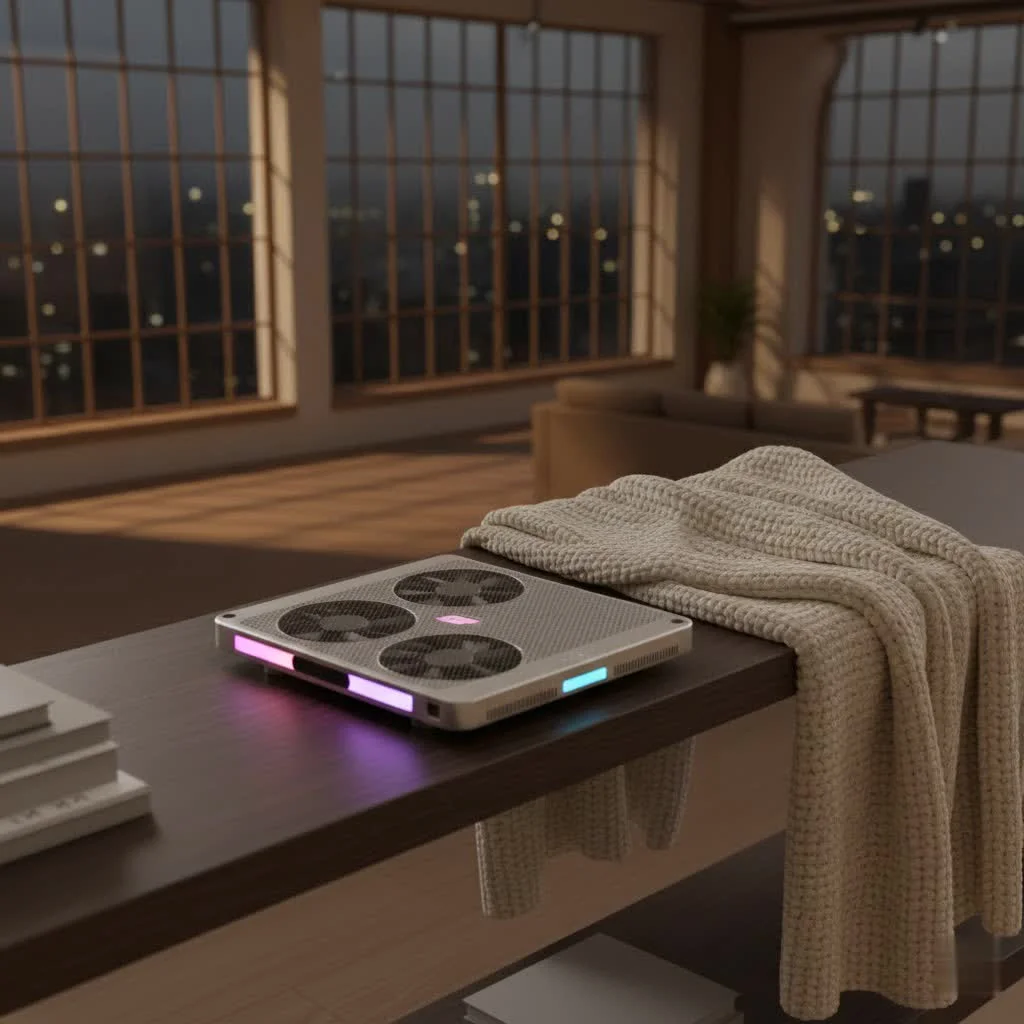
Investing in a dedicated cooling solution, especially for a premium device like a Razer laptop, isn’t merely an accessory purchase; it’s a strategic move to safeguard your investment, maintain peak performance, and extend the lifespan of your valuable hardware. Even a reduction of a few degrees Celsius can significantly impact your laptop’s ability to operate efficiently and consistently over extended periods. For see our laptop cooling recommendations on this site.
Understanding the Heat Challenge in Razer Laptops
Razer’s design philosophy prioritizes portability and aesthetics, often pushing the boundaries of what’s possible in a thin-and-light gaming or creator laptop. While this delivers an exceptional user experience in terms of form factor, it inherently limits the thermal headroom. Powerful Intel or AMD processors and high-end NVIDIA RTX graphics cards generate considerable heat. Without adequate heat dissipation, this internal heat can accumulate, leading to the performance bottlenecks and potential long-term component degradation we’ve discussed. This is precisely why external cooling solutions, like a quality Razer laptop cooler, become indispensable.
The Razer Laptop Cooling Pad: Power, Precision, and Performance
When the conversation turns to active cooling for Razer laptops, the Razer Laptop Cooling Pad often takes center stage. This isn’t just any cooling pad; it’s designed with Razer’s performance ethos in mind, aiming to provide a comprehensive thermal management solution.
What Makes It Stand Out? (Features)
The Razer Laptop Cooling Pad distinguishes itself with a suite of features engineered for optimal thermal performance. It typically houses a large, high-velocity 140mm fan, strategically positioned to direct airflow efficiently. A key innovation is its “airtight pressure chamber” design, often complemented by magnetic frames and memory foam seals. This system creates a sealed environment, ensuring that the powerful airflow is channeled directly into your laptop’s intake vents rather than simply scattering beneath it. This focused approach is critical for maximizing heat dissipation.
The pad boasts a “smart cooling system” that, when integrated with Razer Synapse software, can automatically adjust fan speeds based on your laptop’s real-time temperature. This intelligent control helps balance cooling performance with noise levels, adapting to your workload. For those who prefer manual control, it also offers multiple fan speed settings. Adding to its utility, the Razer Laptop Cooling Pad often includes a built-in USB hub with several ports, allowing you to connect peripherals and manage cables more effectively. For Razer Blade owners, there’s an additional benefit: Razer HyperBoost integration, a free update that can further optimize performance gains when used with compatible Blade models. Of course, being a Razer product, it wouldn’t be complete without dynamic Razer Chroma RGB lighting, allowing for personalized aesthetics that sync with your existing Razer ecosystem.
Real-World Effectiveness: What the Numbers Say
|
Our Picks for the Best Laptop Cooler in 2026
As an Amazon Associate I earn from qualifying purchases.
|
||
| Num | Product | Action |
|---|---|---|
| 1 | ChillCore Laptop Cooling Pad, RGB Lights Laptop Cooler 9 Fans for 15.6-19.3 Inch Laptops, Gaming Laptop Fan Cooling Pad with 8 Height Stands, 2 USB Ports - A21 Blue |

|
| 2 | llano V12 Laptop Cooling Pad, Gaming Laptop Cooler Stand with 5.5inch Powerful Turbo Fan, Adjustable Speed, Touch Control, 3-Port USB A, for Fast Cooling Laptop 15.6-19in, Black (No RGB) |
|
| 3 | Kootek Laptop Cooling Pad, Laptop Cooler with 5 Quiet Fans for 12\"-17\" Computer PC Notebook Gaming Laptop Fan, Height Adjustable Laptop Cooling Stand Laptop Accessories, Blue |
|
| 4 | Laptop Cooling Pad, Laptop Cooler 6 Quiet Fans for 12\"-17\" Laptops, Gaming Laptop Fan Cooling Pad with 5 Height Adjustable, Slim Portable USB Powered, 2 USB Ports & Phone Holder |
|
| 5 | Laptop Cooling Pad, Gaming Laptop Cooler for 13-19 Inch Laptops, RGB Lights Laptop Fan Cooling Pad with 3 Height Adjustable and 3 USB Ports, 4.72 Inch Large Turbo Fan, Max 3500RPM |
|
| 6 | Razer Laptop Cooling Pad: Adaptive Smart - Intelligent Fan Control - Airtight Pressure Chamber - Fits Most Laptops & Macbooks 14” to 18\" - Preset & Custom Fan Curves - 3 Port USB Type A - Chroma RGB |
|
| 7 | havit HV-F2056 15.6\"-17\" Laptop Cooler Cooling Pad - Slim Portable USB Powered (3 Fans), Black/Blue |
|
| 8 | KeiBn Laptop Cooling Pad, Gaming Laptop Cooler 2 Fans for 10-15.6 Inch Laptops, 5 Height Stands, 2 USB Ports (S039) |
|
| 9 | AICHESON Laptop Cooling Pad 5 Fans Up to 17.3 Inch Heavy Notebook Cooler, Blue LED Lights, 2 USB Ports, S035, Blue-5fans |
|
| 10 | llano V12 RGB Laptop Cooling Pad, Gaming Laptop Cooler with 5.5 Inch Powerful Turbofan, Fast Cooling Laptop 15.6-21in, Adjustable Speed, Touch Control, LCD Screen, Black (RGB) |
|
So, does this premium cooling pad truly deliver? According to tests, the Razer Laptop Cooling Pad is remarkably effective at bringing down internal temperatures during intensive workloads. Users have reported significant reductions in both CPU and GPU temperatures. For instance, some benchmarks show GPU temperatures dropping from around 81°C to a much healthier 72°C, while CPU temperatures can see even more dramatic decreases, potentially from 59°C down to 45°C. These reductions are crucial for preventing thermal throttling, maintaining consistent framerate stability during gaming, and ensuring smoother performance in demanding applications like video editing or 3D rendering. It enables your Razer laptop to sustain its peak performance for longer, unlocking its full potential without the fear of overheating.
The Trade-offs: Noise and Price
While highly effective, the Razer Laptop Cooling Pad isn’t without its considerations. One of the most frequently mentioned drawbacks is its noise level, especially when the fan is running at maximum speed. Users often describe it as “loud,” to the point where it can be louder than the laptop’s built-in fans and might even overwhelm laptop speakers. While the smart cooling mode attempts to mitigate this by adjusting fan speed dynamically, it’s a factor to consider if you prioritize a silent setup.
Another significant point is the price. The Razer Laptop Cooling Pad comes with a premium price tag, often around $149.99, which is considerably higher than many generic cooling pads on the market. Some reviewers have also noted that while sturdy and structurally sound, the primary hard-plastic shell might not feel as “premium” to the touch as one might expect from a product in this price bracket, especially when compared to the metallic finishes often found on Razer laptops themselves. Finally, its robust design means it can take up a fair amount of desk space, which is something to bear in mind for compact setups.
Beyond the Fans: The Razer Laptop Stand Chroma V2
It’s important to distinguish between an active cooling pad and a laptop stand. Razer also offers the Razer Laptop Stand Chroma V2, which, while not an active cooler with integrated fans, plays a vital role in thermal management through improved airflow and enhanced ergonomics.
Ergonomics Meets Aesthetics and Connectivity
The Laptop Stand Chroma V2 is designed to improve your laptop to an ergonomic 18-degree angle, providing a more comfortable typing and viewing experience. This subtle tilt can significantly reduce strain during long work or gaming sessions. True to Razer’s brand, it features vibrant Razer Chroma RGB lighting, allowing for deep customization and seamless integration into your existing Chroma setup. Beyond aesthetics, this stand is a functional hub, equipped with multiple additional USB ports, including a USB-C port with display output capabilities. This effectively turns a single USB-C connection from your laptop into a docking station for your peripherals and external monitors, helping to declutter your workspace.
How a Stand Helps with Cooling
Even without active fans, simply elevating your laptop off the desk surface is a powerful first step in improving its thermal performance. Laptops are often designed with intake vents on their underside. When a laptop sits flat on a desk, these vents can become partially or completely obstructed, trapping hot air and restricting the flow of cool air into the system. By lifting the laptop, the Stand Chroma V2 creates a crucial air gap, allowing for much better natural convection and unobstructed airflow to the intake vents. This passive cooling can lead to noticeable temperature drops, particularly for laptops that struggle with heat buildup when flat.
Choosing the Right Razer Cooling Solution for Your Setup
Deciding between the Razer Laptop Cooling Pad and the Razer Laptop Stand Chroma V2, or even a third-party option, depends largely on your specific needs, budget, and how you use your Razer laptop.
Active Cooling vs. Passive Elevation: Which One Do You Need?
- Razer Laptop Cooling Pad (Active Cooling): Ideal for users who consistently push their Razer laptop to its limits with intensive gaming, 4K video editing, 3D rendering, or other CPU/GPU-heavy tasks. If you’re frequently experiencing thermal throttling, noticeable performance drops, or simply want the absolute best active thermal management to maximize framerates and component longevity, the Cooling Pad is the superior choice. Its direct, forced airflow will yield the most significant temperature reductions.
- Razer Laptop Stand Chroma V2 (Passive Elevation): Best for users who primarily seek improved ergonomics, additional connectivity, and a boost in passive airflow. If your usage involves lighter tasks, moderate gaming, or you already have decent in-laptop cooling but want to prevent minor heat accumulation and enhance your desk setup, the stand is an excellent option. It offers a cleaner aesthetic with integrated RGB and ports, while still providing a beneficial lift.
Key Factors to Consider
- Your Laptop Usage: As highlighted above, intense workloads demand active cooling. Casual use might only need elevation.
- Budget: Razer’s solutions are premium. Consider if the advanced features and brand integration justify the cost for your specific needs. Third-party alternatives, such as the Havit HV-F2056 or KLIM Ultimate RGB Cooling Pad, offer competitive cooling at different price points and might be a good fit, especially for Razer Blade 14/15/16/17 models.
- Noise Tolerance: The Cooling Pad can be loud. If you’re sensitive to fan noise, consider how you’ll manage it (headphones, smart cooling mode).
- Connectivity Needs: If you require extra USB ports and display output, the Laptop Stand Chroma V2 offers a convenient all-in-one solution.
- Laptop Size and Ventilation: Ensure any cooling solution is compatible with your specific Razer Blade model (14-inch, 15-inch, 16-inch, 17-inch, or 18-inch). Crucially, for active cooling pads to be effective, your laptop’s main intake vents must be on the bottom, not obstructed by the pad itself.
Maximizing Your Razer Laptop’s Thermal Performance (Maintenance & Tips)
Beyond a dedicated cooling solution, several practices can significantly contribute to keeping your Razer laptop running cool:
- Regular Cleaning: Dust is the enemy of laptop cooling. Periodically clean your laptop’s fans and vents with compressed air to ensure unobstructed airflow.
- Optimal Environment: Use your laptop on a hard, flat surface. Avoid placing it on soft materials like blankets or laps, which can block vents.
- Thermal Paste: After a few years, the thermal paste on your CPU and GPU can degrade. If comfortable, consider reapplying high-quality thermal paste (or having a professional do it) for improved heat transfer.
- Power Settings: Adjust power management settings in Windows to “Balanced” or “Power Saver” for less demanding tasks to reduce heat generation. For gaming, ensure your settings are optimized for performance without unnecessary processes running in the background.
- Undervolting (Advanced): For experienced users, undervolting your CPU can reduce power consumption and heat output without significantly impacting performance. Proceed with caution and research thoroughly.
Expert Insight on Laptop Cooling
“In my experience, the difference a well-designed cooling solution makes for a high-performance laptop like a Razer Blade is night and day,” states Dr. Elias Vance, a lead thermal architect at Tselk. “It’s not just about comfort; it’s about preserving the integrity of your components and ensuring you get every ounce of performance you paid for. Ignoring thermals is like driving a supercar without oil – it will perform poorly and eventually fail.”
Conclusion: Investing in Your Razer Laptop’s Longevity and Performance
In the dynamic world of high-performance computing, particularly with sleek and powerful machines like Razer laptops, proactive thermal management is not a luxury; it’s a fundamental aspect of optimizing your experience and extending your device’s life. Whether you opt for the robust, active cooling of the Razer Laptop Cooling Pad or the ergonomic, airflow-enhancing benefits of the Razer Laptop Stand Chroma V2, you’re making a wise investment in your setup. By mitigating heat, you unlock consistent performance, prevent premature component wear, and ensure your Razer laptop remains a powerhouse for years to come. Don’t let heat hold your performance back; empower your Razer with the cooling it deserves. Take control of your thermals today and truly unleash the full potential of your machine!
Frequently Asked Questions
Is a Razer laptop cooler necessary for gaming performance?
While not strictly required for operation, a Razer laptop cooler is highly recommended for gaming. It helps prevent thermal throttling, which can significantly reduce performance and frame rates during intense gaming sessions, ensuring a smoother and more consistent experience.
Can the Razer Laptop Cooling Pad reduce thermal throttling effectively?
Yes, the Razer Laptop Cooling Pad is specifically designed to reduce thermal throttling by actively dissipating heat. By lowering CPU and GPU temperatures, for example, from 81u00b0C to 72u00b0C for GPU, it allows components to maintain higher clock speeds and consistent performance under load.
How loud is the Razer Laptop Cooling Pad during operation?
The Razer Laptop Cooling Pad can be quite noisy, especially when operating at its highest fan speeds. Many users report that the fan noise is noticeable and can be louder than the laptop's own fans. However, its smart cooling mode helps balance cooling performance with noise levels.
What is the main difference between the Cooling Pad and the Stand Chroma V2?
The key difference is active cooling versus passive elevation. The Razer Laptop Cooling Pad features powerful, active fans for forced airflow, directly reducing component temperatures. The Razer Laptop Stand Chroma V2 is a passive stand that improves airflow by elevating the laptop, offers ergonomic benefits, and expands connectivity with integrated USB ports and RGB lighting.
Are there good third-party alternatives to Razer's cooling solutions?
Yes, several effective third-party laptop cooling pads and stands are available. Popular alternatives for Razer Blade laptops include the Havit HV-F2056, known for portability, and the KLIM Ultimate RGB Cooling Pad, which offers powerful six-fan cooling and RGB integration. Effectiveness depends on your laptop's ventilation design.
Choose the Right Razer Cooling Solution
Deciding between Razer's active cooling pad and passive stand depends on your usage, budget, and specific needs. This guide helps you select the best option for your Razer laptop.
Determine if your Razer laptop is used for intensive tasks like gaming or 4K video editing, which demand active cooling. Lighter tasks or moderate gaming might only require passive elevation for improved airflow.
Razer's solutions are premium, with the Cooling Pad costing around $149.99. Factor in the potential noise level of the active cooling pad, especially at maximum speed, and consider if third-party alternatives like the Havit HV-F2056 fit your budget and noise preferences.
If you require extra USB ports and display output, the Razer Laptop Stand Chroma V2 offers a convenient all-in-one docking solution. The Cooling Pad also includes a USB hub, but the Stand provides more comprehensive connectivity.
Ensure any chosen cooling solution is compatible with your specific Razer Blade model (e.g., 14-inch, 15-inch, 16-inch, 17-inch, or 18-inch). For active cooling pads to be effective, your laptop's main intake vents must be on the bottom and unobstructed.
Get our weekly buyer guide
Practical specs, not advice. Unsubscribe anytime.

I’ve been using the Razer Laptop Cooling Pad for my Blade 15, and it’s made a huge difference. Before, my GPU would hit 81°C during gaming sessions, causing noticeable stuttering. Now, it consistently stays around 72°C, and I haven’t experienced any thermal throttling. It’s definitely worth the investment for anyone with a high-performance Razer laptop.
This cooling solution has been a lifesaver for my Razer Book. I use it for intense coding and virtual machine work, and before, it would get really sluggish. Now, the performance is consistent, and I don’t have to worry about my laptop overheating and slowing down. It truly safeguards my investment and keeps things running smoothly.
My Razer Blade Stealth used to get uncomfortably hot, especially when I was running video editing software. I picked up one of the recommended cooling solutions, and while it doesn’t completely eliminate the heat, it definitely keeps the CPU temps much more manageable. I’ve seen my CPU go from 59°C down to about 48°C, which is a solid improvement. It’s a good accessory to have.
I got a cooling pad for my Razer Blade 17, hoping to really drop those temps. It does help a bit, but I was expecting a more dramatic reduction than just a few degrees Celsius. It’s better than nothing, but I still notice some heat buildup during really long gaming marathons. The build quality is good though.