A laptop cooler for Mac is often a necessity to maintain performance and extend a device’s lifespan, especially when performing demanding tasks like 4K video editing or 3D rendering. Even with their sophisticated designs, Macs can experience thermal throttling, where the operating system deliberately slows down components to prevent damage when internal temperatures reach a certain threshold. A good cooler actively or passively dissipates heat, keeping internal temperatures lower and allowing your Mac to maintain peak performance for longer.

At Tselk.com, we help you understand laptop thermal management. My goal today is to demystify laptop coolers, specifically tailored for Apple’s unique ecosystem, ensuring you can confidently choose and utilize a solution that keeps your Mac running cool and stable.
Does Your Mac Truly Need a Laptop Cooler?
Many Mac users believe their premium devices are inherently designed to handle heat efficiently, and to a large extent, they are right. Apple’s engineering is impressive, but every laptop has its limits.
Why would a Mac get hot? Think about what you ask your Mac to do. Are you editing 4K video, rendering complex 3D models, compiling large codebases, or gaming for hours? These are incredibly demanding tasks that push the CPU and GPU to their limits, generating significant heat. While the aluminum chassis does act as a giant heatsink, transferring heat away from internal components, this also means the exterior gets hot. When the internal temperatures reach a certain threshold, your Mac’s operating system deliberately slows down components to prevent damage – this is thermal throttling. A laptop cooler for Mac can mitigate this by actively or passively helping to dissipate that heat, keeping internal temperatures lower and allowing your Mac to maintain peak performance for longer.
Understanding Mac’s Unique Thermal Design
Apple laptops have distinct thermal characteristics that differentiate them from many Windows PCs. The unibody aluminum design, while aesthetically pleasing, often means heat is distributed across the entire bottom and sometimes keyboard area. Older Intel-based Macs and even some M-series Macs under sustained heavy loads often have vents on the bottom or near the hinge for air intake, with exhaust typically near the hinge or sides.
“The elegant design of Macs often means thermal solutions are carefully integrated, but continuous heavy workloads can still push them beyond their passive cooling capabilities,” says Dr. Anya Sharma, a leading expert in portable device thermals. “External cooling accessories can provide that crucial extra boost, especially for professionals who demand consistent performance.”
Understanding where your Mac pulls in cool air and expels hot air is key to selecting an effective laptop cooler for Mac. A cooler that misaligns with your Mac’s airflow can be ineffective, or worse, hinder natural cooling.
Types of Laptop Coolers for Your Mac
When exploring solutions, you’ll generally encounter two main categories, each with its own benefits for Mac users:
1. Passive Cooling Stands/Elevators
These are often the simplest and most elegant solutions. A passive stand doesn’t use any fans or power; it simply elevates your Mac.
- How they work: By lifting your Mac off a flat surface, these stands create an air gap underneath, allowing for better natural convection. This improves air circulation around the laptop, especially if your Mac has bottom intake vents.
- Benefits for Mac: They are lightweight, portable, silent, and often double as ergonomic aids, raising your screen to a more comfortable viewing height. They are excellent for everyday tasks, web browsing, and light productivity where extreme cooling isn’t the primary concern but improved airflow is beneficial.
- Considerations: While they improve airflow, they don’t actively force air. For intense tasks, you might need something more robust.
|
Our Picks for the Best Laptop Cooler in 2026
As an Amazon Associate I earn from qualifying purchases.
|
||
| Num | Product | Action |
|---|---|---|
| 1 | AICHESON Laptop Cooling Pad 5 Fans Up to 17.3 Inch Heavy Notebook Cooler, Blue LED Lights, 2 USB Ports, S035, Blue-5fans |

|
| 2 | KeiBn Laptop Cooling Pad, Gaming Laptop Cooler 2 Fans for 10-15.6 Inch Laptops, 5 Height Stands, 2 USB Ports (S039) |
|
| 3 | ChillCore Laptop Cooling Pad, RGB Lights Laptop Cooler 9 Fans for 15.6-19.3 Inch Laptops, Gaming Laptop Fan Cooling Pad with 8 Height Stands, 2 USB Ports - A21 Blue |
|
| 4 | Laptop Cooling Pad, Laptop Cooler 6 Quiet Fans for 12\"-17\" Laptops, Gaming Laptop Fan Cooling Pad with 5 Height Adjustable, Slim Portable USB Powered, 2 USB Ports & Phone Holder |
|
| 5 | Laptop Cooling Pad, Gaming Laptop Cooler for 13-19 Inch Laptops, RGB Lights Laptop Fan Cooling Pad with 3 Height Adjustable and 3 USB Ports, 4.72 Inch Large Turbo Fan, Max 3500RPM |
|
| 6 | Razer Laptop Cooling Pad: Adaptive Smart - Intelligent Fan Control - Airtight Pressure Chamber - Fits Most Laptops & Macbooks 14” to 18\" - Preset & Custom Fan Curves - 3 Port USB Type A - Chroma RGB |
|
| 7 | llano V12 RGB Laptop Cooling Pad, Gaming Laptop Cooler with 5.5 Inch Powerful Turbofan, Fast Cooling Laptop 15.6-21in, Adjustable Speed, Touch Control, LCD Screen, Black (RGB) |
|
| 8 | llano V12 Laptop Cooling Pad, Gaming Laptop Cooler Stand with 5.5inch Powerful Turbo Fan, Adjustable Speed, Touch Control, 3-Port USB A, for Fast Cooling Laptop 15.6-19in, Black (No RGB) |
|
| 9 | havit HV-F2056 15.6\"-17\" Laptop Cooler Cooling Pad - Slim Portable USB Powered (3 Fans), Black/Blue |
|
| 10 | Kootek Laptop Cooling Pad, Laptop Cooler with 5 Quiet Fans for 12\"-17\" Computer PC Notebook Gaming Laptop Fan, Height Adjustable Laptop Cooling Stand Laptop Accessories, Blue |
|
2. Active Cooling Pads with Fans
These are the workhorses of laptop cooling, featuring one or more fans designed to push or pull air directly onto your Mac’s underside.
- How they work: Active cooling pads typically plug into a USB port for power (some use external power adapters) and use fans to generate airflow. Some are designed to push cool air into your Mac’s intake vents, while others aim to pull hot air away.
- Benefits for Mac: They offer the most significant temperature reduction, especially under heavy loads. This can dramatically reduce thermal throttling, leading to sustained higher performance for gaming, video editing, or graphic design. Many also offer adjustable fan speeds and ergonomic angles.
- Considerations: They can introduce fan noise (though many modern pads are very quiet), require a USB port, and are generally less portable than passive stands. Fan placement is crucial for Mac compatibility – ensure the fans align with your Mac’s intake vents.
Key Factors When Choosing a Laptop Cooler for Your Mac
Selecting the perfect laptop cooler for Mac involves more than just picking one with the biggest fans. Here’s what I recommend considering:
-
Compatibility with Your Mac Model:
- Size: Ensure the cooler is appropriately sized for your MacBook Air, MacBook Pro, or iMac. A cooler too small won’t provide adequate support or cooling coverage, while one too large might be cumbersome.
- Port Access: Many Macs rely on Thunderbolt/USB-C ports. Check that the cooler doesn’t obstruct any essential ports or, ideally, offers pass-through USB ports or a built-in hub.
- Ventilation Location: Identify where your Mac’s intake vents are. For most MacBooks, they are on the bottom, often closer to the hinge. Choose a cooler with fans positioned to directly target these areas.
-
Airflow Direction and Fan Configuration:
- Some coolers push air upwards; others pull air away. For Macs with bottom intake vents, a cooler that pushes cool air towards the laptop is generally more effective.
- Consider the number and size of fans. A few large fans can move more air quietly than many small, high-pitched fans.
-
Noise Levels: Active coolers will make some noise. Look for models with large, slow-spinning fans or those specifically advertised as “quiet” or “low-noise.” Reviews are your best friend here.
-
Build Quality and Materials:
- Aluminum construction often provides better heat dissipation for the cooler itself and can match the aesthetic of your Mac.
- Sturdy construction ensures durability and stability for your valuable laptop. Non-slip pads are a must to prevent your Mac from sliding.
-
Ergonomics and Adjustability:
- Many coolers double as ergonomic stands, allowing you to adjust the viewing angle and height. This can significantly improve comfort during long work sessions.
-
Portability and Power Source:
- If you travel frequently, consider a lightweight and compact cooler.
- Most active coolers are USB-powered. Ensure your Mac has a spare USB-A or USB-C port, or consider a cooler with its own power adapter if you’re port-constrained.
Beyond the Cooler: Other Tips to Keep Your Mac Cool
While a laptop cooler for Mac is a fantastic tool, it’s part of a larger strategy for optimal thermal management.
Software Optimization
- Close Unnecessary Applications: Every open app, especially those running in the background, consumes CPU cycles and generates heat.
- Monitor Temperatures: Utilities like Macs Fan Control or iStat Menus can help you track CPU/GPU temperatures and fan speeds, giving you insight into your Mac’s thermal state.
- Update macOS: Apple often includes performance and efficiency improvements in macOS updates, which can indirectly help with heat management.
- Browser Choice: Some web browsers are more resource-intensive than others. Experiment to see if switching browsers reduces heat during web-heavy tasks.
Environmental Factors
- Surface Matters: Avoid using your Mac on soft surfaces like blankets, pillows, or laps, which can block vents and trap heat. Always use it on a hard, flat surface or, ideally, a cooler.
- Room Temperature: A cooler room naturally helps your Mac dissipate heat more effectively.
- Direct Sunlight: Never leave your Mac in direct sunlight, as this will significantly increase its operating temperature.
Maintenance
- Clean Vents: Dust and lint can accumulate in your Mac’s intake and exhaust vents, acting as an insulating layer. Regularly (e.g., every 6-12 months) clean these vents with compressed air to maintain optimal airflow. For advanced users, an internal cleaning by a professional can make a huge difference.
How to Use and Maintain Your Laptop Cooler
Getting the most out of your laptop cooler for Mac involves proper setup and a bit of care.
- Placement: Position your Mac centrally on the cooler, ensuring that the cooler’s fans are aligned as much as possible with your Mac’s intake vents.
- Power Connection: Plug the cooler into a suitable USB port on your Mac or a power adapter if required.
- Fan Speed (if adjustable): Start with a moderate fan speed and increase it if your Mac’s temperatures are still high during demanding tasks.
- Cleaning: Just like your Mac’s internal fans, the cooler’s fans can accumulate dust. Regularly wipe down the cooler and use compressed air to clear any dust from the fan blades and grilles. This ensures maximum airflow efficiency.
- Storage: When not in use, keep your cooler in a clean, dry place to prevent dust buildup.
Frequently Asked Questions About Mac Laptop Coolers
Q: Do laptop coolers really work for MacBooks?
A: Yes, laptop coolers can significantly reduce the operating temperatures of MacBooks, especially during demanding tasks that cause thermal throttling. They achieve this by improving airflow and heat dissipation around the laptop.
Q: Which type of laptop cooler is best for my MacBook Pro?
A: For intensive tasks like video editing or gaming, an active cooling pad with fans is generally most effective. For lighter use and improved ergonomics, a passive stand that elevates the MacBook for better airflow can be sufficient.
Q: Can a laptop cooler damage my Mac?
A: No, when used correctly, a laptop cooler will not damage your Mac. In fact, by keeping temperatures lower, it can help prevent heat-related wear and tear on internal components and potentially extend your Mac’s lifespan.
Q: Do M1/M2/M3 MacBooks need a cooler, given their efficiency?
A: While M-series Macs are incredibly power-efficient and run cooler than many Intel predecessors, they can still benefit from a cooler during sustained, heavy workloads (e.g., prolonged 3D rendering, intense gaming). A cooler helps maintain peak performance without throttling.
Q: How loud are laptop coolers?
A: Modern laptop coolers vary in noise level. Many high-quality models use larger fans that spin slower, resulting in minimal noise. Always check reviews for user feedback on acoustics, especially if silence is a priority for you.
Q: Where should I place my Mac on a cooling pad?
A: Position your Mac centrally on the cooling pad, ensuring that the pad’s fans are directly beneath your Mac’s intake vents. These are typically on the bottom of the laptop, often closer to the hinge area.
Keeping Your Mac’s Cool Performance
As a dedicated Mac user and a thermal engineering enthusiast, I can confidently say that investing in a quality laptop cooler for Mac is a smart move. It’s not just about comfort; it’s about preserving the longevity of your device and ensuring you get consistent, optimal performance, even when pushing your Mac to its limits.
Whether you opt for a sleek passive stand or a powerful active cooling pad, the goal remains the same: to keep those precious internal components running efficiently and to prevent the dreaded slowdowns that come with excessive heat. Take the time to choose wisely, implement the additional cooling tips, and your Mac will thank you with years of cool, reliable service. Stay cool out there, and happy computing!
Frequently Asked Questions
Do laptop coolers really work for MacBooks?
Yes, laptop coolers can significantly reduce the operating temperatures of MacBooks, especially during demanding tasks that cause thermal throttling. They achieve this by improving airflow and heat dissipation around the laptop, potentially lowering temperatures by 5-10 degrees Celsius.
Which type of laptop cooler is best for my MacBook Pro?
For intensive tasks like video editing or gaming, an active cooling pad with fans is generally most effective for a MacBook Pro. For lighter use and improved ergonomics, a passive stand that elevates the MacBook for better airflow can be sufficient, offering a silent solution.
Can a laptop cooler damage my Mac?
No, when used correctly, a laptop cooler will not damage your Mac. In fact, by keeping temperatures lower, it can help prevent heat-related wear and tear on internal components and potentially extend your Mac's lifespan by several years.
Do M1/M2/M3 MacBooks need a cooler, given their efficiency?
While M-series Macs are incredibly power-efficient and run cooler than many Intel predecessors, they can still benefit from a cooler during sustained, heavy workloads (e.g., prolonged 3D rendering, intense gaming). A cooler helps maintain peak performance without throttling, ensuring consistent high frame rates or faster render times.
How loud are laptop coolers?
Modern laptop coolers vary in noise level, typically ranging from 20 dB to 40 dB. Many high-quality models use larger fans that spin slower, resulting in minimal noise. Always check product reviews for user feedback on acoustics, especially if silence is a priority for you during work or gaming sessions.
Where should I place my Mac on a cooling pad?
Position your Mac centrally on the cooling pad, ensuring that the pad's fans are directly beneath your Mac's intake vents. These are typically on the bottom of the laptop, often closer to the hinge area, to maximize cool air intake and heat dissipation.
How to Use and Maintain Your Laptop Cooler
Properly setting up and maintaining your laptop cooler ensures optimal performance and longevity for both the cooler and your Mac.
Place your Mac centrally on the cooler. Ensure the cooler's fans align as much as possible with your Mac's intake vents, typically found on the bottom near the hinge. This maximizes airflow to critical components.
Plug the cooler into a suitable USB port on your Mac for power. If your cooler has an external power adapter, use that instead to free up Mac ports. Verify the cooler powers on and fans begin to spin.
If your cooler offers adjustable fan speeds, start with a moderate setting. Increase the speed if your Mac's temperatures remain high during demanding tasks, monitoring with a utility like Macs Fan Control. Find a balance between cooling performance and noise.
Just like your Mac's internal fans, the cooler's fans can accumulate dust. Regularly wipe down the cooler and use compressed air to clear any dust from the fan blades and grilles every 1-2 months. This ensures maximum airflow efficiency and prevents dust buildup from hindering performance.
When not in use, keep your cooler in a clean, dry place. This prevents dust buildup and protects it from potential damage. Proper storage contributes to the cooler's longevity.
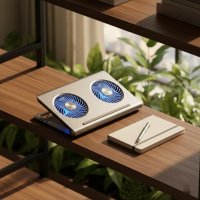
I was skeptical about needing a cooler for my MacBook Pro, but after reading about thermal throttling, I decided to try one. I do a lot of 4K video editing, and my Mac used to get noticeably hot and slow down. With the active cooler I bought, it stays much cooler, and I haven’t experienced any slowdowns since. It’s made a huge difference in my workflow.
This guide really helped me understand why my Mac was struggling during long gaming sessions. I picked up a passive cooling stand, and while it’s not a dramatic change, it definitely helps dissipate some of the heat. My laptop feels less warm to the touch, and I appreciate not having to worry as much about long-term damage. Good info here.
I got one of the more affordable laptop coolers mentioned, and it’s okay. It does help a bit when I’m doing 3D rendering, but the fan is a little louder than I expected. It’s not terrible, but it’s noticeable. For the price, it’s a decent solution, but I might invest in a quieter model next time.
My Mac Mini was constantly running hot, especially when I had multiple virtual machines open. I thought Apple’s design would handle it, but the explanation about internal temperatures and performance really resonated. I invested in a high-end active cooler, and it’s been a game-changer. My system is stable, and I can push it harder without any issues.