As a thermal engineer with over a decade in the trenches of laptop cooling design and testing, I’ve seen it all. From clunky cooling pads that do little more than blow dust around, to intricate liquid cooling setups, the quest to keep our precious machines cool is a never-ending one. But among the myriad solutions, the Laptop Vacuum Cooler stands out as a unique and often misunderstood contender. It’s not just another fan; it’s a targeted heat extraction powerhouse designed to pull hot air directly from your laptop’s exhaust vents, offering a cooling performance that can truly transform your computing experience.
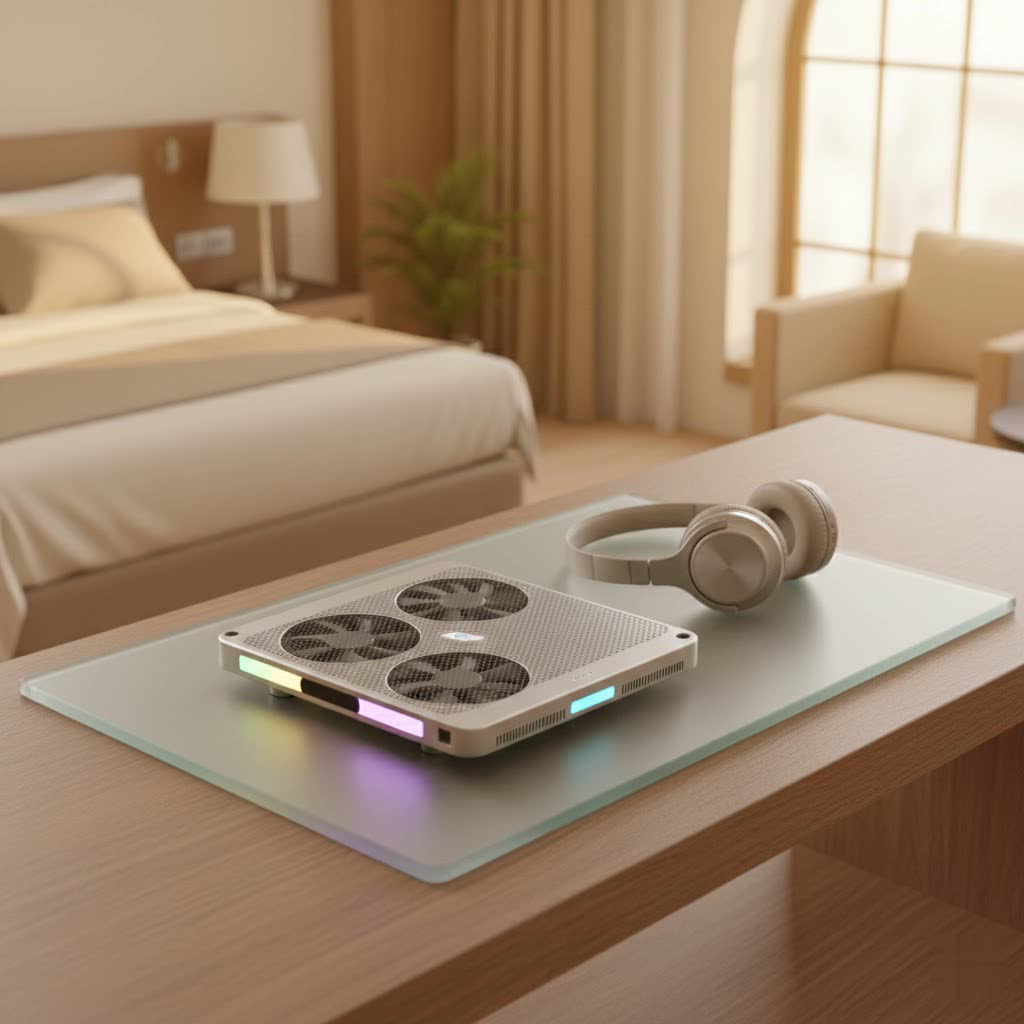
In the world of high-performance computing, whether you’re battling virtual enemies, rendering demanding video projects, or simply multitasking like a pro, heat is the ultimate performance killer. When your laptop gets too hot, its internal components, especially the CPU and GPU, throttle down to protect themselves from damage. This leads to frustrating slowdowns, stuttering graphics, and can even shorten the lifespan of your valuable hardware. Understanding how a laptop vacuum cooler works and how to effectively integrate it into your setup can make all the difference, keeping your machine running faster, cooler, and longer.
What Exactly is a Laptop Vacuum Cooler and How Does It Work?
Forget everything you know about traditional cooling pads that sit underneath your laptop and blow air upwards. A laptop vacuum cooler operates on a fundamentally different principle. Instead of pushing air into your laptop, it attaches directly to your laptop’s exhaust vent and actively pulls hot air out. Think of it like a miniature exhaust system for your laptop.
This external device typically features a powerful fan and a rubber shroud or connector designed to create a tight seal around one of your laptop’s exhaust ports. Once sealed, the fan inside the vacuum cooler spins rapidly, generating negative pressure that literally sucks the superheated air out from inside your laptop. This rapid evacuation of hot air drastically improves the efficiency of your laptop’s internal cooling system, preventing heat buildup around critical components like the CPU and GPU. It’s a highly targeted approach that focuses on the core problem: getting the heat out, fast.
Why Choose a Laptop Vacuum Cooler Over Other Cooling Methods?
When it comes to keeping your laptop cool, you’ve got options. But for serious thermal management, the laptop vacuum cooler often takes the lead, especially compared to generic cooling pads.
Targeted Efficiency for Maximum Impact
|
Our Picks for the Best Laptop Cooler in 2026
As an Amazon Associate I earn from qualifying purchases.
|
||
| Num | Product | Action |
|---|---|---|
| 1 | Kootek Laptop Cooling Pad, Laptop Cooler with 5 Quiet Fans for 12\"-17\" Computer PC Notebook Gaming Laptop Fan, Height Adjustable Laptop Cooling Stand Laptop Accessories, Blue |

|
| 2 | AICHESON Laptop Cooling Pad 5 Fans Up to 17.3 Inch Heavy Notebook Cooler, Blue LED Lights, 2 USB Ports, S035, Blue-5fans |
|
| 3 | havit HV-F2056 15.6\"-17\" Laptop Cooler Cooling Pad - Slim Portable USB Powered (3 Fans), Black/Blue |
|
| 4 | Laptop Cooling Pad, Laptop Cooler 6 Quiet Fans for 12\"-17\" Laptops, Gaming Laptop Fan Cooling Pad with 5 Height Adjustable, Slim Portable USB Powered, 2 USB Ports & Phone Holder |
|
| 5 | ChillCore Laptop Cooling Pad, RGB Lights Laptop Cooler 9 Fans for 15.6-19.3 Inch Laptops, Gaming Laptop Fan Cooling Pad with 8 Height Stands, 2 USB Ports - A21 Blue |
|
| 6 | KeiBn Laptop Cooling Pad, Gaming Laptop Cooler 2 Fans for 10-15.6 Inch Laptops, 5 Height Stands, 2 USB Ports (S039) |
|
| 7 | Razer Laptop Cooling Pad: Adaptive Smart - Intelligent Fan Control - Airtight Pressure Chamber - Fits Most Laptops & Macbooks 14” to 18\" - Preset & Custom Fan Curves - 3 Port USB Type A - Chroma RGB |
|
| 8 | Laptop Cooling Pad, Gaming Laptop Cooler for 13-19 Inch Laptops, RGB Lights Laptop Fan Cooling Pad with 3 Height Adjustable and 3 USB Ports, 4.72 Inch Large Turbo Fan, Max 3500RPM |
|
| 9 | llano V12 Laptop Cooling Pad, Gaming Laptop Cooler Stand with 5.5inch Powerful Turbo Fan, Adjustable Speed, Touch Control, 3-Port USB A, for Fast Cooling Laptop 15.6-19in, Black (No RGB) |
|
| 10 | llano V12 RGB Laptop Cooling Pad, Gaming Laptop Cooler with 5.5 Inch Powerful Turbofan, Fast Cooling Laptop 15.6-21in, Adjustable Speed, Touch Control, LCD Screen, Black (RGB) |
|
Unlike cooling pads that aim to cool the entire underside of your laptop (often with limited success due to restricted airflow into internal components), a vacuum cooler zeroes in on the most crucial area: the exhaust vent. By creating a direct pathway for hot air extraction, it bypasses less efficient methods and delivers a concentrated cooling effect right where it’s needed most. This focused approach means more significant temperature drops for your CPU and GPU, which are the primary sources of performance-hindering heat. “It’s like having a dedicated ventilator for your laptop’s lungs,” explains Dr. Evelyn Reed, a leading expert in portable electronics thermals. “You’re directly addressing the bottleneck of heat expulsion.”
Combating Thermal Throttling
Thermal throttling is your laptop’s self-preservation mechanism. When components get too hot, they intentionally slow down to prevent damage. This is why your gaming frame rates drop, or video rendering takes ages. A laptop vacuum cooler directly mitigates this. By keeping internal temperatures significantly lower, your CPU and GPU can maintain their boost clocks and operate at peak performance for longer periods, without hitting those thermal limits. This means smoother gameplay, faster rendering, and a much more responsive system overall.
Extending Laptop Lifespan
Heat is the enemy of electronics. Prolonged exposure to high temperatures can degrade components, leading to premature failure. By consistently operating your laptop at lower temperatures with the help of a vacuum cooler, you reduce stress on internal hardware. This can significantly extend the overall lifespan of your laptop, protecting your investment and saving you from costly repairs or early replacements.
The Trade-Offs: Understanding the Drawbacks
While laptop vacuum coolers are powerful tools, they aren’t without their considerations. As with any high-performance solution, there are trade-offs to acknowledge.
The Noise Factor
Let’s be upfront: a powerful fan moving a lot of air is going to make some noise. At higher settings, laptop vacuum coolers can be quite audible, producing a distinct whirring sound that can be noticeable, especially in a quiet room. For gamers immersed in headphones or those working in a bustling environment, this might not be an issue. However, if silence is paramount for your workflow or environment, you’ll need to weigh the performance gains against the acoustic output. Many models offer adjustable fan speeds, allowing you to find a balance between cooling power and noise levels.
Compatibility Challenges
Not all laptops are created equal, especially when it comes to vent design. A laptop vacuum cooler relies on a secure, airtight seal with your laptop’s exhaust vent. Some laptop designs, particularly older or ultra-slim models with unusual vent configurations, might not be compatible with standard vacuum coolers. It’s crucial to check your laptop’s exhaust vent size and location before purchasing. Look for models that come with multiple silicone shrouds or adjustable mechanisms to ensure a snug fit.
Aesthetic and Port Blocking Concerns
Attaching an external device to the side or back of your sleek laptop might not appeal to everyone. For some, the added bulk or the visible cooler detracts from the laptop’s aesthetic. Additionally, depending on your laptop’s port layout, a vacuum cooler might block adjacent USB ports, HDMI, or other essential connections. Always consider your port usage and cooler placement carefully.
Dust Management
While vacuum coolers excel at expelling hot air, they are also constantly pulling air through your laptop. This means they can potentially draw more dust into your system from the surrounding environment. Regular cleaning of both the vacuum cooler itself and your laptop’s internal vents (when safe to do so, or professionally) becomes even more important to maintain efficiency and prevent dust buildup.
Laptop Vacuum Cooler vs. Cooling Pad: The Cooling Showdown
This is a common question, and the answer isn’t a simple “which is better,” but rather “which is better for what?”
Laptop Vacuum Cooler:
- Pros: Highly effective, targeted cooling for CPU/GPU, direct hot air extraction, significant temperature drops.
- Cons: Louder, potential compatibility issues, can block ports, less aesthetically pleasing for some.
- Best for: High-performance tasks, gaming, video editing, users prioritizing raw cooling power.
Laptop Cooling Pad:
- Pros: Generally quieter, provides an elevated angle for better ergonomics, offers broader (though less intensive) cooling across the laptop’s underside, wider compatibility.
- Cons: Less effective for direct internal component cooling, often provides only marginal temperature drops, can be bulky for travel.
- Best for: General use, improving airflow, minor temperature reductions, users prioritizing quiet operation and broad comfort.
In some scenarios, particularly for extreme gaming or professional workstations, a combination of both a vacuum cooler (for targeted exhaust) and a cooling pad (for improved base airflow and ergonomics) can yield the ultimate cooling system. However, for most users seeking a powerful and effective single solution, the laptop vacuum cooler often emerges as the top choice for direct thermal management.
Choosing the Right Laptop Vacuum Cooler for Your Needs
Navigating the market for a laptop vacuum cooler can feel overwhelming, but keeping a few key factors in mind will help you make an informed decision.
1. Vent Compatibility and Sealing Mechanism
This is paramount. Measure your laptop’s exhaust vent. Look for coolers that offer multiple silicone shrouds or an adjustable clamping mechanism to ensure a snug, airtight fit. An imperfect seal will drastically reduce efficiency. Some coolers are designed for side vents, others for rear vents. Match the cooler to your laptop’s design.
2. Cooling Power and Fan Speed Control
Check the fan’s RPM (revolutions per minute) and airflow ratings. Higher numbers generally mean more cooling, but also more noise. Crucially, look for models with adjustable fan speeds, either manual or automatic (temperature-sensing). This allows you to dial down the fan when maximum cooling isn’t necessary, saving your ears and power.
3. Noise Levels
User reviews are your best friend here. While manufacturers provide decibel ratings, real-world experience often tells a truer story. If noise is a significant concern, prioritize models praised for their quieter operation, even if it means a slight compromise on raw power.
4. Power Source and USB Passthrough
Most laptop vacuum coolers are USB-powered. Some advanced models might come with an AC adapter for maximum power. If your laptop has limited USB ports, consider a cooler with a USB passthrough feature, so you don’t lose a valuable port.
5. Build Quality and Durability
A cooler that feels flimsy won’t last. Look for sturdy construction, good quality plastics, and robust fan bearings. These devices are subject to vibrations and heat, so durability is key.
Pro Tips for Optimal Laptop Cooling Performance
Even with the best laptop vacuum cooler, there are additional steps you can take to keep your machine running optimally.
- Ensure Proper Laptop Placement: Always use your laptop on a hard, flat surface. Avoid soft surfaces like beds or laps that can block air intake vents.
- Regular Laptop Cleaning: Periodically clean your laptop’s internal vents and fan blades (if accessible) to remove dust buildup. Dust is a major insulator and obstructs airflow. Consider professional cleaning once a year if you’re uncomfortable opening your laptop.
- Update Drivers: Keep your graphics drivers and operating system updated. Optimizations in software can sometimes improve thermal management.
- Monitor Temperatures: Use software like HWMonitor or Core Temp to keep an eye on your CPU and GPU temperatures. This helps you understand when your laptop is under stress and when your vacuum cooler is doing its job effectively.
- Consider Thermal Paste Replacement: For older laptops, replacing the thermal paste on your CPU and GPU can dramatically improve heat transfer to the heatsink. This is an advanced task best left to experienced users or professionals.
Frequently Asked Questions About Laptop Vacuum Coolers
Q: Do laptop vacuum coolers really make a significant difference?
A: Yes, in many cases, laptop vacuum coolers can significantly lower CPU and GPU temperatures by 8-15°C or even more, especially under heavy loads. This often translates to reduced thermal throttling and improved performance compared to not using any cooler or relying solely on a cooling pad.
Q: Are laptop vacuum coolers safe for my laptop?
A: When used correctly with a proper seal, laptop vacuum coolers are generally safe. They are designed to assist your laptop’s existing cooling system. The only potential concern is an improper seal leading to inefficient cooling or, in rare cases, pulling in excessive dust if not maintained.
Q: How often should I clean my laptop vacuum cooler?
A: It’s recommended to clean your laptop vacuum cooler every few weeks, or more frequently if you use your laptop in a dusty environment. This usually involves simply wiping down the fan blades and exterior, and ensuring the intake/exhaust grilles are clear of debris.
Q: Can a laptop vacuum cooler damage my laptop’s internal fan?
A: There’s no scientific evidence to suggest that a properly used vacuum cooler will damage your laptop’s internal fan. In fact, by taking over some of the heat extraction, it might even reduce the workload on your laptop’s internal fan, potentially extending its life.
Q: Can I use a laptop vacuum cooler with a cooling pad simultaneously?
A: Yes, you can use both a laptop vacuum cooler and a cooling pad together. This “ultimate cooling system” approach can provide the best of both worlds: targeted exhaust from the vacuum cooler and improved general airflow from the cooling pad.
Q: Will a laptop vacuum cooler fix an already overheating laptop?
A: While a laptop vacuum cooler is excellent for preventing overheating and improving performance, if your laptop is already severely overheating even at idle, it might indicate a more serious underlying issue like a clogged internal heatsink, a failing internal fan, or dried-out thermal paste. A vacuum cooler will help, but addressing the root cause is crucial.
Final Thoughts: Keep Your Cool, Elevate Your Performance
In the demanding world of modern computing, keeping your laptop cool isn’t a luxury; it’s a necessity. The laptop vacuum cooler offers a powerful, targeted solution for managing heat, preventing thermal throttling, and ultimately extending the life of your valuable machine. It might introduce a bit more noise or require careful compatibility checks, but the performance benefits for heavy users, gamers, and content creators are undeniable.
By understanding how these devices work, choosing the right model, and combining them with smart usage habits, you can unleash your laptop’s full potential without fear of performance-sapping heat. So, take control of your thermals, keep your cool, and let your laptop perform at its peak, always.
