Is your laptop feeling hotter than a summer sidewalk? Do you hear its fans spinning like a jet engine, struggling to keep up? If so, you’re not alone. Modern laptops pack incredible power into sleek designs, but this often comes at a cost: heat. Unmanaged heat can lead to a host of problems, from sluggish performance and frustrating crashes to long-term hardware damage. That’s where an external laptop cooler comes in.
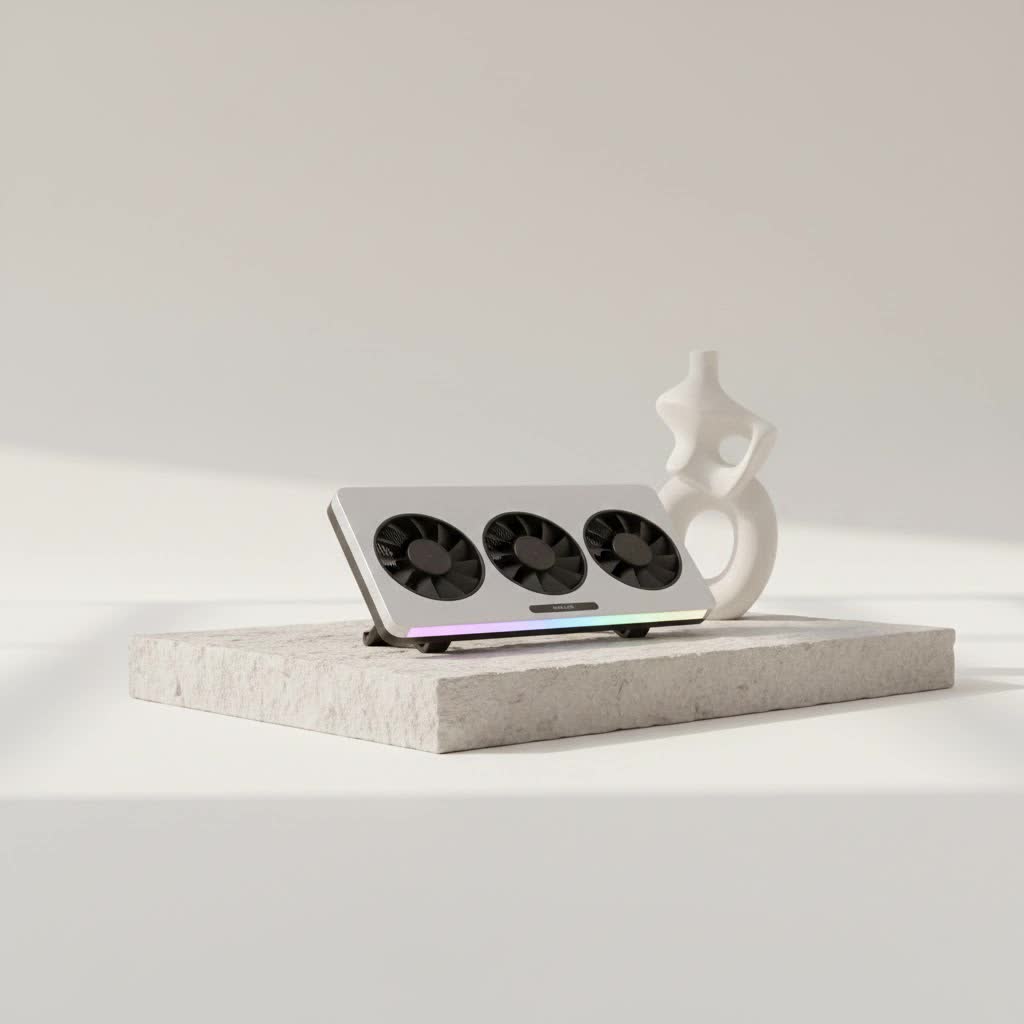
As a thermal engineer with over a decade in the field, I’ve seen firsthand how effective external cooling solutions can be. They’re not just gadgets; they’re essential tools for maintaining your laptop’s health and boosting its performance, especially during demanding tasks. On Tselk.com, we’re dedicated to helping you understand these vital tools, ensuring your trusty machine stays as cool and efficient as possible.
Why Your Laptop Needs an External Cooler
Think of your laptop’s internal cooling system as a hardworking athlete. It’s designed to handle a certain level of exertion, but continuous intense activity can push it past its limits. When your laptop overheats, its internal components, like the CPU and GPU, automatically slow down to prevent damage—a process known as thermal throttling. This is why your gaming performance drops or your video editing software lags. Over time, sustained high temperatures can even shorten the lifespan of your laptop’s battery and other critical hardware components.
An external laptop cooler works in conjunction with your laptop’s built-in cooling system, providing an additional layer of heat dissipation. By enhancing airflow around and into your laptop, these devices help lower both surface and internal temperatures, giving your system the breathing room it needs to perform optimally. For many users, particularly those pushing their machines with gaming or content creation, an external cooler can make a noticeable difference in preventing thermal throttling and maintaining stable performance.
Understanding the Different Types of External Laptop Coolers
The world of external laptop coolers offers a variety of solutions, each with its unique approach to keeping your system frosty. Let’s break down the main types:
Laptop Cooling Pads (Fan-based)
These are arguably the most common type of external laptop cooler. A cooling pad typically consists of a platform with one or more integrated fans that blow air upwards toward your laptop’s underside.
- Multi-fan designs: These pads feature several smaller fans distributed across the surface, aiming to provide even cooling across your laptop’s base. They often prioritize quiet operation.
- Turbo or blower designs: These utilize a single, more powerful fan (or a few high-RPM fans) to generate a strong, focused airflow. Some advanced designs incorporate foam seals to create an “airtight pressure chamber,” directing cool air directly into your laptop’s intake vents for maximum efficiency.
|
Our Picks for the Best Laptop Cooler in 2026
As an Amazon Associate I earn from qualifying purchases.
|
||
| Num | Product | Action |
|---|---|---|
| 1 | KeiBn Laptop Cooling Pad, Gaming Laptop Cooler 2 Fans for 10-15.6 Inch Laptops, 5 Height Stands, 2 USB Ports (S039) |

|
| 2 | Laptop Cooling Pad, Gaming Laptop Cooler for 13-19 Inch Laptops, RGB Lights Laptop Fan Cooling Pad with 3 Height Adjustable and 3 USB Ports, 4.72 Inch Large Turbo Fan, Max 3500RPM |
|
| 3 | ChillCore Laptop Cooling Pad, RGB Lights Laptop Cooler 9 Fans for 15.6-19.3 Inch Laptops, Gaming Laptop Fan Cooling Pad with 8 Height Stands, 2 USB Ports - A21 Blue |
|
| 4 | llano V12 Laptop Cooling Pad, Gaming Laptop Cooler Stand with 5.5inch Powerful Turbo Fan, Adjustable Speed, Touch Control, 3-Port USB A, for Fast Cooling Laptop 15.6-19in, Black (No RGB) |
|
| 5 | AICHESON Laptop Cooling Pad 5 Fans Up to 17.3 Inch Heavy Notebook Cooler, Blue LED Lights, 2 USB Ports, S035, Blue-5fans |
|
| 6 | llano V12 RGB Laptop Cooling Pad, Gaming Laptop Cooler with 5.5 Inch Powerful Turbofan, Fast Cooling Laptop 15.6-21in, Adjustable Speed, Touch Control, LCD Screen, Black (RGB) |
|
| 7 | havit HV-F2056 15.6\"-17\" Laptop Cooler Cooling Pad - Slim Portable USB Powered (3 Fans), Black/Blue |
|
| 8 | Razer Laptop Cooling Pad: Adaptive Smart - Intelligent Fan Control - Airtight Pressure Chamber - Fits Most Laptops & Macbooks 14” to 18\" - Preset & Custom Fan Curves - 3 Port USB Type A - Chroma RGB |
|
| 9 | Kootek Laptop Cooling Pad, Laptop Cooler with 5 Quiet Fans for 12\"-17\" Computer PC Notebook Gaming Laptop Fan, Height Adjustable Laptop Cooling Stand Laptop Accessories, Blue |
|
| 10 | Laptop Cooling Pad, Laptop Cooler 6 Quiet Fans for 12\"-17\" Laptops, Gaming Laptop Fan Cooling Pad with 5 Height Adjustable, Slim Portable USB Powered, 2 USB Ports & Phone Holder |
|
Cooling pads are usually powered via USB from your laptop, though some higher-performance models may require an external power adapter for stronger airflow. Many also come with adjustable fan speeds, allowing you to balance cooling performance with noise levels.
Passive Cooling Stands
Sometimes, all your laptop needs is a little lift. Passive cooling stands don’t use any powered fans; instead, they elevate your laptop, creating a crucial gap between its base and the surface it rests on. This improved elevation allows for natural convection, meaning hot air can escape more easily and cooler air can circulate underneath. Many passive stands are made from thermally conductive materials like aluminum, which further helps draw heat away from the laptop’s chassis. They’re often lightweight, portable, and completely silent, making them a great choice for users who need a subtle boost in airflow without any noise.
Vacuum Coolers (Side-mounted exhaust fans)
Unlike cooling pads that blow air onto your laptop, vacuum coolers (sometimes called side-mounted exhaust fans) focus on extracting hot air directly from your laptop’s exhaust vents. These devices typically attach to the side of your laptop and create a powerful suction, pulling hot air out of the system more rapidly than the internal fans alone might achieve. They can be particularly effective for laptops with strong side or rear exhaust vents.
Advanced & Niche Solutions
While less common, some specialized cooling solutions exist. Thermoelectric coolers, for instance, use active cooling technology (Peltier effect) to create a colder surface, rather than relying solely on airflow. These can be very effective for localized hotspots but often consume more power and are more specialized.
How to Choose the Best External Laptop Cooler for Your Needs
Selecting the right external laptop cooler isn’t a one-size-fits-all situation. It depends on your laptop, your usage habits, and your priorities. Here are the key factors to consider:
Laptop Size and Compatibility
First things first, ensure the cooler physically fits your laptop. Most cooling pads accommodate laptops between 12 and 17 inches, but if you have a larger gaming rig or a compact ultrabook, double-check the dimensions. A cooler that’s too small might not provide adequate coverage, while one that’s too large could be unwieldy. Ensure it can also support your laptop’s weight, especially for heavier models.
Cooling Performance: Fans, RPM, and Airflow
This is the core of an active cooler’s effectiveness.
- Number and size of fans: More fans can provide more even cooling, but a single large fan with high airflow might be more effective than several small, weak ones.
- Fan Speed (RPM): Higher RPM generally means stronger airflow, but also potentially more noise. Many coolers offer adjustable fan speeds, allowing you to find a balance.
- Airflow (CFM): Measured in Cubic Feet per Minute (CFM), this indicates the volume of air the fans can move. A higher CFM rating suggests better cooling power. Look for coolers that specify CFM.
- Fan Placement & Laptop Vents: Crucially, align the cooler’s fans with your laptop’s intake vents for maximum efficiency. Some laptops draw air from the bottom, others from the sides. Knowing your laptop’s airflow design is key.
Noise Level
A powerful fan can be noisy. If you work in a quiet environment, in a library, or use your laptop for audio recording, a cooler that sounds like a jet engine won’t do. Look for models with lower dB ratings (under 30 dB is generally quiet) or those that emphasize silent operation. Adjustable fan speeds can also help you reduce noise when maximum cooling isn’t required.
Power Source
Most external laptop coolers are USB-powered, drawing power directly from your laptop. Some premium or more powerful models might come with an external power adapter, which can provide more consistent and stronger cooling without draining your laptop’s battery. Consider if you have a spare USB port or if you’ll need a model with an integrated USB hub.
Build Quality and Materials
A sturdy cooler made from durable materials like metal mesh or high-quality ABS plastic will last longer and often dissipate heat more effectively. Aluminum construction can also act as a heat sink, drawing heat away from your laptop.
Ergonomics and Additional Features
Many coolers double as ergonomic stands, offering adjustable height settings to improve your typing posture and viewing angle. This can make a significant difference in comfort during long work or gaming sessions. Other useful features include built-in USB hubs to compensate for the port used by the cooler, RGB lighting (especially popular with gaming setups), and even phone holders or cable management systems.
Maximizing the Performance of Your External Laptop Cooler
Simply placing your laptop on a cooler isn’t always enough. To get the most out of your external cooling solution, consider these best practices:
- Proper Placement: Always use your laptop and its cooler on a hard, flat surface. Soft surfaces like beds, blankets, or laps can block both the laptop’s and the cooler’s vents, severely hindering airflow. An elevated, stable position is ideal.
- Regular Cleaning: Just like your laptop’s internal fans, external cooler fans and vents can accumulate dust and debris. This buildup obstructs airflow, reducing effectiveness. Make it a routine to clean your cooler with a soft brush, damp cloth, or compressed air, especially around the fans and grilles.
- Optimize Fan Speed: If your cooler has adjustable fan speeds, experiment to find the optimal setting for your task. Max speed for gaming or heavy workloads, and a lower, quieter speed for light browsing or watching videos. This saves energy and reduces noise when intense cooling isn’t necessary.
- Align with Vents: Take a moment to understand where your laptop’s intake vents are located. Position your cooling pad so its fans are blowing directly into these areas for the most efficient air exchange.
Expert Tips for a Cooler Laptop (Beyond Just an External Cooler)
While external coolers are fantastic, they’re part of a larger thermal management strategy. Here are some essential tips from the Tselk.com team to keep your laptop running cool:
- Clean Internal Vents and Fans: Over time, dust, lint, and pet hair can severely clog your laptop’s internal heatsinks and fans. This is often the primary culprit for overheating. Use a can of compressed air to regularly blow dust out of your laptop’s vents. For more severe blockages, a professional cleaning might be necessary.
- Optimize Software and Power Settings: Close unnecessary applications and browser tabs. For Windows users, adjust your power plan from “High performance” to “Balanced” when not performing intensive tasks. This can reduce CPU output and, consequently, heat generation.
- Monitor Temperatures: Use free software like HWMonitor or Core Temp to keep an eye on your CPU and GPU temperatures. This will help you identify when your laptop is getting too hot (typically above 90°C is a critical warning sign) and assess the effectiveness of your cooling solutions.
- Ensure Good Room Ventilation: A cooler environment means less heat for your laptop to fight against. Work in a well-ventilated room, and avoid placing your laptop near heat sources or in direct sunlight.
- Check Thermal Paste: If your laptop is several years old and still overheating after cleaning, the thermal paste between your CPU/GPU and heatsink might have dried out. Replacing it with fresh thermal paste can significantly improve heat transfer, but this is a task best left to experienced users or professionals.
As Dr. Anya Sharma, our Lead Thermal Engineer at Tselk.com, often says, “In my ten years of experience, the most common mistake users make is underestimating the cumulative effect of dust and poor airflow. An external laptop cooler isn’t a magic bullet, but it’s a vital part of a comprehensive thermal management strategy, especially when paired with regular internal maintenance.”
Frequently Asked Questions (FAQ)
Q: Are external laptop coolers really effective?
A: Yes, external laptop coolers are generally effective at reducing both internal and external laptop temperatures. They can lead to noticeable temperature drops (e.g., 10-30°F or 5-15°C) and can help prevent thermal throttling, leading to more stable performance, especially during demanding tasks like gaming or video editing. The degree of effectiveness varies depending on the cooler’s design and your laptop’s specific cooling needs.
Q: Can a laptop cooler damage my laptop?
A: Under normal circumstances, no, a well-designed external laptop cooler will not damage your laptop. In fact, by keeping temperatures lower, it helps protect your internal components from heat-related wear and tear. However, using a cooler with extremely high fan speeds constantly might theoretically put a tiny bit more stress on internal fans if the airflow is misdirected, but this risk is generally considered minor.
Q: How do I know if my laptop is overheating?
A: Common signs of an overheating laptop include the chassis feeling excessively hot to the touch, internal fans running at maximum speed for extended periods (and being very loud), significant drops in performance (lag, stuttering), frequent system crashes, or unexpected shutdowns. You can also use software to monitor CPU and GPU temperatures directly.
Q: What’s the difference between a cooling pad and a vacuum cooler?
A: A cooling pad (often fan-based) is placed under your laptop and blows cool air onto its underside, enhancing general airflow. A vacuum cooler, on the other hand, typically attaches to your laptop’s side and actively extracts hot air directly from the exhaust vents. Both aim to reduce heat, but they use different methods.
Q: How often should I clean my external laptop cooler?
A: The frequency depends on your environment, but generally, cleaning your external laptop cooler every 1-3 months is a good practice. If you live with pets or in a dusty area, you might need to clean it more often. Regular cleaning ensures optimal airflow and prevents dust buildup from hindering its effectiveness.
Conclusion
In today’s fast-paced digital world, keeping your laptop cool isn’t a luxury—it’s a necessity. An external laptop cooler, whether it’s a powerful multi-fan pad or a simple elevating stand, is an invaluable investment in your device’s longevity and performance. By understanding the different types, knowing how to choose the right one, and combining it with smart maintenance practices, you can ensure your laptop remains a reliable and efficient workhorse for years to come. Don’t let overheating hold you back; equip your system with the best external laptop cooler and enjoy a smoother, cooler computing experience.
Visit Tselk.com for more in-depth guides and expert advice on all things laptop cooling. Share your experiences with external coolers in the comments below—we love hearing from our community!
