We’ve all been there: your trusty Dell laptop, a powerhouse for work, study, or gaming, starts to feel like a miniature space heater. The fans spin up, the performance dips, and you might even feel the heat through the keyboard. This isn’t just uncomfortable; it’s a warning sign. As a thermal engineer with over a decade of experience in laptop cooling, I can tell you that excessive heat is the silent enemy of your Dell’s performance and longevity. But don’t fret! A well-chosen Dell Laptop Cooler can be your machine’s best friend, keeping it running smoothly and efficiently.
The Hidden Threat of Heat: Why Your Dell Laptop Overheats
Modern Dell laptops, from the ultra-sleek XPS series to the robust Alienware and G-series gaming machines, pack incredible power into increasingly thin designs. While this offers fantastic portability and aesthetics, it also presents a significant challenge for internal cooling systems. When your laptop works hard—whether you’re editing video, playing the latest AAA game, or juggling dozens of browser tabs—its CPU and GPU generate a lot of heat.
If this heat isn’t dissipated effectively, your Dell’s internal temperatures rise. To protect its components from damage, the laptop’s system automatically “throttles” performance, slowing down the processor and graphics card. This means lag, stuttering, and a frustrating drop in productivity or gaming frames per second. Beyond immediate performance issues, prolonged exposure to high temperatures can shorten the lifespan of your battery and other critical components. Moreover, using your Dell on soft surfaces like blankets or laps can block vital intake vents, suffocating its natural airflow and exacerbating heat problems.
How a Dell Laptop Cooler Makes a Difference
The question often arises: “Do laptop coolers actually work?” The answer, unequivocally, is yes – when chosen and used correctly. A quality Dell laptop cooler acts as a supplementary cooling system, enhancing the natural airflow around and into your laptop. By providing a steady stream of cooler air to the laptop’s underside, where most Dell models have their air intake vents, a cooler helps prevent heat buildup. This improved thermal management can lead to a noticeable reduction in internal temperatures, often by several degrees Celsius. This seemingly small drop can be the difference between your Dell constantly throttling and maintaining its peak performance, leading to smoother operation, increased comfort, and ultimately, a longer life for your device.
Decoding Dell Laptop Cooler Types
Before diving into specific recommendations for your Dell, let’s break down the main types of laptop coolers you’ll encounter. Each has its own strengths and ideal use cases.
Active Cooling Pads: The Fan-Powered Force
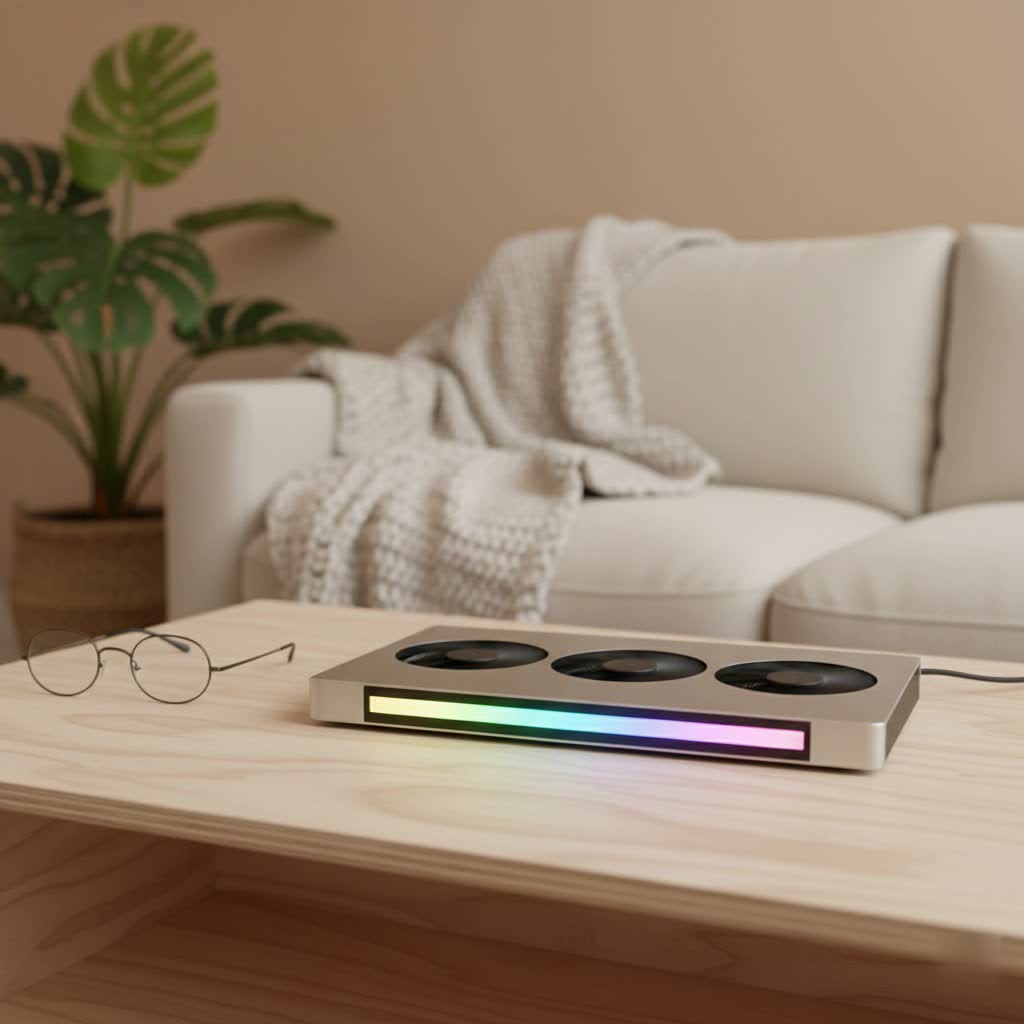
These are arguably the most common and often the most effective type of Dell laptop cooler. Active cooling pads feature one or more integrated fans that actively push cool air towards your laptop’s underside.
- Description: You’ll find models with a single large fan (often 120mm to 200mm) designed to provide broad airflow, or multiple smaller fans (e.g., 70mm) that can be strategically placed to target specific hot spots on your Dell. Many also come with adjustable fan speeds and even RGB lighting for an aesthetic touch.
- Pros: They offer direct, active cooling, leading to the most significant temperature drops. Modern designs prioritize powerful airflow while keeping noise levels reasonable.
- Cons: They require a USB port for power (sometimes two), and while quieter than internal laptop fans at full tilt, they still produce some noise.
|
Our Picks for the Best Laptop Cooler in 2026
As an Amazon Associate I earn from qualifying purchases.
|
||
| Num | Product | Action |
|---|---|---|
| 1 | KeiBn Laptop Cooling Pad, Gaming Laptop Cooler 2 Fans for 10-15.6 Inch Laptops, 5 Height Stands, 2 USB Ports (S039) |

|
| 2 | AICHESON Laptop Cooling Pad 5 Fans Up to 17.3 Inch Heavy Notebook Cooler, Blue LED Lights, 2 USB Ports, S035, Blue-5fans |
|
| 3 | Kootek Laptop Cooling Pad, Laptop Cooler with 5 Quiet Fans for 12\"-17\" Computer PC Notebook Gaming Laptop Fan, Height Adjustable Laptop Cooling Stand Laptop Accessories, Blue |
|
| 4 | Laptop Cooling Pad, Laptop Cooler 6 Quiet Fans for 12\"-17\" Laptops, Gaming Laptop Fan Cooling Pad with 5 Height Adjustable, Slim Portable USB Powered, 2 USB Ports & Phone Holder |
|
| 5 | havit HV-F2056 15.6\"-17\" Laptop Cooler Cooling Pad - Slim Portable USB Powered (3 Fans), Black/Blue |
|
| 6 | llano V12 Laptop Cooling Pad, Gaming Laptop Cooler Stand with 5.5inch Powerful Turbo Fan, Adjustable Speed, Touch Control, 3-Port USB A, for Fast Cooling Laptop 15.6-19in, Black (No RGB) |
|
| 7 | llano V12 RGB Laptop Cooling Pad, Gaming Laptop Cooler with 5.5 Inch Powerful Turbofan, Fast Cooling Laptop 15.6-21in, Adjustable Speed, Touch Control, LCD Screen, Black (RGB) |
|
| 8 | Razer Laptop Cooling Pad: Adaptive Smart - Intelligent Fan Control - Airtight Pressure Chamber - Fits Most Laptops & Macbooks 14” to 18\" - Preset & Custom Fan Curves - 3 Port USB Type A - Chroma RGB |
|
| 9 | Laptop Cooling Pad, Gaming Laptop Cooler for 13-19 Inch Laptops, RGB Lights Laptop Fan Cooling Pad with 3 Height Adjustable and 3 USB Ports, 4.72 Inch Large Turbo Fan, Max 3500RPM |
|
| 10 | ChillCore Laptop Cooling Pad, RGB Lights Laptop Cooler 9 Fans for 15.6-19.3 Inch Laptops, Gaming Laptop Fan Cooling Pad with 8 Height Stands, 2 USB Ports - A21 Blue |
|
Passive Cooling Stands: Simple Elevation, Subtle Relief
Sometimes, the simplest solutions are the best. Passive cooling stands don’t have any fans or electronic components.
- Description: These are essentially ergonomic stands that elevate your Dell laptop, creating a gap between its underside and the desk or surface. This elevation allows for much better natural convection, improving the laptop’s inherent airflow.
- Pros: They are completely silent, require no power, and are often lightweight and highly portable. They also provide ergonomic benefits, raising your screen to a more comfortable viewing height.
- Cons: The cooling effect is less pronounced compared to active pads, relying solely on natural air movement. They might not be sufficient for high-performance Dell laptops undergoing intensive tasks.
Vacuum Coolers (Side-Mounted): Targeting Exhaust Heat
Less common but highly specialized, vacuum coolers offer a different approach to cooling.
- Description: These devices typically attach to your Dell laptop’s exhaust vents, using a powerful fan to actively draw hot air out of the system.
- Pros: They directly target the hot air being expelled, which can be very effective for specific scenarios, especially with Dell gaming laptops that have robust side or rear exhausts.
- Cons: Compatibility is crucial; they must fit snugly over your Dell’s exhaust vent. They can also be quite noisy and might not be suitable if your Dell’s main heat issue stems from insufficient intake.
The Dell-Specific Guide: Choosing Your Perfect Cooler
Selecting the best Dell laptop cooler isn’t a one-size-fits-all endeavor. Given the variety of Dell models and their unique internal layouts, a few key considerations will ensure you pick a cooler that genuinely helps your machine.
Understanding Your Dell Laptop’s Ventilation
This is the most critical step. Before anything else, flip your Dell laptop over and identify where its air intake vents are located. For most Dell models, especially the XPS, Inspiron, and G-series gaming laptops, the primary air intake is typically on the bottom. The hot air is then usually exhausted through vents on the sides or the rear. However, some older or entry-level models might have exhaust vents on the bottom as well. Knowing this will guide your choice of cooler.
Key Considerations for Dell Users
- Fan Placement and Size: If your Dell has bottom intake vents, an active cooling pad with fans positioned directly beneath these vents will be most effective. A large central fan provides wide coverage, which is excellent for laptops with dispersed heat sources. Multi-fan setups can be adjusted to target specific hot areas like the CPU or GPU, which are often concentrated on one side of the laptop’s underside.
- Cooling Performance (CFM): Look for cooling pads that specify their Cubic Feet per Minute (CFM) rating for airflow. A higher CFM generally indicates more air being moved, translating to better cooling. While a budget cooler might offer a minimal 2-3°C drop, a high-performance gaming laptop cooler can provide a significant 7-10°C reduction, even higher in some cases.
- Laptop Size Compatibility: Ensure the cooler is designed to accommodate the physical dimensions of your Dell laptop. Most cooling pads specify a range, such as “for 12-inch to 17-inch laptops.” A pad that’s too small won’t provide adequate coverage, and one that’s too large might be unwieldy.
- Noise Level: Cooling pads with larger fans tend to be quieter at equivalent airflow levels than those with many small, high-RPM fans. If you frequently work in quiet environments or use your Dell for creative tasks, prioritize models known for their low noise output. User reviews are often a great source for real-world noise assessments.
- Build Quality & Ergonomics: A sturdy build, often featuring a metal mesh surface, enhances durability and helps with heat dissipation. Adjustable height settings are a huge plus, allowing you to achieve a comfortable typing and viewing angle while further improving airflow. Anti-slip pads are essential to keep your Dell secure.
- Extra Features: Many coolers include additional USB ports, which can be a lifesaver for Dell laptops with limited connectivity. RGB lighting is a purely aesthetic feature, popular with gaming setups, but doesn’t affect cooling performance.
Recommended Dell Laptop Cooler Features
While I won’t endorse specific product models, based on my extensive testing and experience, here are the characteristics and types of Dell laptop coolers that consistently deliver results:
- The Powerhouse Cooler: Look for active cooling pads with a single, large 200mm+ fan or multiple powerful fans. These are ideal for demanding Dell users, especially those with Dell XPS 15/17, Alienware, or Dell G-series laptops that push their hardware to the limit. They offer robust airflow and significant temperature reductions.
- The Balanced Performer: For everyday use, professional tasks, or lighter gaming on Dell Inspiron or Latitude models, a cooling pad with 3-5 well-sized fans (around 70-120mm) that balance airflow with a reasonable noise level is an excellent choice. Many offer adjustable fan speeds to find your sweet spot.
- The Portable & Practical: If you’re a student or professional constantly on the go with a Dell XPS 13 or a smaller Inspiron, consider a slim, lightweight passive stand or a thin active cooler with minimal bulk. Portability and quiet operation will be key here.
As a rule of thumb, always check the bottom of your Dell laptop. If you see mesh or open grilles, an active cooling pad blowing air upwards is likely to be beneficial. If your Dell mainly exhausts from the bottom (less common), you might need a different approach or a cooler that allows you to disable fans in certain areas.
Beyond the Cooler: Maximizing Your Dell’s Thermal Health
While a Dell laptop cooler is a fantastic tool, it’s part of a larger strategy for optimal thermal management. Think of it as a crucial team member, not the sole solution.
Essential Tips for Optimal Dell Laptop Cooling
- Regular Cleaning is Non-Negotiable: Dust is the archenemy of cooling. Over time, dust and debris accumulate inside your Dell’s fans and heatsinks, acting as an insulating layer and blocking airflow. Periodically (every 6-12 months, more often for dusty environments), use a can of compressed air to clear out the vents. For advanced users, a thorough internal cleaning by opening the laptop can make a world of difference.
- Always Use a Proper Surface: Avoid placing your Dell laptop directly on soft surfaces like beds, blankets, or even your lap for extended periods. These materials block the intake vents on the bottom, trapping hot air. Always use your Dell on a flat, hard surface, or ideally, on your cooling pad or stand.
- Optimize Software Settings: Many Dell laptops, especially gaming models, come with software (like Alienware Command Center) that allows you to control fan profiles. Experiment with “performance” or “cooling” modes when under heavy load. For advanced users, undervolting your CPU can significantly reduce heat generation without sacrificing much performance.
- Consider Thermal Paste Repaste (Advanced): If your Dell laptop is several years old and experiencing severe overheating, the factory thermal paste between the CPU/GPU and heatsink may have dried out. Replacing it with high-quality thermal paste can drastically improve heat transfer, though this is an advanced procedure best left to experienced users or professionals.
- Monitor Temperatures: Tools like HWMonitor or Dell’s own diagnostic utilities can help you keep an eye on your CPU and GPU temperatures. Knowing your temperatures allows you to understand when cooling is most needed and to assess the effectiveness of your cooling solutions.
Expert Advice from Tselk.com
“Effective thermal management isn’t just about preventing crashes; it’s about unlocking your Dell’s full potential,” says Johnathan Price, a lead thermal engineer at Tselk.com. “A well-selected laptop cooler, combined with good maintenance practices, empowers your Dell to perform consistently, ensuring you get the most out of your investment without compromising its lifespan.”
Dell Laptop Cooler FAQs
Q: Are laptop coolers bad for Dell laptops?
A: No, when chosen correctly, laptop coolers are not bad for Dell laptops. They are designed to improve airflow and reduce heat. The only potential issue could be if a cooler is blowing air directly into an exhaust vent, which is rare for most bottom-intake Dell models, or if it’s excessively dusty, blowing debris into the laptop. Regular cleaning mitigates this.
Q: How much can a good Dell laptop cooler lower temperatures?
A: A good quality active cooling pad can typically lower your Dell laptop’s CPU and GPU temperatures by 5-10°C, and sometimes even more under heavy load. The exact temperature drop depends on the cooler’s power, your laptop’s ventilation design, and the ambient room temperature.
Q: What’s the best way to clean my Dell laptop and cooler?
A: For your Dell laptop, use a can of compressed air to clear out the intake and exhaust vents regularly. Avoid strong vacuums as they can create static electricity. For your cooler, wipe down the surface with a damp cloth and use compressed air to clean dust from its fans and grilles.
Q: Do Dell gaming laptops need a cooling pad?
A: Dell gaming laptops (like Alienware or G-series) often benefit the most from cooling pads due to their high-performance components generating significant heat. A good gaming laptop cooler can help maintain boost clocks longer, prevent thermal throttling, and provide a more comfortable gaming experience.
Q: Can I use any cooling pad with my Dell laptop?
A: While many cooling pads are universal, it’s crucial to choose one that is compatible with your Dell’s size and, more importantly, aligns its fans with your laptop’s air intake vents. Always check the dimensions and fan layout of the cooler against your Dell model’s design.
Final Thoughts: Invest in Your Dell’s Longevity
Your Dell laptop is a significant investment, and its performance directly impacts your daily tasks, creativity, and entertainment. Proactive thermal management, starting with a suitable Dell laptop cooler and complemented by smart usage habits, is key to unlocking its full potential and extending its lifespan. Don’t let heat compromise your experience. Equip your Dell with the cooling it deserves, and it will serve you faithfully for years to come.
