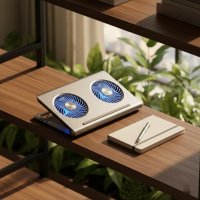
Ever felt your laptop getting uncomfortably warm, perhaps even scorching hot, during an intense gaming session or while crunching through a demanding work project? You’re not alone. Heat is the silent killer of laptop performance and longevity, often leading to frustrating slowdowns and, in the worst cases, hardware failure. But what if there was a simple yet powerful solution to keep your portable powerhouse running cool and efficient? Enter the laptop fan cooler pad, an essential accessory that every serious laptop user should consider. As a thermal engineer with over a decade of experience designing and testing cooling solutions, I’m here to tell you exactly how this seemingly simple device can transform your computing experience, ensuring your laptop remains chilled and ready for action.
Why Your Laptop Needs a Cooling Companion: Understanding Overheating
Modern laptops pack incredible processing power into increasingly thin and light chassis. While this makes them wonderfully portable, it also creates a significant challenge for thermal management. Components like the CPU (Central Processing Unit) and GPU (Graphics Processing Unit) generate a considerable amount of heat when under load. If this heat isn’t efficiently dissipated, your laptop’s internal temperatures rise.
The consequences of overheating are unpleasant, to say the least. First, your laptop’s performance takes a hit. To protect itself from damage, the system will automatically “throttle” its components, reducing their clock speeds and power consumption. This means slower frame rates in games, longer rendering times, and a general sluggishness in everyday tasks. Beyond performance, prolonged exposure to high temperatures can significantly shorten the lifespan of your laptop’s delicate internal components, potentially leading to costly repairs or even a complete system breakdown. This is precisely where a dedicated laptop fan cooler pad steps in, acting as an external helping hand to manage your laptop’s thermal load.
Decoding the Laptop Fan Cooler Pad: How It Works
At its core, a laptop fan cooler pad is designed to enhance your laptop’s natural cooling capabilities. Most pads employ a strategy known as “active cooling,” using one or more fans to generate additional airflow around and into your laptop’s chassis.
Think of it this way: your laptop already has internal fans that draw cool air in and expel hot air out. However, these internal systems can often struggle to keep up, especially when the laptop is placed on soft surfaces like a bed or lap, which obstruct the vents. A cooler pad creates a buffer, lifting the laptop off the surface and providing a consistent stream of cooler air. Depending on the pad’s design, its fans can either push cool air directly into your laptop’s intake vents or draw hot air away from the exhaust ports, or sometimes even both, creating a more efficient convection current. This increased airflow helps to dissipate heat from the laptop’s underside and internal components more effectively, leading to lower operating temperatures and, crucially, less thermal throttling.
Types of Laptop Fan Cooler Pads: Finding Your Perfect Match
Just like laptops themselves, laptop fan cooler pads come in a variety of designs, each with its own strengths. Understanding these differences is key to selecting the right one for your specific needs.
Single Fan Powerhouses
|
Our Picks for the Best Laptop Cooler in 2026
As an Amazon Associate I earn from qualifying purchases.
|
||
| Num | Product | Action |
|---|---|---|
| 1 | havit HV-F2056 15.6\"-17\" Laptop Cooler Cooling Pad - Slim Portable USB Powered (3 Fans), Black/Blue |

|
| 2 | AICHESON Laptop Cooling Pad 5 Fans Up to 17.3 Inch Heavy Notebook Cooler, Blue LED Lights, 2 USB Ports, S035, Blue-5fans |
|
| 3 | ChillCore Laptop Cooling Pad, RGB Lights Laptop Cooler 9 Fans for 15.6-19.3 Inch Laptops, Gaming Laptop Fan Cooling Pad with 8 Height Stands, 2 USB Ports - A21 Blue |
|
| 4 | llano V12 RGB Laptop Cooling Pad, Gaming Laptop Cooler with 5.5 Inch Powerful Turbofan, Fast Cooling Laptop 15.6-21in, Adjustable Speed, Touch Control, LCD Screen, Black (RGB) |
|
| 5 | Laptop Cooling Pad, Laptop Cooler 6 Quiet Fans for 12\"-17\" Laptops, Gaming Laptop Fan Cooling Pad with 5 Height Adjustable, Slim Portable USB Powered, 2 USB Ports & Phone Holder |
|
| 6 | KeiBn Laptop Cooling Pad, Gaming Laptop Cooler 2 Fans for 10-15.6 Inch Laptops, 5 Height Stands, 2 USB Ports (S039) |
|
| 7 | llano V12 Laptop Cooling Pad, Gaming Laptop Cooler Stand with 5.5inch Powerful Turbo Fan, Adjustable Speed, Touch Control, 3-Port USB A, for Fast Cooling Laptop 15.6-19in, Black (No RGB) |
|
| 8 | Laptop Cooling Pad, Gaming Laptop Cooler for 13-19 Inch Laptops, RGB Lights Laptop Fan Cooling Pad with 3 Height Adjustable and 3 USB Ports, 4.72 Inch Large Turbo Fan, Max 3500RPM |
|
| 9 | Kootek Laptop Cooling Pad, Laptop Cooler with 5 Quiet Fans for 12\"-17\" Computer PC Notebook Gaming Laptop Fan, Height Adjustable Laptop Cooling Stand Laptop Accessories, Blue |
|
| 10 | Razer Laptop Cooling Pad: Adaptive Smart - Intelligent Fan Control - Airtight Pressure Chamber - Fits Most Laptops & Macbooks 14” to 18\" - Preset & Custom Fan Curves - 3 Port USB Type A - Chroma RGB |
|
These pads typically feature one large fan, centrally located. They are often simpler in design and can be quite effective if your laptop’s primary intake vent is also centrally located. The advantage here is that a larger fan can often move more air at lower RPMs, potentially leading to a quieter operation compared to multiple smaller fans generating the same total airflow. They’re a good choice for general-purpose cooling and users who prioritize simplicity.
Multi-Fan Arrays
Pads with multiple, often smaller, fans are designed to provide widespread cooling coverage across the entire underside of your laptop. This configuration is particularly beneficial for laptops with several intake vents scattered across the base. While individual fans might be smaller, their combined effort can create a significant cooling effect. Some advanced multi-fan pads even allow you to control individual fan zones or speeds, giving you tailored airflow where your laptop needs it most.
Large Fan Specialists
Similar to single-fan powerhouses but often with even larger fan diameters, these pads are built for maximum airflow. They are especially popular with gaming laptops or high-performance workstations that generate substantial heat. While they can be incredibly effective at moving air, their larger size might make them less portable. Expect robust cooling, often at the expense of a slightly bulkier profile.
Ergonomic & Feature-Rich Pads
Beyond just cooling, many modern laptop fan cooler pads incorporate ergonomic considerations and additional features. These can include adjustable height settings, allowing you to angle your laptop for a more comfortable typing or viewing experience. Many also act as USB hubs, offering extra ports to connect peripherals, which is a blessing in today’s port-scarce laptop landscape. Some even come with customizable RGB lighting, adding a touch of flair to your setup. These pads cater to users who want both enhanced thermal management and an improved overall workspace.
How to Choose the Right Laptop Fan Cooler Pad for Your Setup
Selecting the ideal laptop fan cooler pad isn’t a one-size-fits-all scenario. It requires a bit of thoughtful consideration to ensure you get the most out of your investment.
Match It to Your Laptop Size
This might seem obvious, but it’s crucial. A cooler pad that’s too small won’t adequately support your laptop, potentially obstructing airflow or even causing instability. One that’s too large might be cumbersome. Most pads are designed to accommodate specific screen sizes (e.g., up to 15.6 inches, 17 inches, etc.). Always check the dimensions and recommended laptop size before purchasing to ensure a perfect fit that doesn’t block your laptop’s feet or internal vents.
Fan Configuration & Airflow
This is where the engineering really comes into play. Consider where your laptop’s intake vents are located. If they are primarily at the bottom-rear, a pad with fans aligned to push air into those specific areas will be most effective. Look at specifications like RPM (rotations per minute) for fan speed and CFM (cubic feet per minute) for the volume of air moved. Higher CFM generally means more airflow, but it’s important to balance this with noise levels.
Noise Levels: Silence is Golden?
More powerful fans often mean more noise. If you’re working in a quiet environment or using your laptop for tasks where audio is critical, fan noise can be a significant distraction. Many laptop fan cooler pads offer adjustable fan speeds, allowing you to dial down the noise when maximum cooling isn isn’t necessary. Check reviews for user feedback on noise levels, and if possible, listen to one in action before committing.
Ergonomics and Comfort
As mentioned earlier, many pads double as ergonomic stands. Adjustable height settings can help you achieve a more comfortable viewing angle, reducing strain on your neck and wrists during long computing sessions. Look for sturdy construction and anti-slip surfaces to keep your laptop secure. The material also matters; aluminum pads tend to dissipate heat more effectively than plastic ones.
Additional Features
Do you constantly find yourself short on USB ports? Many pads integrate a USB hub, which can be incredibly convenient. RGB lighting might be purely aesthetic, but for some, it’s an important part of a personalized setup. Think about what extra functionalities would genuinely enhance your daily usage.
“From my decade in thermal engineering, I’ve seen countless users overlook compatibility and fan placement. A good laptop fan cooler pad isn’t just about more fans; it’s about smart airflow where your laptop needs it most,” advises Dr. Anya Sharma, Lead Thermal Architect at Tselk.com. “Understanding your laptop’s specific vent layout is critical to choosing a pad that truly optimizes cooling efficiency.”
Maximizing Efficiency: Tips for Using Your Laptop Fan Cooler Pad
Having the best laptop fan cooler pad is only half the battle; using it correctly is crucial for maximizing its effectiveness.
- Proper Placement: Ensure your laptop is centered and stable on the pad. The cooling pad’s fans should ideally align with your laptop’s intake vents. Sometimes, rotating your laptop or adjusting its position slightly can make a big difference in airflow.
- Unobstructed Airflow: Make sure the cooling pad itself has clear access to ambient air. Don’t place it on a blanket or cushion that will block its own intake. A hard, flat surface is always best for both the pad and the laptop.
- Combine with Other Strategies: A cooling pad is a powerful tool, but it works best as part of a comprehensive thermal management strategy. Regularly clean your laptop’s internal fans and vents (a can of compressed air works wonders!). Consider reapplying high-quality thermal paste to your CPU and GPU if you’re comfortable with advanced maintenance.
- Use the Right Fan Speed: If your pad has adjustable fan speeds, use them wisely. Max speed for intense tasks, lower speed for lighter browsing or when noise is a concern.
Keeping It Cool: Maintenance and Longevity
Just like any other piece of computer hardware, your laptop fan cooler pad benefits from a bit of regular care to maintain its peak performance and extend its lifespan.
- Regular Cleaning: Dust is the enemy of airflow. Over time, the fans and grilles of your cooling pad will accumulate dust, which can reduce efficiency and even lead to fan failures. Use a soft brush, a microfiber cloth, or a can of compressed air to gently remove dust from the fan blades and grilles every few weeks or months, depending on your environment.
- Check Fan Functionality: Occasionally, check to ensure all fans are spinning freely and quietly. If you notice any unusual noises or a fan stops working, investigate the cause. Sometimes, a loose cable or a stubborn dust clump is the culprit.
- Proper Storage: When not in use, store your cooling pad in a clean, dry place to prevent dust accumulation. If it’s a portable model, consider a carrying case to protect it from bumps and dirt.
Debunking Myths: What a Laptop Fan Cooler Pad Can and Cannot Do
There are a few misconceptions floating around about laptop fan cooler pads that I, as an engineer, feel compelled to address.
- Myth: A cooling pad will completely eliminate all heat from my laptop.
- Reality: While incredibly effective, a cooling pad is a supplementary solution. It significantly reduces temperatures and minimizes throttling, but it won’t magically make your laptop run at ambient temperature during heavy load. High-performance components will always generate heat.
- Myth: Any cooling pad will work for any laptop.
- Reality: As discussed, compatibility in terms of size and fan placement is crucial. A poorly matched pad might do little to improve your laptop’s thermal situation, or worse, even impede its natural airflow if it blocks vents.
- Myth: More fans always equal better cooling.
- Reality: Not necessarily. The design and quality of the fans, their RPM, the direction of airflow, and their alignment with your laptop’s vents are often more important than just the sheer number of fans. A single, well-placed, high-quality fan can sometimes outperform several small, weak fans.
Frequently Asked Questions About Laptop Fan Cooler Pads
Q1: Do laptop fan cooler pads actually work?
Yes, absolutely! A well-chosen laptop fan cooler pad can significantly lower your laptop’s operating temperatures, reducing thermal throttling and improving sustained performance, especially during demanding tasks like gaming or video editing. The additional airflow directly aids your laptop’s internal cooling system.
Q2: How much temperature drop can I expect from a laptop fan cooler pad?
The exact temperature drop varies greatly depending on your laptop model, the cooler pad’s design, and the ambient temperature. However, it’s common to see a reduction of 5°C to 15°C (9°F to 27°F) on CPU and GPU temperatures. In some cases, with optimal setup, the impact can be even more substantial.
Q3: Is a multi-fan laptop fan cooler pad always better than a single-fan one?
Not necessarily. While multi-fan pads offer broader coverage, a single large, powerful fan can sometimes be more effective if it’s perfectly aligned with your laptop’s main intake vents. The quality, design, and precise positioning of the fans matter more than just their quantity.
Q4: Can a laptop fan cooler pad damage my laptop?
No, when used correctly, a laptop fan cooler pad will not damage your laptop. In fact, by keeping temperatures lower, it helps to protect your laptop’s components from heat-related degradation, potentially extending its lifespan. Ensure the pad is stable and doesn’t block any essential ports or exhaust vents.
Q5: How often should I clean my laptop fan cooler pad?
It’s a good practice to clean your laptop fan cooler pad every 1 to 3 months, depending on how dusty your environment is and how frequently you use it. Regular cleaning prevents dust buildup, which can reduce the pad’s efficiency and cause its fans to work harder or become noisy.
Q6: Are laptop fan cooler pads necessary for all laptops?
They are not strictly “necessary” for all laptops, especially if you only perform light tasks like web browsing or word processing. However, for users who push their laptops with gaming, video editing, 3D rendering, or other intensive applications, a laptop fan cooler pad becomes a highly recommended accessory to maintain performance and hardware health.
Conclusion
In the demanding world of modern computing, keeping your laptop cool is not just a luxury; it’s a necessity for optimal performance and longevity. The laptop fan cooler pad, often underestimated, stands as a crucial line of defense against the perils of overheating. From extending the lifespan of your valuable hardware to preventing frustrating performance throttles, the benefits are clear. By understanding how these pads work, knowing what to look for, and implementing smart usage and maintenance practices, you can ensure your laptop remains a cool, reliable workhorse or gaming beast for years to come. Don’t let heat compromise your computing experience; invest in the right cooling solution and let your laptop breathe easy. For more in-depth insights into laptop thermal management and accessories, keep an eye on Tselk.com – your trusted source for all things cool!
Get our weekly buyer guide
Practical specs, not advice. Unsubscribe anytime.