If you’re like me, you probably push your laptop pretty hard. From intense gaming sessions and demanding video editing to juggling countless browser tabs for work, our trusty machines often bear the brunt of our digital lives. And just like us, when they work too hard, they start to feel the heat. That’s where a good Laptop Fan Cooler Stand comes in – not just a fancy accessory, but a vital tool to keep your laptop running cool, stable, and performing at its peak.
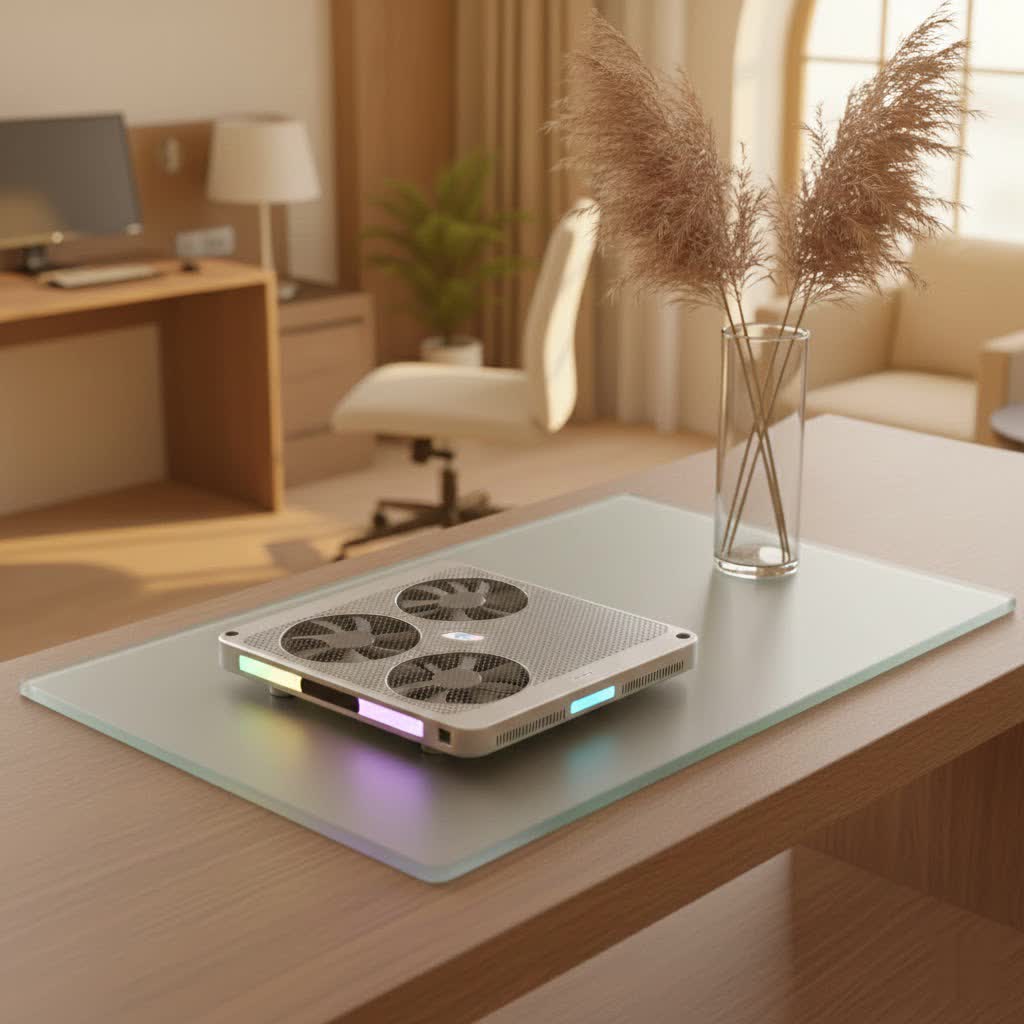
As someone who’s spent over a decade deep in the trenches of thermal engineering, designing and testing cooling solutions, I can tell you that heat is the enemy of performance and longevity. A well-chosen laptop fan cooler stand can make a dramatic difference, preventing thermal throttling, extending your laptop’s lifespan, and even improving your comfort. Let’s dive into everything you need to know to pick the perfect cooling companion for your portable powerhouse.
Why Your Laptop Needs a Cooling Boost
Before we get into the specifics of stands, let’s talk about why your laptop might be getting hot in the first place. Modern laptops pack powerful components into increasingly thin chassis. While manufacturers do their best with internal cooling, there’s often a limit to what they can achieve, especially under sustained heavy loads. When your CPU and GPU get too hot, they automatically reduce their clock speeds to prevent damage – a process known as thermal throttling. This means slower performance, choppy gameplay, and frustrating lags.
Beyond performance, excessive heat can prematurely age your laptop’s internal components, leading to potential hardware failures down the line. A laptop fan cooler stand provides an external layer of defense, actively dissipating heat and ensuring optimal airflow, which is critical for maintaining healthy operating temperatures.
Understanding the Different Types of Laptop Fan Cooler Stands
Not all cooling solutions are created equal. When it comes to a laptop fan cooler stand, you’ll primarily encounter two main categories, each with its own advantages:
Active Cooling Pads with Fans
These are the most common and often the most effective. They feature one or more fans (sometimes large, sometimes multiple smaller ones) that push cool air towards your laptop’s underside or pull hot air away.
- Multi-Fan Stands: Often come with two to four fans, sometimes configurable to target specific hot zones on your laptop. They offer good overall cooling and airflow.
- Large Single Fan Stands: Feature one massive fan designed to cover a broad area, providing a more consistent cooling effect across the entire bottom of your laptop.
- Vacuum Coolers (Side-Mounted): While not strictly a “stand,” these attach to your laptop’s exhaust vent and actively pull hot air out. They can be incredibly effective for specific hotspots but don’t provide the ergonomic benefits of a stand.
|
Our Picks for the Best Laptop Cooler in 2026
As an Amazon Associate I earn from qualifying purchases.
|
||
| Num | Product | Action |
|---|---|---|
| 1 | KeiBn Laptop Cooling Pad, Gaming Laptop Cooler 2 Fans for 10-15.6 Inch Laptops, 5 Height Stands, 2 USB Ports (S039) |

|
| 2 | Laptop Cooling Pad, Gaming Laptop Cooler for 13-19 Inch Laptops, RGB Lights Laptop Fan Cooling Pad with 3 Height Adjustable and 3 USB Ports, 4.72 Inch Large Turbo Fan, Max 3500RPM |
|
| 3 | llano V12 Laptop Cooling Pad, Gaming Laptop Cooler Stand with 5.5inch Powerful Turbo Fan, Adjustable Speed, Touch Control, 3-Port USB A, for Fast Cooling Laptop 15.6-19in, Black (No RGB) |
|
| 4 | Razer Laptop Cooling Pad: Adaptive Smart - Intelligent Fan Control - Airtight Pressure Chamber - Fits Most Laptops & Macbooks 14” to 18\" - Preset & Custom Fan Curves - 3 Port USB Type A - Chroma RGB |
|
| 5 | AICHESON Laptop Cooling Pad 5 Fans Up to 17.3 Inch Heavy Notebook Cooler, Blue LED Lights, 2 USB Ports, S035, Blue-5fans |
|
| 6 | Laptop Cooling Pad, Laptop Cooler 6 Quiet Fans for 12\"-17\" Laptops, Gaming Laptop Fan Cooling Pad with 5 Height Adjustable, Slim Portable USB Powered, 2 USB Ports & Phone Holder |
|
| 7 | havit HV-F2056 15.6\"-17\" Laptop Cooler Cooling Pad - Slim Portable USB Powered (3 Fans), Black/Blue |
|
| 8 | ChillCore Laptop Cooling Pad, RGB Lights Laptop Cooler 9 Fans for 15.6-19.3 Inch Laptops, Gaming Laptop Fan Cooling Pad with 8 Height Stands, 2 USB Ports - A21 Blue |
|
| 9 | Kootek Laptop Cooling Pad, Laptop Cooler with 5 Quiet Fans for 12\"-17\" Computer PC Notebook Gaming Laptop Fan, Height Adjustable Laptop Cooling Stand Laptop Accessories, Blue |
|
| 10 | llano V12 RGB Laptop Cooling Pad, Gaming Laptop Cooler with 5.5 Inch Powerful Turbofan, Fast Cooling Laptop 15.6-21in, Adjustable Speed, Touch Control, LCD Screen, Black (RGB) |
|
Passive Cooling Stands
These stands don’t use any active fans. Instead, they elevate your laptop, creating a space underneath for natural airflow. Some may incorporate aluminum or other thermally conductive materials to help draw heat away from the laptop’s chassis.
- Ergonomic Stands: Primarily designed to raise your laptop screen to a more comfortable eye level, reducing neck and wrist strain. The elevated position also offers incidental cooling by allowing better air circulation.
- Material-Based Stands: Made from materials like aluminum, which acts as a heatsink to absorb and radiate heat away from the laptop. They are quiet and require no power.
For maximum cooling performance, an active laptop fan cooler stand is usually the way to go, though passive stands offer excellent ergonomic benefits with a side of cooling.
Choosing the Right Laptop Fan Cooler Stand for Your Needs
Selecting the perfect laptop fan cooler stand involves considering several factors specific to your laptop and how you use it.
Laptop Size and Compatibility
First things first: does it fit? Most cooling stands specify the maximum laptop size they can accommodate. Ensure the stand is large enough for your laptop, but not so large that your laptop slides around. Pay attention to the stand’s design to make sure it won’t block your laptop’s intake or exhaust vents.
Number and Size of Fans
More isn’t always better, but it’s a good starting point.
- For general use and mild heating: A stand with one large fan or two smaller fans should suffice.
- For gaming or demanding tasks: Look for a laptop fan cooler stand with multiple, strategically placed fans, or a single powerful large fan, to ensure comprehensive cooling of critical components. Some advanced stands even let you adjust fan speeds or turn off individual fans.
Fan Speed and Noise Level
Fan speed, measured in RPM (revolutions per minute), directly relates to cooling power. Higher RPM generally means more airflow and better cooling. However, higher RPM also typically means more noise.
- Consider a stand with adjustable fan speeds if you need flexibility. You might crank it up during intense gaming and lower it for quieter work.
- Check reviews for noise levels. A “quiet” fan is subjective, but many manufacturers list noise in decibels (dB). Anything below 30-35 dB is generally considered very quiet.
Ergonomics and Adjustability
A good laptop fan cooler stand should also enhance your comfort.
- Height Adjustment: Multiple height settings allow you to position your screen at an optimal eye level, reducing strain on your neck and shoulders.
- Tilt Angle: Adjustable tilt angles can improve typing comfort and prevent wrist fatigue.
- Stability: Ensure the stand has non-slip pads and a robust design to securely hold your laptop.
Portability and Build Quality
If you frequently travel with your laptop, a lightweight and easily portable laptop fan cooler stand might be a priority. Some stands fold flat for easy storage. Regardless of portability, look for durable construction, often aluminum or high-quality plastic, that can withstand daily use.
Extra Features
Many stands come with thoughtful additions:
- USB Hubs: Some stands include built-in USB ports, expanding your connectivity, especially useful for laptops with limited ports.
- LED Lighting: Aesthetic appeal, though not crucial for performance.
- Cable Management: Grooves or clips to keep your cables tidy.
- Dust Filters: A rare but useful feature for preventing dust buildup in your laptop’s vents.
According to thermal expert Dr. Anya Sharma, “The best laptop cooler isn’t just about raw fan power; it’s about intelligent design that harmonizes with your laptop’s existing airflow, ensuring efficient heat removal without creating dead zones. Always aim for a stand that complements your laptop’s specific vent layout.”
Using and Maintaining Your Laptop Fan Cooler Stand
Getting the most out of your laptop fan cooler stand involves a bit more than just plugging it in.
Optimal Placement
Position your laptop centrally on the stand. If your stand has adjustable fans, try to align them with your laptop’s intake vents (often on the bottom). This maximizes the flow of cool air directly into your laptop’s internal cooling system.
Powering Your Stand
Most fan cooler stands are powered via a USB cable, connecting directly to your laptop. Some might use an external power adapter, which can be useful if your laptop’s USB ports are all in use or if you want to avoid draining laptop battery.
Cleaning and Maintenance
Just like your laptop, your cooler stand needs occasional cleaning. Dust can accumulate on fan blades and grilles, reducing airflow and efficiency.
- Regular Dusting: Use compressed air or a soft brush to remove dust from the fans and vents.
- Wipe Down Surfaces: A damp cloth can keep the rest of the stand clean.
- Check Cables: Ensure all connections are secure and cables aren’t frayed.
Tips to Further Improve Your Laptop’s Thermal Performance
While a laptop fan cooler stand is a fantastic start, here are some additional tips to keep your machine frosty:
- Clean Your Laptop’s Internal Fans: Periodically clean your laptop’s internal cooling fans and heatsinks. This might involve opening the laptop (if you’re comfortable) or taking it to a professional.
- Ensure Proper Airflow: Avoid using your laptop on soft surfaces like beds, blankets, or pillows, as these can block the vents. Always use it on a hard, flat surface.
- Optimize Power Settings: In your operating system’s power settings, choose a “balanced” or “power saver” plan when high performance isn’t needed. This can reduce CPU usage and, consequently, heat.
- Close Unused Applications: Running too many programs in the background puts unnecessary strain on your CPU and GPU, generating more heat.
- Reapply Thermal Paste: For advanced users, replacing the thermal paste on your CPU and GPU every few years can significantly improve heat transfer to the heatsinks.
Checklist for a Cooler Laptop
- [ ] Use a laptop fan cooler stand.
- [ ] Keep laptop vents clear of obstructions.
- [ ] Regularly clean laptop and stand fans.
- [ ] Avoid using laptop on soft surfaces.
- [ ] Optimize power settings for tasks.
- [ ] Close unused background applications.
Frequently Asked Questions About Laptop Fan Cooler Stands
Q: Do laptop fan cooler stands actually work?
A: Yes, they absolutely do! A good laptop fan cooler stand provides additional airflow to your laptop’s underside, helping to dissipate heat more effectively. This can lower internal temperatures by several degrees, preventing thermal throttling and improving performance, especially during demanding tasks like gaming or video editing.
Q: How much can a laptop fan cooler stand lower my laptop’s temperature?
A: The temperature drop varies depending on the stand’s design, your laptop’s model, and its original thermal performance. Typically, you can expect a decrease of 5-15°C (9-27°F) in CPU and GPU temperatures under load. Some high-performance stands can achieve even greater reductions.
Q: Is it safe to leave my laptop on a cooler stand all the time?
A: Yes, it is generally safe to leave your laptop on a cooler stand permanently. In fact, continuous use ensures your laptop always benefits from improved airflow, contributing to its long-term health and stability. Most stands are designed for prolonged operation.
Q: Should the fans push air in or pull air out?
A: For most laptop fan cooler stand designs, the fans are designed to push cool air towards your laptop’s underside. This creates a positive pressure, forcing cooler air into your laptop’s intake vents and helping its internal fans to expel hot air more efficiently. Some specialized stands or vacuum coolers might be designed to pull air out, but standard pads usually push air in.
Q: What’s the best material for a laptop cooler stand?
A: Aluminum is often preferred for laptop fan cooler stand surfaces because it’s an excellent thermal conductor. It helps to draw heat away from the laptop’s chassis and radiate it into the environment. However, many effective stands use high-quality plastic, especially for the main body, keeping them lightweight. The most important factor is effective fan placement and airflow.
Q: Can a laptop cooler stand extend my laptop’s lifespan?
A: By keeping your laptop’s internal components at lower operating temperatures, a laptop fan cooler stand can absolutely contribute to extending its lifespan. Excessive heat is a major factor in component degradation over time, so mitigating it can reduce wear and tear and prevent premature hardware failures.
Conclusion
Investing in a quality laptop fan cooler stand is one of the smartest decisions you can make for your portable computer. It’s more than just a peripheral; it’s a performance enhancer and a longevity protector. By understanding the different types, knowing what features to look for, and maintaining your setup, you’ll ensure your laptop runs cooler, faster, and more reliably for years to come. Don’t let heat slow you down – give your laptop the cooling support it deserves and unlock its full potential. Find the perfect stand for your setup today and experience the difference!
